In an opening session of the Research methods and data analysis module at the University of Reading, I used edauthor to help students get to know one another. “Feeling connected to people” came first when students ranked what would be most useful to them. Other themes included building study routines, trying new activities and exploring their future. Seeing responses appear gave us something to discuss and helped students discover things they had in common.
A whole-room result can open a conversation. Exploring responses group by group can take that conversation further.
Why groups should do more than organise the room
Putting people into groups is only the beginning. What matters is what they do, discuss and discover together.
A useful group task gives people a shared decision and a reason to explain their reasoning. Different starting points can make a trade-off visible. A follow-up question can invite students to reconsider an assumption or ask what evidence is missing.
Ask participants to explain differences within their own group, rather than treating a group average as a settled position.
Create groups in the host interface
Prepare two distinct Rank Items Activity Cards with identical questions and options, plus a Thought Bubble for reflection, before inviting participants.
- Open your session. Sign in, open Create a Session and select Create Session Now, or open the session you have prepared. Have your Activity Cards ready in that session.
- Invite participants. Display the session QR code, share its joining link, or ask people to enter the session code at the joining page. Participants enter a name or nickname and select Join Session. They do not need participant accounts. Check that people have appeared in the participant list before splitting; at least two participants are needed to enable Split.
- Select Split. The host opens Configure Split. For a predefined set of groups, choose Number of groups, then Group label format: numbers, letters or Custom names. The initial number control accepts 2–20 groups.
- Choose a Split method. Use the options below. For the café workshop, choose four groups, Custom names and Balanced. Under Customise each group, enter the four stakeholder names. The optional Instruction / message for this group can explain a role; tell everyone that it is an assigned perspective.
- Select Create New Split and check membership. With automatic allocation, participants see their assigned group. With Self-select, they choose from the groups you created. With Self-create, they enter a group name instead; matching names join the same group. Check the host group panels and ask participants to confirm the group shown on their devices.
| Split method | What happens | A teaching use |
|---|---|---|
| Balanced | Participants are shuffled and distributed across the chosen groups, keeping sizes as even as possible. | Mixed discussion groups without asking students to choose. |
| Random | The current implementation also shuffles participants and distributes them evenly. It does not sort by ability or background. | Automatic allocation when particular membership is unimportant. |
| Self-select | Participants choose among host-defined groups. Equal sizes are not guaranteed. | Choosing a topic or joining an existing team. |
| Self-create | Participants type a group name; matching ignores case and surrounding spaces. There is no initial group-number selection. | Students naming their own project teams. |
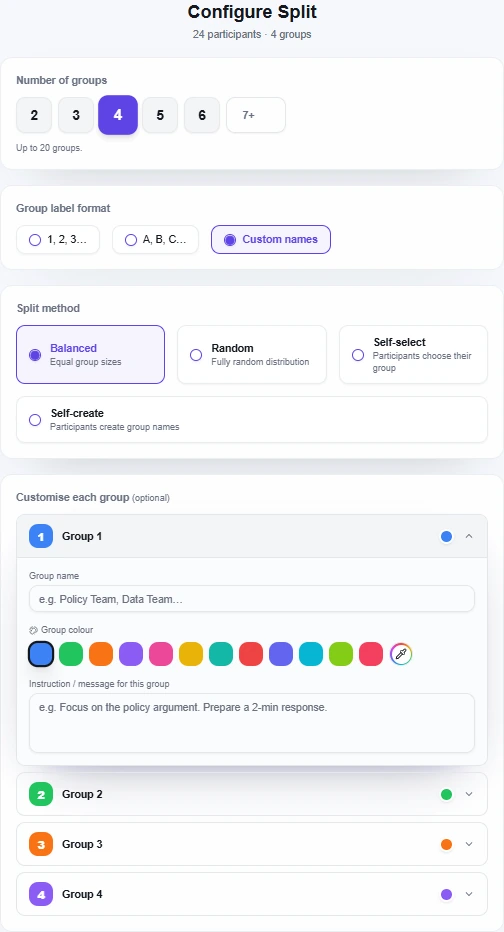
Before beginning, you can use Rename group in a group menu or Move to in a participant menu to adjust the allocation. These changes require unlocked groups. Lock keeps the group structure fixed; Unlock allows further changes. Participant switching depends on the host’s permissions, so do not assume everyone can move freely.
Create groups from Activity Card responses
You can also let an opening question shape the groups. With Use card results, edauthor turns Multiple Choice answers or the two sides of a Bipolar item into group membership. This gives students a shared starting point to explore, then a reason to hear from another group.
- Collect individual answers in the main room. Use a non-anonymous Multiple Choice or Bipolar card in your live session. If the session is already split, un-split it before creating groups from results.
- Open Card controls, then Use card results. The Create groups from answers dialogue previews the groups and participant counts. Multiple Choice proposes a group for each answer option; you can remove proposed groups. For Bipolar, choose the Bipolar item to use: participants are grouped by the side they selected.
- Review and select Create groups. Choose letters or numbers under Group names. Check the unassigned count before confirming. The current activity stays open and its responses are preserved.
- Continue with those groups. Ask them to discuss their reasoning, then open a follow-up Activity Card. Membership carries forward, so you can collect fresh responses and explore supported results by group.
For example, ask “Which priority should the café address first?” using the four priorities below as Multiple Choice options. Form groups from those answers, ask each group to develop its reasoning, then invite others to question it. This is an alternative to assigning stakeholder roles.
With multiple-answer questions, each participant joins one of their chosen groups. Unanswered or excluded choices, neutral Bipolar responses and late arrivals remain unassigned; participants can choose a group, or the host can assign them. Groups need not be equal in size. Use a fresh follow-up card to collect responses with the new membership; the opening answers keep their original group record.
Connect membership to activities and responses
Group membership belongs to the session and continues when you move between Activity Cards. For a comparable first and second response, keep the same membership throughout. Responses retain the group recorded when they were submitted; moving someone later does not rewrite their earlier answer’s group.
For Rank Items, each participant arranges the priorities and submits their own response. Group discussion does not turn those individual answers into a single team answer. Make that distinction explicit before opening the activity.
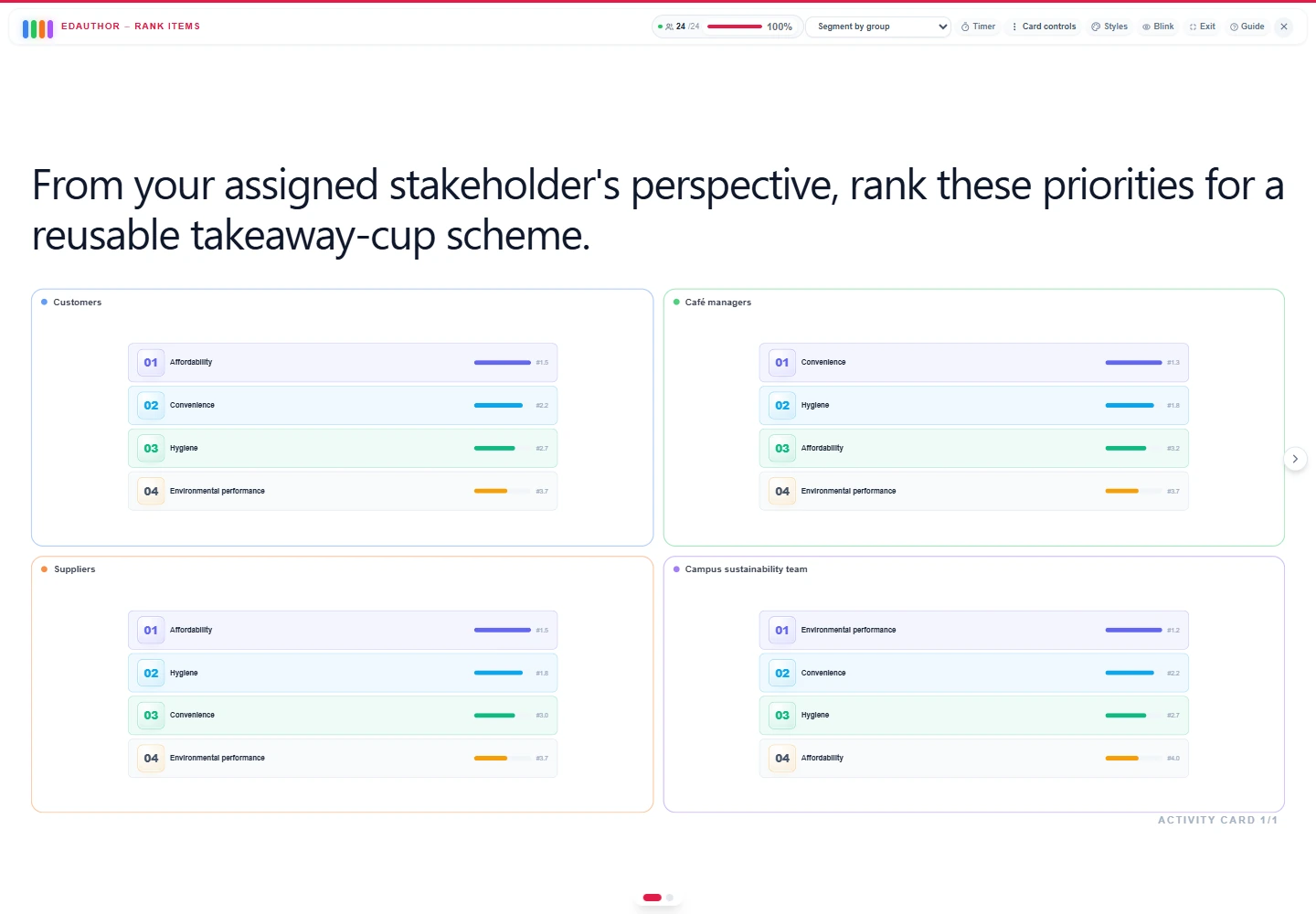
Open the selected card’s results in the host workspace, or use Immersive mode to present them. Open Response view. Select a group name to focus on it, or Segment by group to see separate panels. Rank Items, Thought Bubble, Word Mountain, Scale, Bipolar and Slider support group panels, with four shown at a time. Previous groups and Next groups page through larger sets. Multiple Choice also supports segmentation, using a segmented chart rather than this panel layout.
Ranking results order items by their average position: a smaller number means a higher priority. That summary does not mean every member chose that order.
Select All responses to return to the whole-session result without dissolving the groups. The supported view depends on the card: do not expect every Activity Card to offer the same controls. See the Activity Card manual for the wider collection.
A collective-response variation: Quiz and Scratch Card support leader-mediated group responses when a valid group leader is assigned. The host can choose Set as Group Leader from a participant’s menu. This is separate from individual ranking and reflection responses. Agree how the group reaches its answer, and allow the leader to report unresolved disagreement too.
Try a 30-minute campus café workshop
Here is a suggested teaching activity you can adapt for your own seminar.
A campus café is considering a reusable takeaway-cup scheme. What should it prioritise, and how might different stakeholders assess the same decision?
Imagine 24 participants in four groups of six: customers, café managers, suppliers and a campus sustainability team. These are assigned discussion roles, not classifications of students. Explain the roles aloud or on a shared card; you can also put a short reminder in each group’s instruction field.
| Stage | Time | Facilitator action | Card or tool | Discussion purpose |
|---|---|---|---|---|
| Join and introduce | 3 minutes | Invite participants and explain the café decision. | Session joining | Establish the shared question. |
| Form groups | 3 minutes | Create four groups and explain the stakeholder roles. | Split | Give each group a perspective to explore. |
| First response | 4 minutes | Ask everyone to rank individually before discussion. | Rank Items: first card | Preserve starting priorities. |
| Discuss | 6 minutes | Ask groups to identify a trade-off and missing evidence. | Spoken or shared prompt | Make reasoning explicit. |
| Second response | 4 minutes | Open a separate card with exactly the same question and options. Everyone answers individually again. | Rank Items: second card | Invite reconsideration. |
| Compare | 7 minutes | Show group results and revisit the first card. Ask for explanations. | Response view | Explore agreement and differences. |
| Reflect | 3 minutes | Invite one individual closing reflection. | Thought Bubble | Notice another perspective. |
Ask the same ranking question twice
Use this prompt on both Rank Items cards:
From your assigned stakeholder's perspective, rank these priorities for a reusable takeaway-cup scheme: affordability, convenience, environmental performance, and hygiene.
Enter those four priorities as separate items, in the same initial order on both cards. Explain that participants should place their highest priority first. Everyone submits individually, including after the discussion; nobody should submit on behalf of all six group members in this example.
Keep the first card and its responses intact. Do not reset it to collect the second round. Two distinct cards preserve the starting point and allow you to revisit it.
Give the discussion a decision to explore
Display or read this prompt:
Which trade-off is hardest for your group? What evidence would help you make a better decision?
Allow quiet thinking time before asking people to speak. Encourage students to distinguish a plausible stakeholder concern from an unsupported assumption. They can disagree within their assigned role; they do not need to manufacture consensus.
Compare results, then ask for reasons
On the second ranking card, choose Segment by group. With four groups, the four panels appear together. Check the overall response count and ask each group whether anyone has not submitted. These panels do not display per-group response counts; the participation indicator is session-wide.
Ask:
Where do groups agree? Where do their priorities differ? Is there disagreement within a group? Which reason from another group challenged your thinking?
Return to the first ranking card and select the same view to revisit the starting results. This is a manual facilitator comparison across two activities. It is not automatic before-and-after tracking or a measurement of each individual’s change.
Finish with a Thought Bubble, answered individually:
What is one perspective you had not considered before this discussion?
Read a few contributions and invite explanation.
Facilitate what the display cannot explain
Give clear instructions about the perspective to adopt, the time available and who submits. Check understanding before opening responses. A brief pause for individual thinking can give quieter students something prepared to contribute.
Check connection difficulties, incomplete submissions and response counts before interpreting differences. Six assigned members does not mean six submitted answers.
Invite minority reasoning: “Does anyone in this group see it differently?” A group summary can conceal disagreement. Equally, a small numerical difference may not deserve a long explanation. These are small classroom contributions, not findings about a wider population or evidence of students’ personal beliefs.
Frequently asked questions
Do participants need accounts?
No. They can join with a QR code, joining link or session code, then enter a name or nickname. The lecturer uses a host account. See no-account joining.
Is there a limit of 20 groups?
The Configure Split number control offers 2–20 groups initially. That is not a blanket session maximum: Self-create follows a different flow, and hosts can add groups afterwards. Plan this workshop around four groups and check your session’s available controls and plan capacity before inviting a class.
Can I choose how students are allocated?
Yes. Split offers Balanced, Random, Self-select and Self-create. Alternatively, Use card results creates groups from Multiple Choice answers or the two sides of a selected Bipolar item, ready for follow-up activities. This requires non-anonymous responses in an unsplit live session. Neutral or unanswered responses remain unassigned for you or participants to resolve. You can also move participants and rename groups while the group structure is unlocked.
Can I compare groups simultaneously?
On supported panel-based results, including Rank Items and Thought Bubble, Segment by group shows up to four panels together. Larger sets use paging. A named group view focuses on one group; All responses restores the whole-session result.
Does each group submit one answer?
Not in this ranking workshop. Each participant submits individually, and the host views responses by group. Leader-mediated collective responses are supported for Quiz and Scratch Card when a valid group leader is assigned.
Build the conversation
Choose a question worth discussing, make participation instructions clear and leave room for students to explain what the display leaves unsaid.
Create the groups. Make their thinking visible. Build the conversation.