Make a five-stop course
Imagine a participant has reached a gold key. Their phone asks, “Which source contains the original observations?” They remember a clue they found at Water. They scratch A field notebook, collect the key and steer towards Finish. This walkthrough shows you how to build that short research-skills activity. You can use the same pattern for any topic where learners use evidence to make a decision.
- In your card set, choose Add activity and select Playground. In Contents, give the card the title Find the original source. For Question / Prompt, try Visit Water for a clue. Cross Fire, collect the evidence key, then reach Finish.
- In the Playground menu, choose Blank playground. Select Expand playground editor for more room. Choosing another setup loads its layout into the card, so save any course you want to keep before switching.
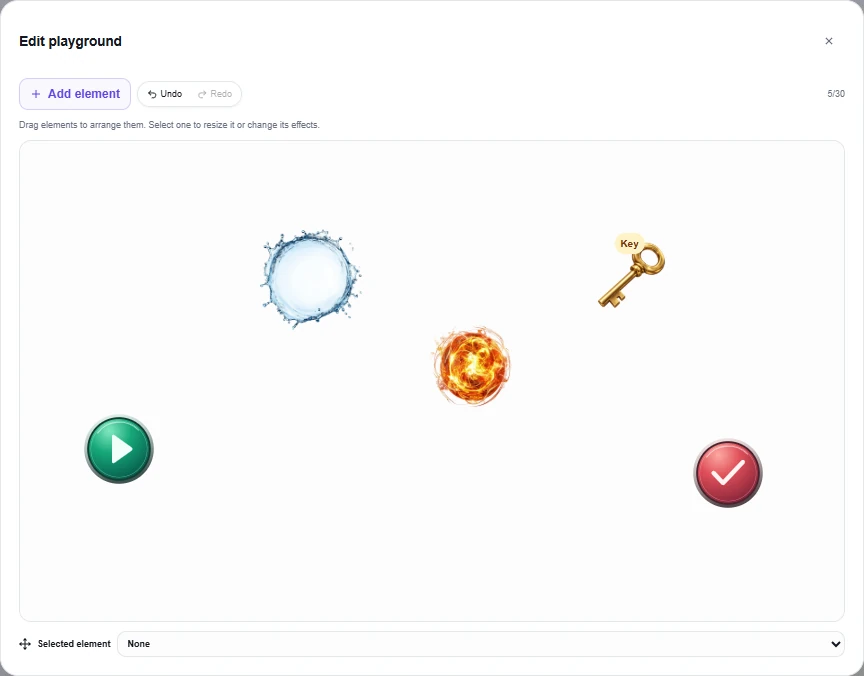
- Select Add element, choose Start, and drag it towards the lower left. Add Water above and to its right, Fire near the centre, Key beyond Fire, and Finish towards the lower right. Choosing Key opens its question editor. Use the question in the next section, then select Save key.
- Leave enough room around each stop for a circle to approach it. For this first course, leave the edges open so a participant can steer around a missed stop and try again. Later, you can use Wall or Rock to shape a passage and make the crossing compulsory.
- Attach the clue to Water as described below. Keep Fire as plain fire for this first run. Someone who visits Water can use its clue at the key and its wet effect at the crossing.
Write a key that rewards reasoning
Select Key in the palette, or select an existing object and open Element options → Make a key. On a computer you can also right-click the object to open its options. A key is a Scratch Card question. Every saved key on the course is required at Finish.
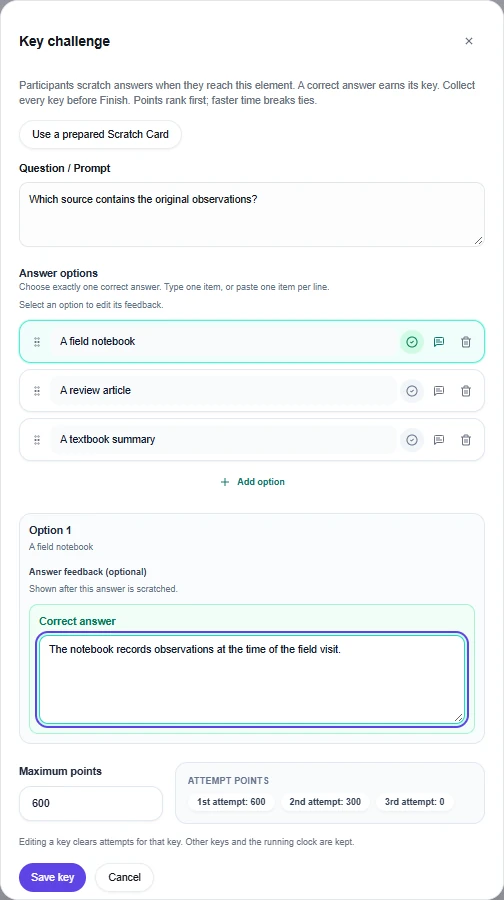
- Question / Prompt. Ask Which source contains the original observations?
- Answer options. Enter A field notebook, A review article and A textbook summary. Mark the notebook as correct. A key accepts two to six answers and exactly one correct choice.
- Answer feedback (optional). Select each option to edit its feedback. For the notebook, try The researcher wrote down what they saw during the field visit. For the review, try A review draws together earlier studies. Which source was written at the site? That gives the learner a reason to reconsider.
- Maximum points. Enter 600. With three options, the Attempt points preview shows 600 for the first scratch, 300 for the second and 0 for the third. A correct answer still earns the key on the last attempt.
- Select Save key. Reopen it with Edit key challenge. Aim to settle the wording before class because editing a key during a run clears attempts for that key.
Already have the question in a card set? Choose Use a prepared Scratch Card, search for it, and select it. Review the copied question, answers, feedback and points, then choose Save key. The original Scratch Card remains available for other lessons. Scratch Card guide
Give an element a clue or an activity
Select Water, open Element options, then Add element activity. The simplest way to teach the clue is to write a multiple-choice question directly here. Ask Which detail would you record during a field visit? Offer The water level I observed today and An author’s summary of ten studies. Mark the first answer as correct.
Set Activity points to 100. In Completion clue or feedback, write A field notebook records what the researcher observed at the time. Look for that kind of source at the gold key. Select Save activity. A participant who completes this station receives the clue and gets wet. They can reopen the clue from the bag on their controller.
You can also select Use a prepared activity card to copy material from a card set. Choose the format to match what the learner needs to do.
- Share file, Picture / Video or Media & Text can supply evidence, such as a scan of a field notebook. Put the detail learners should notice in the caption, text or completion clue.
- Flip Cards let participants explore every card before collecting the element. Put a meaningful detail on each back.
- Rank Items asks for a sequence. Set Correct ranking in the element editor. The completion clue appears after the order is correct.
- Space Card reveals numbered host pins in sequence. Use a short trail with a clue at the last pin. An embedded trail supports up to 12 host pins.
- Multiple Choice and Scratch Card can act as gates. For a Fire gate with a question, put a clue at Water, then ask learners to apply it at Fire.
An object can hold a key challenge or an element activity. Use two objects when you want learners to find the clue in one place and earn the key in another. A plain object can carry Element points, awarded once on contact or after a safe fire crossing. An attached activity uses its own points. A wrong answer to an element activity forfeits that activity’s points for the run. The learner can retry and progress, and keeps points earned elsewhere.
Choose how the route behaves
Select an object and open Element options to adjust its effects. Give each obstacle a teaching purpose. For example, a water stop before a fire gate gives a learner a reason to pause and inspect a source.
| Element | What the participant experiences | How to use it |
|---|---|---|
| Water | Completing any attached activity makes the circle wet. Water also washes away honey. Wetness lasts until a fire crossing. | Put the clue on the approach to the gate. Leave a route back for another visit. |
| Fire | A wet participant can cross plain fire once. A dry participant returns to Start and the timer keeps running. Fire with a question requires a correct answer, even when wet, for one crossing. | Use plain fire to check preparation. Add a question when you want to check understanding. |
| Honey | Movement slows, but the circle resists wind and gravity until water washes it clean. | Offer a slow, sheltered route past a strong field. |
| Wind and Gravity | Wind pushes circles away. Gravity attracts them. Completing an activity on a gravity point grants protection from that point for the rest of the run. | Set Strength, Reach and Affected side. Leave space to approach the activity. |
| Oil | The circle glides and steering stays slippery for five seconds after leaving. | Put oil in a broad section where there is room to correct course. |
| Walls and other objects | Solid blocks passage. Circles can push it lets participants move a solid object. Sticky briefly holds a circle for five seconds. | Leave a gap wide enough for the avatar. Use Honey for lasting protection from fields. |
Use the resize handle or Size slider to widen a stop. The Horizontal position and Vertical position sliders give finer control. A focused element can be nudged with the arrow keys. In its options you can rotate or flip artwork, change its layer, duplicate it, reset its size and position, or remove it. Undo and Redo help you try a layout. Add element → Your own image adds artwork from your media. A card can hold up to 30 elements, including its checkpoints.
Set the finish and decide what counts
The Start and Finish artwork already has its checkpoint role. For another image, select it and set Element options → Challenge point to Start or Finish. Include a Start when you want everyone to choose when their timer begins. With a Finish and no Start, timing begins on entry.
For the field-notebook course, leave Finish as a checkpoint. Reaching it with the key ends the run. For a final interpretation question, select Finish and choose Add final activity. Participants must then collect all keys and complete that activity before the clock stops.
Make the arithmetic clear before play. With a 100-point Water activity and a 600-point key, the example offers 700 points. A learner who earns the Water points and finds the key on the second scratch finishes with 400 points. Points determine the order first. A faster completion time breaks a tie. In the debrief, ask which detail helped participants recognise the original record.
Save the card or reuse the course
- Present this card in a set. Close the expanded editor and save your card set. When you present the Playground slide, its prepared layout opens inside that card. The main session playground is a separate space.
- Keep a reusable copy. In the card’s Contents, choose Save to Your playgrounds, give the setup a recognisable name and save it. In a live session, open Playground → Playground setups → Your playgrounds to find it. Later edits to the card stay in the card until you save another copy.
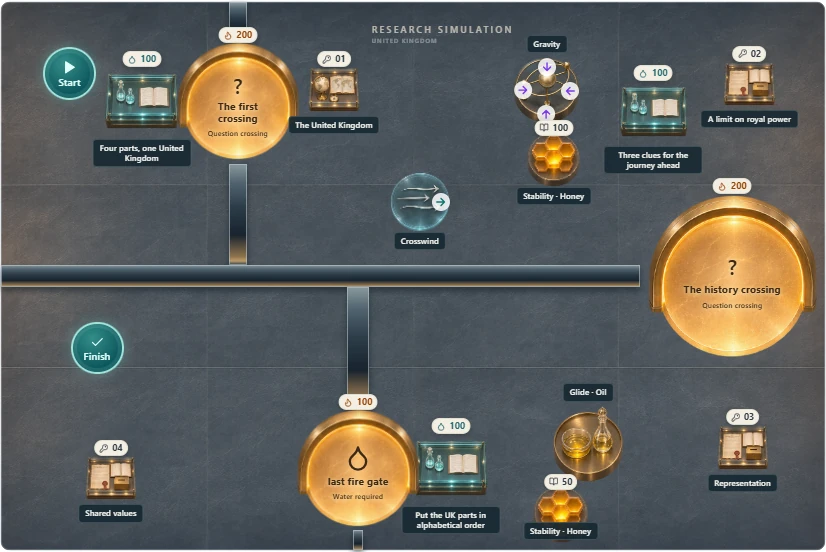
- Build from a finished course. In a new Playground card, use the Playground menu to choose a built-in country quest. The UK, Spain and Italy each have three levels. For a guided example, open United Kingdom · The four-key crossing. Inspect the Water clue near Start, the first Fire question and one of the four keys. Change one clue and its matching question together. For an account-owned setup, click Your playgrounds to load your saved choices, then choose one from the menu.
Run a one-participant rehearsal
- Present the card in a test session and join it from a second device as one participant. The editor preview is useful for checking placement. A live rehearsal lets you try movement, answers and scoring.
- On the host slide, choose Enable participant control. Bring everyone in places the session’s participants on the board. The host sees the shared course. The participant steers their own circle from the touchpad, sliding to move and lifting to pause.
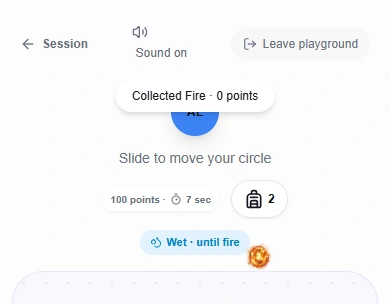
- At Start, check that Start quest and View quest rules appear on the device. Choose Start quest. Visit Water, complete the activity, then open the bag to read the clue again. Reviewing it leaves the score intact.
- Cross Fire and try Finish before collecting the key. The run should still be open. At the gold key, try one incorrect scratch and then the notebook. Check that the key counter advances and that you earned 300 points for it.
- Reach Finish again. Check the completion time and total against your expected score. On the host board, Completion stamps lists finished runs. If you added a final activity, test that the timer stops only after completing it.
When a rehearsal gets stuck
The phone is waiting for the host. Check that the host is presenting the Playground card and has selected Enable participant control on that slide. Use Bring everyone in if you need to place the circles.
The gold key looks right, but the question never opens. Check that the participant chose Start quest, then inspect the object in the editor. A saved challenge shows Edit key challenge. If you see Make a key, add the question, mark the correct answer and select Save key.
Someone got wet and still had to answer at Fire. Inspect the Fire element. When it has an activity, a correct answer opens the crossing. To make wetness the only requirement, use plain Fire and put the clue activity on Water.
Finish seems unreachable. Check the key counter, any final activity, and the gap between solid obstacles. Use Selected element to find a key behind artwork. Move overlapping stations apart and test the approach from both sides.
The live-session library shows an older route. Open the edited card and choose Save to Your playgrounds. Give the revised copy a distinct name so you can choose it when preparing your next session.