Give every answer a next step
Scratch Card is an original Activity Card in edauthor, an interactive learning and audience engagement platform. It combines a scratch-to-reveal answer with feedback for each option, further attempts and scores that reflect how many attempts were needed. Lecturers, teachers and facilitators can use it individually or with groups: members suggest answers and an assigned leader scratches the group's choice. You set one correct answer, write the feedback and decide when to reveal the room's results.
Imagine a seminar group agreeing on an answer, scratching it and seeing Not quite. That moment can open a useful conversation: which assumption should they reconsider? A well-written hint gives the group something to work with before its next attempt.
The images in this guide show example questions and responses. The suggested workshop below is ready to recreate with your own class or training group.
Build your first Scratch Card
- Add the card. In the Activity Cards editor, choose Add Activity, then Scratch Card. Enter a card title and your Question / Prompt. Use a question with one defensible correct answer.
- Write the alternatives. Under Answer options, enter two to six answers. Use Add option to add another, Remove option to remove one, or the Reorder option handles to change their order. Short, plausible alternatives make the decision easier to read on a phone.
- Set the answer key. Select Mark as correct answer beside the correct option. Scratch Card supports exactly one correct answer. The selected control becomes Correct answer selected.
- Give each choice useful feedback. Select an option, or its Edit feedback for option button, to open its feedback panel. Write in Answer feedback (optional). The participant sees that text after scratching that answer. Explain why the correct choice works and give each incorrect choice a focused explanation or hint.
- Choose Maximum points. The default is 1,000. The Attempt points display shows what a correct answer will earn on each attempt. Review the schedule after changing the number of options. You can set maximum points to 0 when you want the activity to focus on feedback without awarding points.
- Choose visibility and identity settings. Show responses live controls whether response counts are visible while people work. Anonymous activity replaces participant nicknames with stable temporary identities in individual attempts, scores and results. Group-leader workflows identify leaders and member suggestions, so explain what the group view will show before using it.
- Preview and save. Check the wording and every option's feedback, then save your Activity Cards. Keep instructions about discussion time and who scratches visible in the card's additional instructions or explain them aloud before starting.
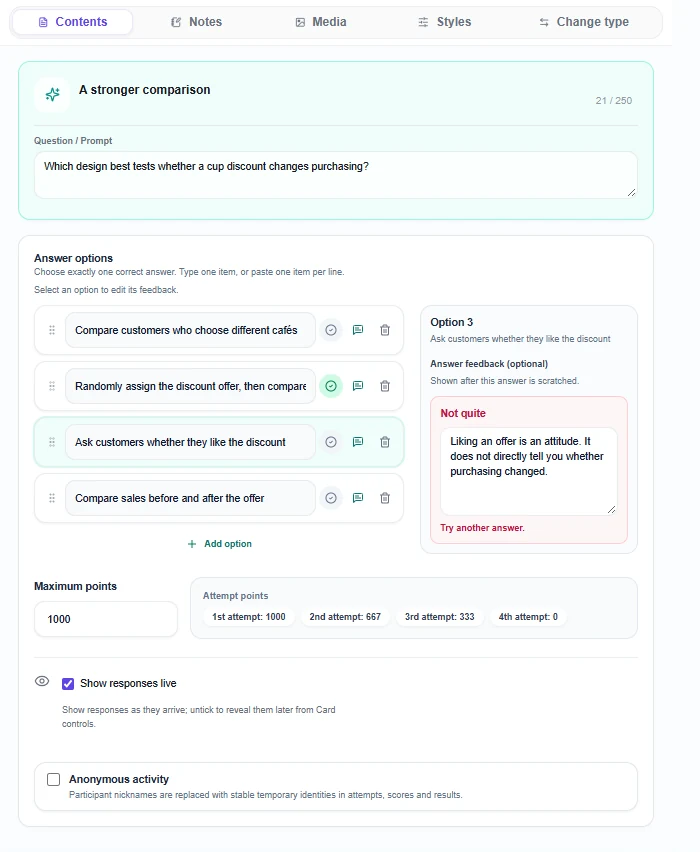
A productive alternative represents a recognisable misunderstanding. “Ask customers whether they like a discount” is a plausible answer to a research-design question, but liking an offer and changing purchasing behaviour are different things. Feedback can bring that distinction into focus.
What participants do and how points work
Participants join through a session link, QR code or session code without needing an edauthor account. Present the Scratch Card and explain the task. In individual mode, each participant scratches the covered area beneath their chosen answer on their own device, using a mouse or touch. Keyboard users can focus a scratch surface and press Enter or Space to reveal it.
An incorrect choice reveals Not quite, any feedback you supplied and Try another answer. The participant can choose an untried option. A correct choice reveals Correct answer, the points awarded and its feedback. That completes the scored response. The scratching action records the attempt; there is no separate Submit step in individual mode.
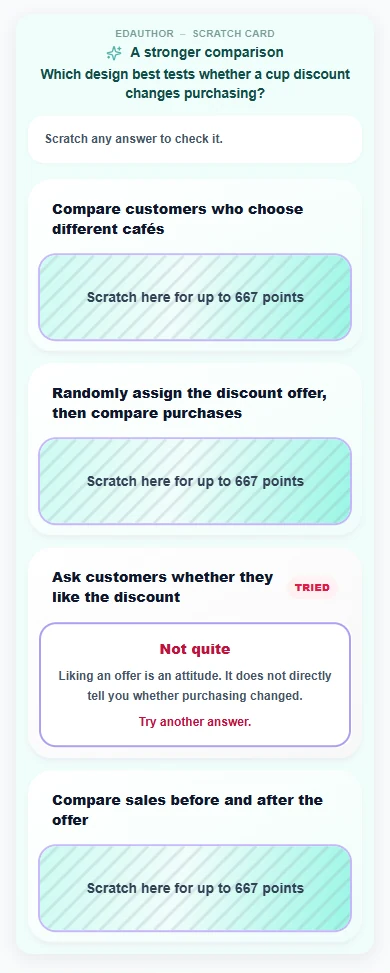
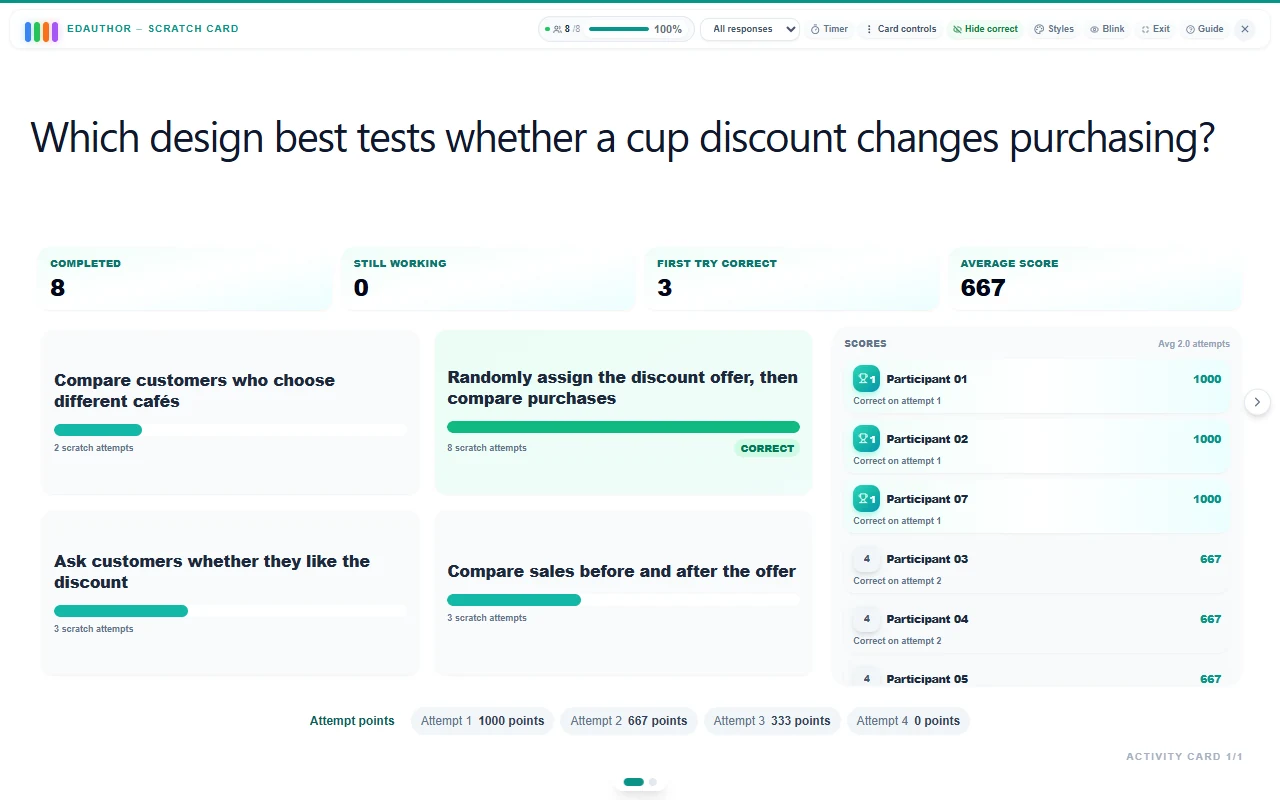
With four options and 1,000 maximum points, a correct answer earns 1,000 on attempt one, 667 on attempt two, 333 on attempt three and 0 on attempt four. The schedule changes with the number of options. Points depend on the successful attempt, rather than how quickly the participant scratches. Equal scores share the same rank; recorded completion time can order the tied entries. Use the answers and explanations to explore understanding.
Ask people to pause after feedback. “What does this rule out?” is more useful than encouraging them to uncover every answer as quickly as possible. The final attempt can still lead to a worthwhile explanation even when it earns no points.
Choose individual thinking or a shared group decision
Scratch Card works with the session's existing groups. Use the group-learning guide to arrange membership before starting. Simply placing people in groups does not automatically make them submit one collective response.
| Arrangement | Who scratches? | What the result represents |
|---|---|---|
| Whole room, individual responses | Every participant scratches on their own device | Each participant's attempts and score on this card |
| Split room, groups without assigned leaders | Every group member scratches individually | A group average, with individual member details |
| Split room, groups with assigned leaders | The leader scratches for the group; other members send suggestions | One shared sequence of attempts and a score for the group |
For individual responses within groups, leave group leaders unassigned. Members can discuss together and still make their own choices. The group score averages members' scores; it is not a sum that automatically favours larger groups. Members who have not completed contribute zero to that average, so check completion counts before comparing groups.
For one shared group response, open a participant's menu while the group structure is unlocked and choose Set as Group Leader. Assign a leader to each group that should work this way. Members choose an answer and use Send suggestion. The leader sees suggestion counts beside the options, selects a choice and scratches it for the group.
Suggestions inform the decision; the system does not automatically choose the most popular answer. After an incorrect scratch, members can suggest an untried answer for the next attempt. Ask the leader to invite an explanation from someone whose suggestion differs before making the next choice.
Keep membership and the submission arrangement consistent during the activity. A shared answer records the group's decision, not unanimous agreement or evidence that every member understands it. Rotate the leader on a later card if you want another person to take that responsibility.
Reveal the results and discuss the route to the answer
While people work, the host can see counts beside the answers when live responses are shown. These count scratch attempts on each option. Someone who tries several answers contributes to several counts, so the total is not the number of people in the room or a distribution of first choices.
When you are ready, use Reveal correct in the host controls. If some people have not finished, edauthor asks you to confirm Reveal answer & results. Revealing closes scoring: unfinished responses receive zero, although participants can continue scratching for practice without earning further points. Allow enough time and check participation before taking this step.
The results show attempts for each option and a Scores panel, alongside measures such as First try correct and Average score. Scores belong to the current Scratch Card. In grouped sessions, distinguish a group average from a leader-submitted group response when discussing them. A response closed at reveal is not evidence that the participant found the correct answer.
For leader-led groups, the Scratch Card summary provides an especially useful discussion view. It shows the group's attempt history and member suggestions captured for those attempts. Reveal final scores moves from the summary to the scores. After the reveal, Review attempt summary lets you revisit that history without changing the final scores.
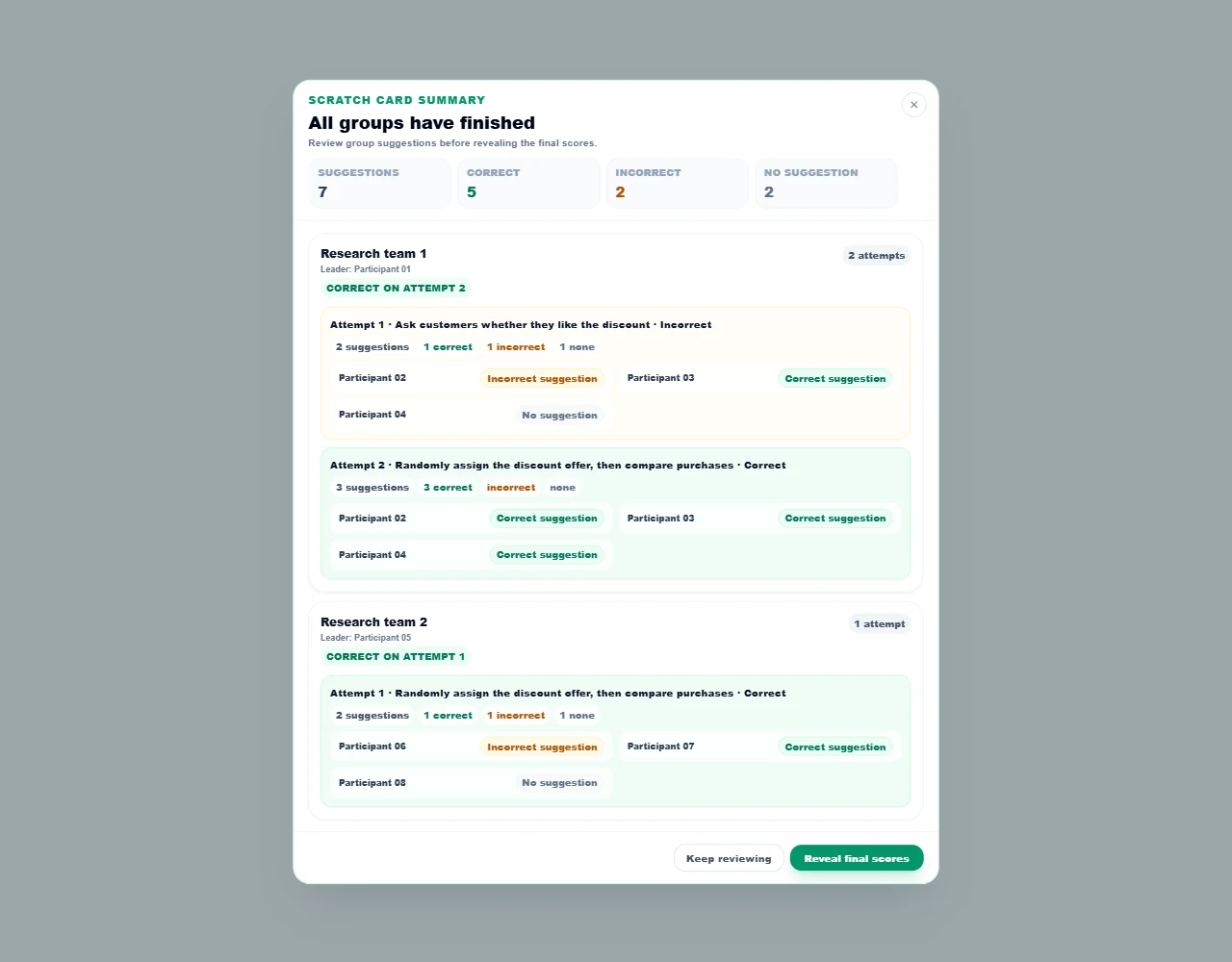
Ask, “Which answer attracted an early attempt, and why?” or “What in the feedback changed your reasoning?” Missing suggestions deserve a check-in, not an assumption about understanding. Use the summary to support explanation rather than put individuals on the spot.
A 15-minute research-design workshop
This is a suggested teaching activity for a research methods or consumer behaviour class. It also works in staff training about evaluating evidence. Organise four discussion groups, assign each a leader and set up one Scratch Card with four options and 1,000 maximum points.
Question: “Which design best tests whether a cup discount changes purchasing?”
Use these options and feedback:
- A. Compare customers who choose different cafés. Feedback: “Those customers may already differ. How could you make the comparison less dependent on their existing preferences?”
- B. Randomly assign the discount offer, then compare purchases. Correct. Feedback: “Random allocation helps make the groups comparable. Comparing subsequent purchases can then help assess the effect of the offer.”
- C. Ask customers whether they like the discount. Feedback: “Liking an offer is an attitude. It does not directly tell you whether purchasing changed.”
- D. Compare sales before and after the offer. Feedback: “Sales may also change with weather, timetables or other events. What would give you a stronger comparison?”
Introduce the question as a simplified design choice, not a complete research protocol. Its purpose is to distinguish a stronger comparison from a favourable opinion or an uncontrolled change over time.
| Stage | Time | Facilitator action | Card or tool | Discussion purpose |
|---|---|---|---|---|
| Introduce | 2 minutes | Explain the café question and who will scratch for each group | Media & Text; existing session groups | Establish a shared task |
| Think | 2 minutes | Ask everyone to choose privately, then send a suggestion | Scratch Card member view | Give each person thinking time |
| Decide | 3 minutes | Ask leaders to hear reasons before selecting and scratching | Scratch Card leader view | Make the first choice deliberate |
| Reconsider | 3 minutes | Groups read feedback, discuss it and try an untried option if needed | The same Scratch Card | Use feedback to revise reasoning |
| Discuss | 3 minutes | Review the attempt summary and reveal final scores | Scratch Card host results | Explain the distinction behind each choice |
| Reflect | 2 minutes | Ask for one sentence about a stronger comparison | Thought Bubble | Turn the reveal into a transferable idea |
Use this closing prompt: “What would you now check before accepting a claim that an offer changed behaviour?” A Thought Bubble gives participants a separate place to explain that idea in their own words. Scratch Card feedback itself is written by the facilitator; it is not a free-text explanation submitted by the participant.
For a simpler first run, skip group leaders and let everyone scratch individually after pair discussion. Keep the same question, feedback and closing reflection.
Adapt the card to your subject
Concept revision: offer four explanations of a concept, with feedback that addresses the specific confusion in each distractor. Follow the card with a new example that tests the same distinction.
Professional judgement: present a scenario with enough information for one defensible next step. Explain the relevant principle in each option's feedback. If several actions are reasonable, discuss them openly rather than marking an arbitrary preference as the only correct answer.
Evidence appraisal: ask which observation best supports a particular claim. Use incorrect-option feedback to distinguish relevance, association and causal evidence at a level appropriate to your learners.
Workshop preparation: check a procedure or shared concept before a collaborative task. Let participants practise through feedback, then move into the task with a common reference point.
For scored questions with several correct selections or cumulative competition across questions, use Quiz. For open preferences without a correct answer, consider Multiple Choice. Flip Cards suit exploring and revealing content. Choose Scratch Card when the attempt, feedback and next decision are central to the activity.
Frequently asked questions
How many answers can a Scratch Card contain?
Create two to six options and mark exactly one correct answer. Add optional feedback to each. Previously saved cards with more options remain supported, but the current editor limits new options to six.
Do participants need an account or a touchscreen?
No participant account is required. They join with the session link, QR code or session code. Scratching works with a mouse or touch; a focused scratch surface also supports Enter or Space.
Can participants try again after a wrong answer?
Yes. They can scratch an untried option until they find the correct answer. The available points decrease according to the visible attempt schedule. After the host reveals results, unfinished participants can continue for practice, with no further points.
Can a group work towards one answer together?
Yes, when groups are active and have assigned leaders. Members send suggestions; the leader chooses and scratches the group's answer. Without leaders, members respond individually and grouped results use member averages.
What makes this an edauthor original?
The original Activity Card design brings together scratch-to-reveal interaction, option-specific feedback, attempt-based scoring and a connected group workflow with member suggestions and leader decisions. That combination lets you connect individual reasoning, group discussion and feedback in one activity.
Make the next attempt meaningful
Write a question worth discussing. Give every option a useful explanation. Let participants think, scratch, reconsider and explain what changed.
Turn the reveal into a learning moment.
Build your Scratch Card, add feedback and connect the activity to a conversation.
Start creating with edauthor