An edauthor original, from availability to a shared decision
Calendar is an edauthor original Activity Card that connects availability with the wider learning or workshop session. Participants select every offered day or time that works for them. You see the response counts and strongest overlap, close the collection when ready and, when there are multiple suitable shared options, create a Rank Items card directly from the suggestions. This gives a lecturer, trainer or facilitator a practical sequence: establish what is possible, explore what people prefer, then agree the next step.
The distinctive part is the connection between activities. A discussion about the next research workshop can lead into Calendar, then into a preference ranking, without asking you to copy dates into a separate question. The Calendar answers remain a record of availability; the generated ranking collects a new response about preference.
The final choice remains yours to facilitate. A suggested time can have the highest overlap without working for everyone, and an availability response is not an appointment booking.
Where Calendar can be useful
Calendar fits moments when a group needs to coordinate a next step. Use it at the end of a seminar, during project planning or as part of a facilitated workshop.
| Setting | Availability question | Useful follow-up |
|---|---|---|
| University teaching | Which offered times could you attend for an optional research workshop? | Rank the strongest shared options |
| Student projects | Which days could you attend a planning meeting? | Discuss commitments before confirming a date |
| Staff development | Which training dates are possible for you? | Explore preference among equally well-attended options |
| Research coordination | Which offered times could you attend a group briefing? | Check availability, then communicate the agreed arrangement |
| Community workshops | Which days could you join the next session? | Consider whose availability the proposed date excludes |
Keep the question about availability. Ask people to select all workable options, rather than only their favourite. Selecting a favourite at this stage can hide a useful overlap that the group actually has.
For a teaching exercise, you can also give participants fictional availability constraints and discuss how a group reaches a decision. Explain that these are assigned roles, not statements about their personal schedules. Use Thought Bubble afterwards to collect reasons or unresolved concerns.
Build your first Calendar card
- Add the card. In the Activity Cards editor, select Add Activity, then Calendar. Give the card a title and write the Question / Prompt, such as “When could you attend our one-hour research workshop?”
- Choose Availability mode. Select Days for whole-day availability or Times for specific time slots. Choose the mode before refining your options, because switching modes clears the current breaks and individually hidden options.
- Set the Date range. Enter a Start date and End date in day/month/year format, or use the date picker. New cards start with tomorrow and the following day as defaults, so check the dates before saving or reusing a card.
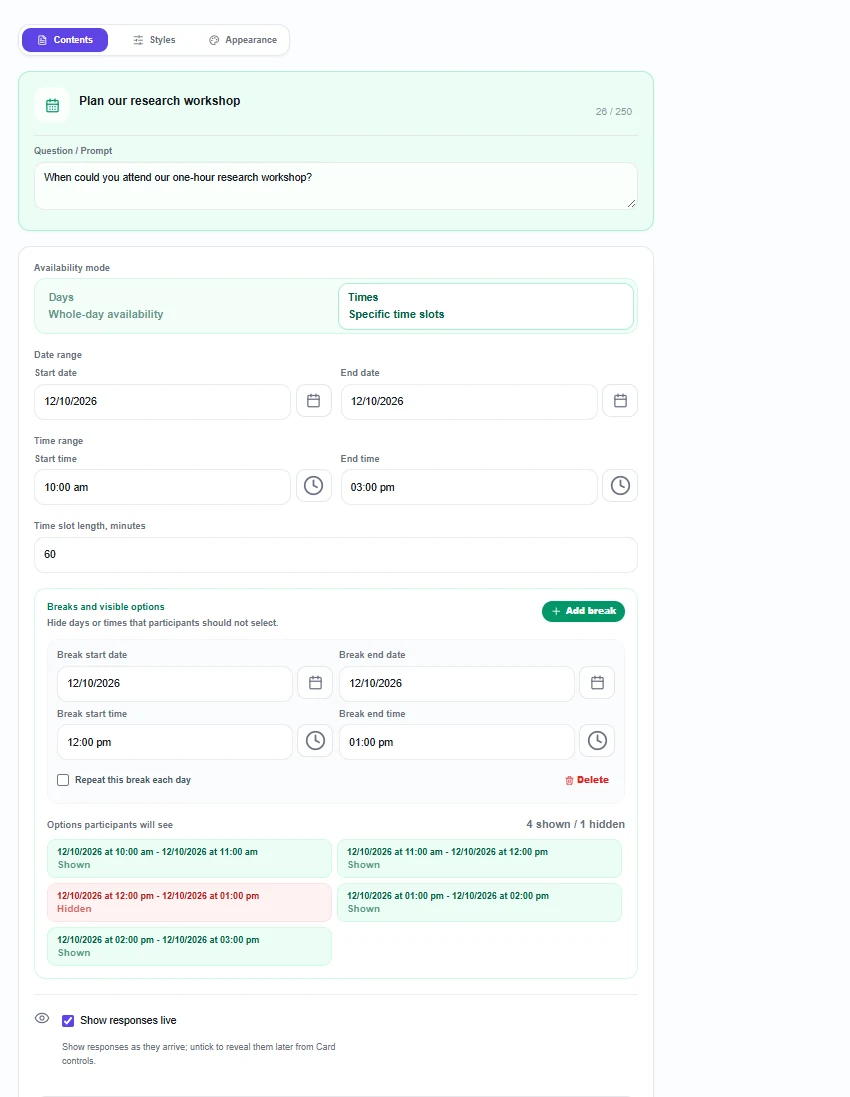
- For Times, set the Time range. Enter Start time, End time and Time slot length, minutes. For example, one date from 10:00 am to 03:00 pm with 60-minute slots offers a manageable planning window.
- Review Breaks and visible options. Use Add break to exclude a period such as lunch. Set its start and end dates and times. Repeat this break each day applies a recurring break across the window. You can also select individual options under Options participants will see to switch them between Shown and Hidden.
- Choose how to reveal responses. Leave Show responses live selected to see incoming availability, or untick it and reveal the results later from Card controls.
- Explain and save. Use Additional Instructions (optional) for the event’s purpose and duration. Preview the available choices, save the Activity Cards and include Calendar in your session.
Make the window match the event
In Times mode, the start and end date-times define one continuous window. A range spanning several days can therefore include overnight slots; it does not automatically repeat office hours each day. Use breaks and hidden options to remove unsuitable periods, then inspect the options participants will see. A slot that overlaps a break is excluded.
For a one-hour meeting, use 60-minute slots and explain that selecting one means being available for the whole hour. Adjacent selected slots express availability for either offered period; they do not automatically book a longer meeting.
Keep the range focused. The participant view considers up to 180 generated options before hidden options are removed. For longer ranges, split the activity into shorter windows and check the participant preview.
Calendar builds its slots using each device’s local date and time settings. The timed example in this guide assumes a common device time zone. For an international group, check those settings before relying on the overlap; the card does not provide a shared time-zone selector or automatic cross-zone scheduling workflow.
What participants see and submit
Participants join through the session’s QR code, joining link or session code without needing an edauthor account. When Calendar is active and accepting responses, they see your question, the availability window and the offered choices.
In Days mode, they select the date buttons that work for them. In Times mode, they select time-slot buttons grouped by date. They can select multiple options and deselect an option before submitting. The counter below the options shows how many days or times they have selected.
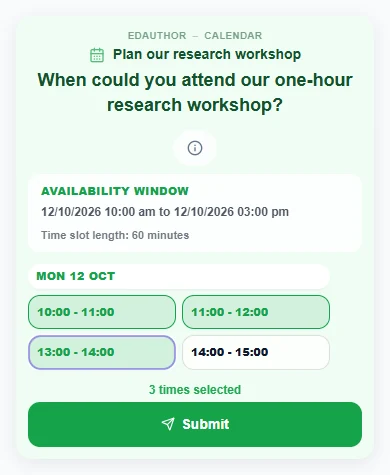
Each participant submits their own selection using Submit. Keyboard users can move between the option buttons with Tab and select a time using Enter or Space. Times also support selecting a run of options by dragging across them with a pointer.
At least one option must be selected to submit. There is currently no separate “None of these work” response. Give participants a clear alternative, such as telling you privately or responding to a separate question, and check non-responses before treating the result as complete.
Read the overlap, then close the collection
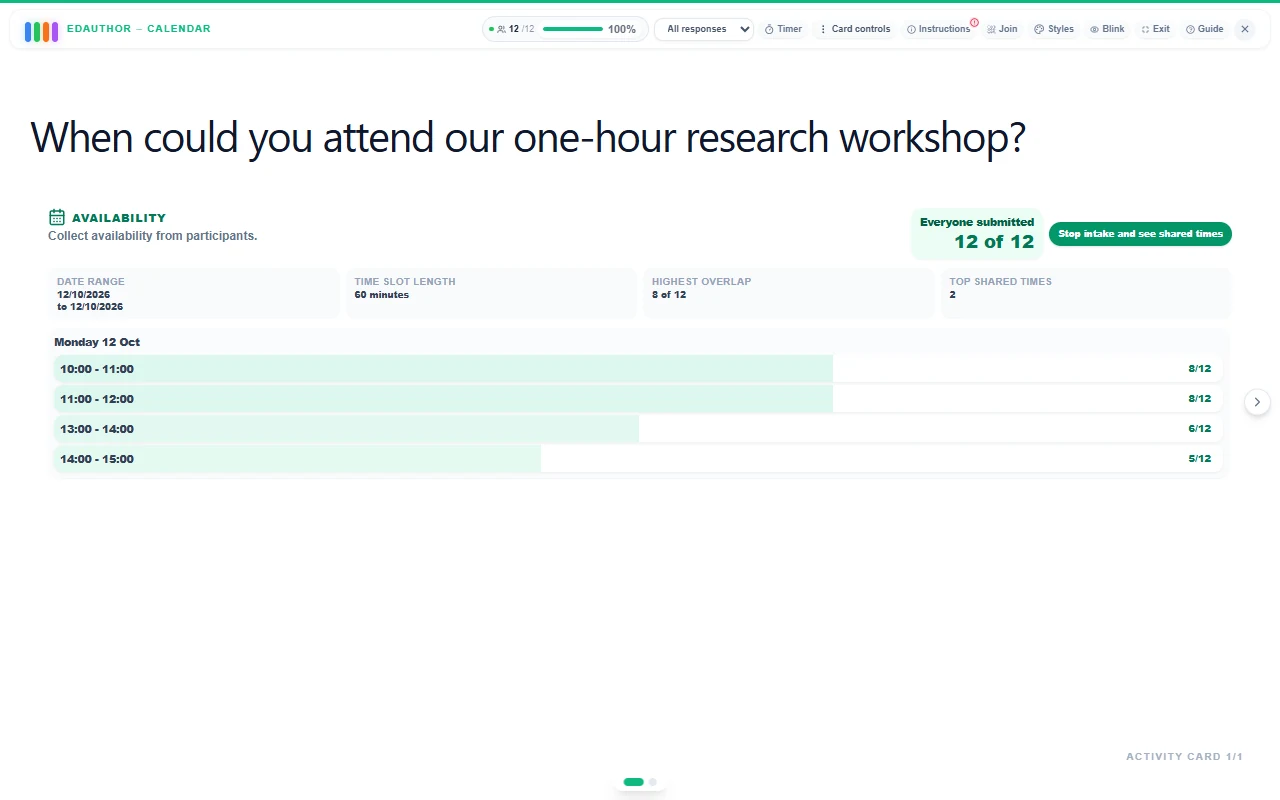
The host view shows the dates or times with a count beside each option. In the example at the top of this guide, 8/12 means that eight of the twelve submitted responses include that time. It does not mean eight of everyone invited unless all invitees have responded.
Highest overlap shows the largest number of submitted participants who selected any one option. Top shared times, or Top shared days, counts the options tied at that highest level. The strongest overlap may be unanimous, but it does not have to be.
In this example, the four offered times receive eight, eight, six and five selections. The two times selected by eight people form the strongest shared options. The six-person and five-person options still appear in the availability results, but do not enter the top-overlap shortlist.
When everyone currently eligible has submitted, the interface can show Everyone submitted. This is a progress notice: the host still decides when to close the collection. Select Stop intake and see shared times, or Stop intake and see shared days, to finalise the availability summary.
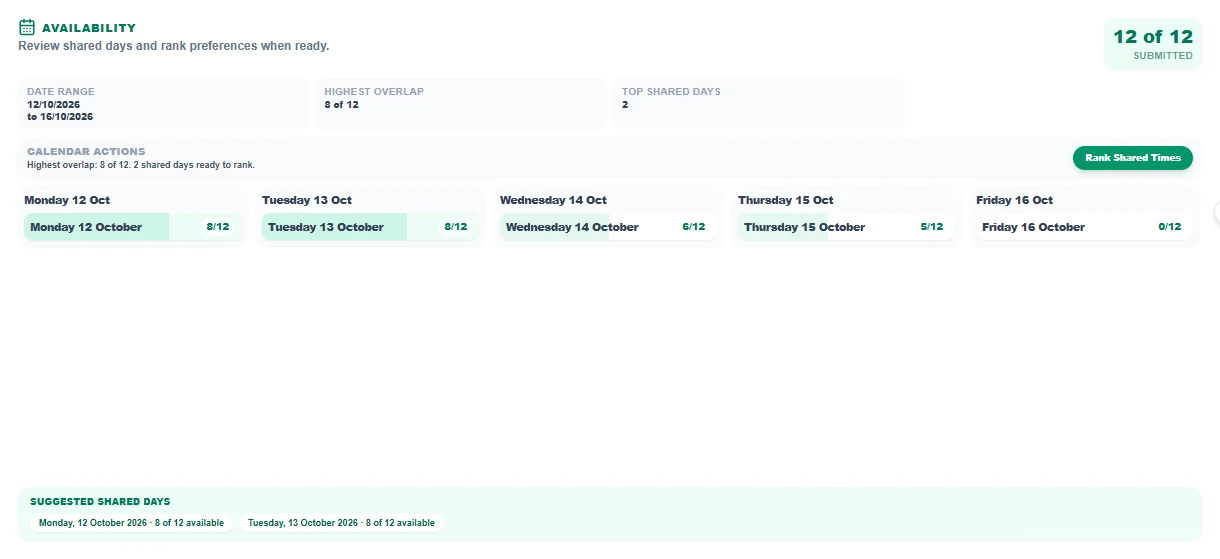
If there is one strongest shared option selected by at least two people, Calendar highlights it. If no option is shared by at least two submitted participants, it reports that no shared option was found. Reconsider the offered dates or times rather than forcing a choice from an unsuitable set.
Where your session already has groups, the All responses dropdown can filter the Calendar display to one group. Compare by switching views; Calendar does not offer the simultaneous group panels used by some other cards. Return to All responses before reviewing the whole-session shortlist. The generated ranking uses the finalised session suggestions, not a newly calculated shortlist for whichever group you happen to be viewing.
Turn shared options into a preference ranking
This is the central connection in edauthor’s original Calendar workflow. Once intake is closed, Rank Shared Times creates a Rank Items card from the strongest shared options. The button currently uses that label for both day and time availability.
The action is available when there are at least two suggested options, each with the highest overlap of at least two participants. Calendar passes up to ten top-overlap suggestions into the ranking. If more than ten options tie, the suggestions are a capped selection of those tied options, so review the full availability display too.
The new card is inserted immediately after Calendar in the same Activity Cards bundle and normally opens automatically. Its options include the date or time and the availability count. If it has been created but did not open, use Open current Rank Items card.
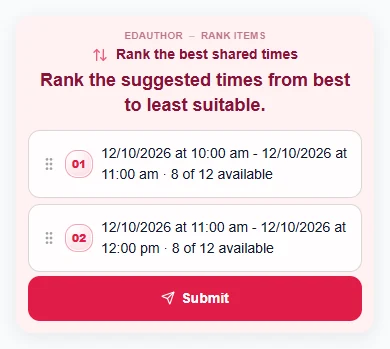
Participants make a new individual submission, ordering the suggested options from best to least suitable. Availability selections are not converted into ranking answers. The original Calendar response remains separate, and the ranking does not erase it.
A crucial facilitation detail is that the same people may not be available for every suggested option. Two times can each suit eight people while suiting different sets of eight. The generated ranking is not automatically restricted to people available for all shortlisted times, and Rank Items asks respondents to order the complete list. Explain how you will handle this before collecting preferences; do not interpret a low-ranked time as proof that someone can attend it.
Use the Rank Items guide to understand average positions and the difference between a leading average and a majority first choice. Then communicate the actual arrangement through your normal channel. Creating or ranking an option does not reserve a room, send invitations or add an event to an external calendar.
A 15-minute research-workshop planning activity
This suggested activity lets a seminar group plan an optional one-hour research workshop. Use the fictional date 12 October 2026 for practice, or replace it with a suitable future date for your own session.
Prepare a Calendar card in Times mode, from 10:00 am to 03:00 pm, with 60-minute slots and a break from 12:00 pm to 01:00 pm on the same date. This leaves four options: 10:00–11:00, 11:00–12:00, 13:00–14:00 and 14:00–15:00. Preview them before starting.
Use this question: “When could you attend our one-hour research workshop? Select every offered time that works for you.” Explain how to report that none of the times is possible, and make clear that the poll informs a decision rather than confirming an appointment.
| Stage | Time | Facilitator action | Card or tool | Purpose |
|---|---|---|---|---|
| Explain the event | 3 minutes | Describe the workshop and what counts as being available | Media & Text or shared briefing | Establish the same task for everyone |
| Collect availability | 3 minutes | Each participant selects every workable time and submits | Calendar | Find the overlap |
| Review the counts | 3 minutes | Check missing responses, close intake and discuss the strongest options | Calendar results | Understand who may be excluded |
| Explore preference | 3 minutes | If suitable, select Rank Shared Times and collect new rankings | Generated Rank Items card | Distinguish preference from availability |
| Agree the next step | 3 minutes | Explain the decision or further checks, and invite remaining concerns | Discussion or Thought Bubble | Turn the result into a clear action |
If only one shared option emerges, use the ranking time to discuss whether it is workable. If no shared option emerges, gather constraints and prepare a fresh Calendar card with a revised window. Preserve the first collection if you want to compare the options you considered.
Close with: “What do we still need to check before confirming this workshop?” The response can reveal a room requirement, an accessibility consideration or a scheduling constraint that an availability count cannot explain.
Frequently asked questions
What makes Calendar an edauthor original?
Calendar is edauthor’s original activity workflow for connecting availability with preference. Its day or time collection, live overlap display and direct creation of a follow-up Rank Items card work together within an Activity Cards session.
Can I collect whole days as well as specific times?
Yes. Choose Days for dates or Times for time slots. In Times mode, set the slot length and remove unsuitable periods using breaks or hidden options.
Do suggested options work for everyone?
Not necessarily. Suggestions use the highest overlap among submitted responses, with at least two people sharing an option. Read the counts and check non-responses before choosing.
Why is Rank Shared Times unavailable?
Close availability intake and reveal the results first. There must be at least two suggested options with an overlap of at least two participants. An existing ranking for that intake also prevents creating a duplicate through the same action.
Does Calendar connect to participants’ personal calendars?
This workflow collects the availability people select in edauthor. It does not read their personal calendars, book appointments or send calendar invitations. Participants do not need an edauthor account to join and respond.
Find the overlap. Explore the preference. Agree the next step.
Put Calendar where a conversation needs to become a practical next action. Offer realistic choices, make the counts visible and use the connected ranking when it helps the group decide.
Explore the Activity Card manual for ways to connect planning with presentations, discussion and reflection.