Give each thought room and structure
Thought Bubble collects written responses in edauthor, an interactive learning and audience engagement platform. Participants can answer one open question, or you can enable Organise responses into fields and give them several prompts to complete. Their answers appear together in one bubble, with the field labels retained. Choose Original, Clarity or Floating to present those contributions, and change styles live as responses arrive. Use the collection to invite explanation, compare perspectives and guide a discussion.
This guide is for lecturers and seminar leaders, with examples that also suit teachers, trainers and workshop facilitators. It shows how to move from a broad invitation to a response that makes someone’s reasoning easier to follow.
Organise responses into fields
An open text box is useful when you want people to choose how to express an idea. Fields help when a task has several parts that you want everyone to consider. You write the prompts, choose their order and keep each participant’s completed answers together.
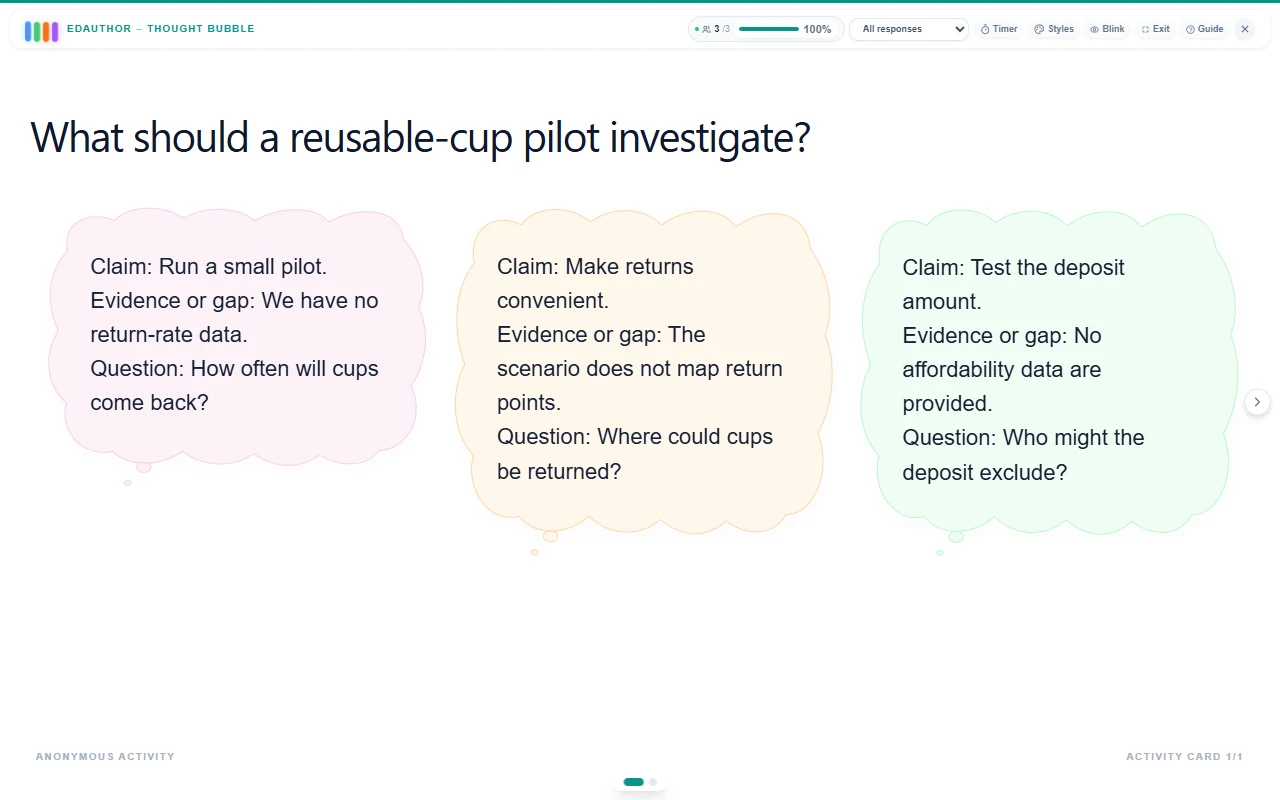
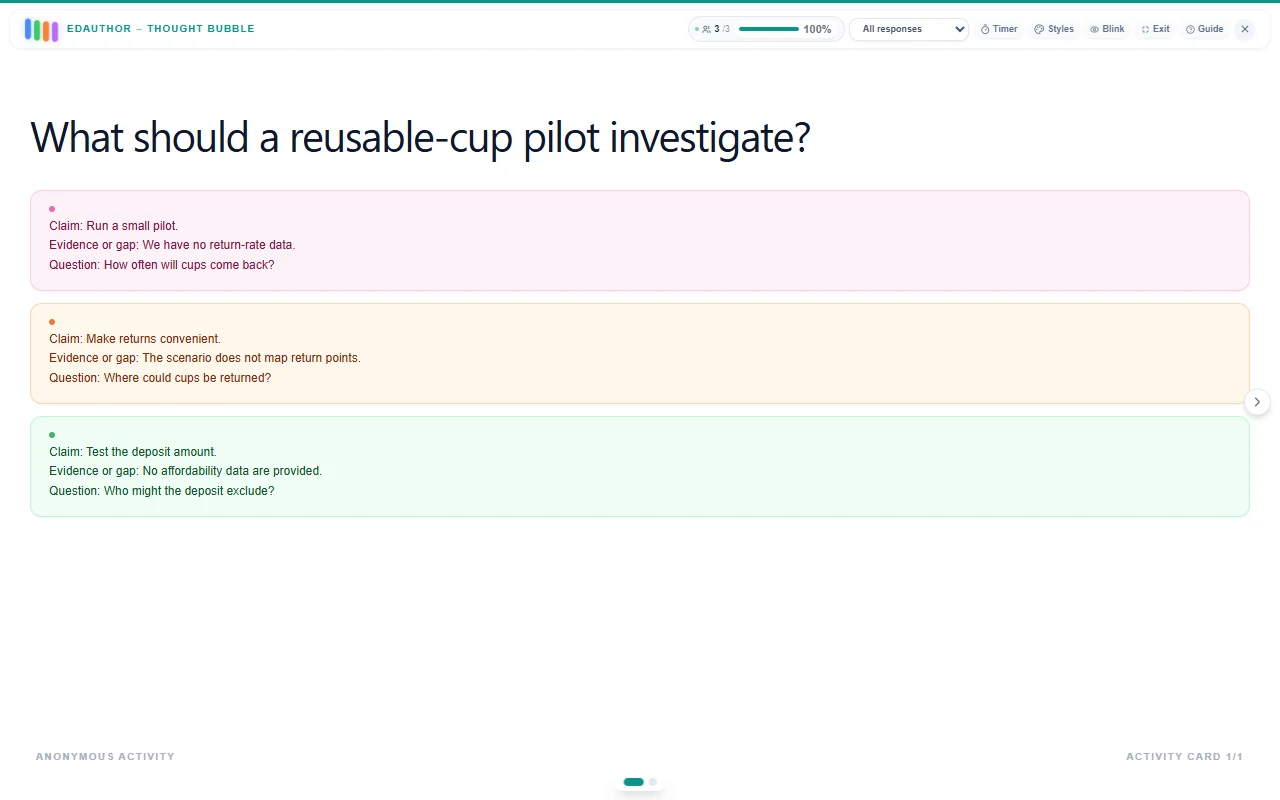
For example, a seminar response might contain:
- Claim: Run a small pilot.
- Evidence or gap: We have no return-rate data.
- Question: How often will cups come back?
The same structure can support other teaching tasks. Try Observation, Interpretation, Question when looking at a source; What worked, What was difficult, Next step for reflection; or Interest, Experience, Something to try for an opening conversation. Choose labels that explain what you want learners to contribute.
You can configure up to ten fields. Each label accepts up to 100 characters, and each answer accepts up to 500 characters. Two or three focused fields often give a discussion enough structure without turning a short activity into a long form.
Participants can leave any field blank. At least one non-empty answer is needed to submit, and empty answers are omitted from the bubble. If your teaching task calls for all three parts, explain that expectation in your instructions; the fields themselves are optional.
Build your first Thought Bubble card
- Add the activity. Open your Activity Cards in the editor, select Add Activity, then Thought Bubble.
- Set the context. Add a title and a Question / Prompt. For the worked example below, use “What should a reusable-cup pilot investigate?” Put supporting directions in Additional Instructions (optional) if needed.
- Choose an open or structured response. Leave Organise responses into fields unticked for the usual text box. Tick it to open Response fields and create your first field.
- Name and arrange the fields. Enter “Claim” as the first label. Select Add field for “Evidence or gap” and again for “Question”. Use the up and down arrows to change the order, or the remove button to delete a field. Blank labels are skipped; if none has a label, participants see the usual text box.
- Choose the response settings. Decide whether to show answers immediately, hide participant names, accept more than one contribution or allow an optional image. The next section explains these choices.
- Set the starting style. Open Styles in the editor and choose Original, Clarity or Floating under Thought bubble style. Preview the card, save your Activity Cards and include it in your session.
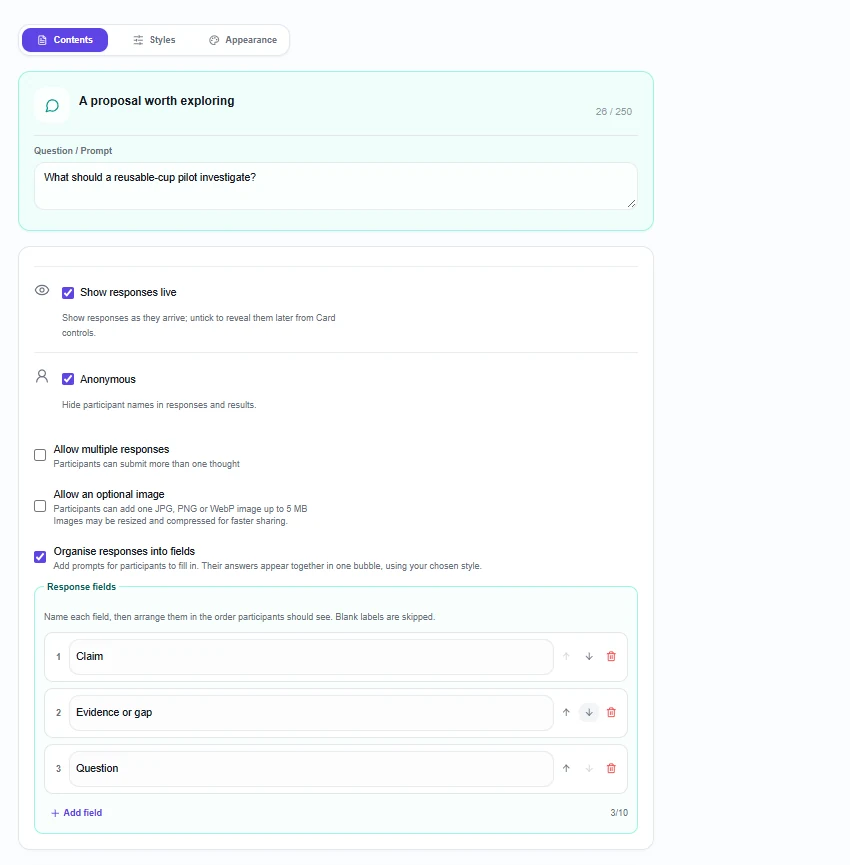
Turning the field option off returns to an open text box without discarding the configured field labels. Earlier submissions retain the labels and answers they had when submitted, even if you later rename a field. Finish setting up the prompts before collecting the class’s responses so the task stays consistent.
Choose how contributions arrive
Show responses live displays answers as they arrive. Untick it when preparing the card if you want to collect responses first, then reveal them from Card controls while presenting. This gives you a way to allow quiet thinking before learners see the shared collection.
Allow multiple responses lets a participant submit another thought while the card is accepting answers. Each submission becomes a separate bubble, containing the completed fields from that submission. It does not make a separate bubble for every field. Leave this option off when you want one contribution per participant for the activity.
Anonymous hides participant names in responses and results. Anything someone types into an answer remains part of that answer, so use idea-focused labels for an anonymous reflection. A field called “Name” would still invite participants to identify themselves in the bubble’s text.
Allow an optional image lets participants attach one JPG, PNG or WebP image, up to 5 MB, alongside their written contribution. Participant images are available with Standard and Pro; check the editor’s availability message and the current plan details. Images may be resized and compressed. At least some written content is still needed: the image accompanies the response.
An image can give a reflection a concrete reference, such as a photograph of a model or a sketch of a proposed solution. For material that everyone should discuss, you can instead place a Picture / Video card or Media & Text card before Thought Bubble.
What participants see
Participants join the session using its QR code, joining link or session code, without needing an edauthor account. On the active Thought Bubble card, they see your question and either the open text box or your labelled fields in the order you set.
They write the parts they want to share and select Submit. In field mode, edauthor combines the completed labels and answers into one response, with each part on its own line. This is an individual submission. If learners discuss in pairs first, tell them whether each person should then write their own answer.
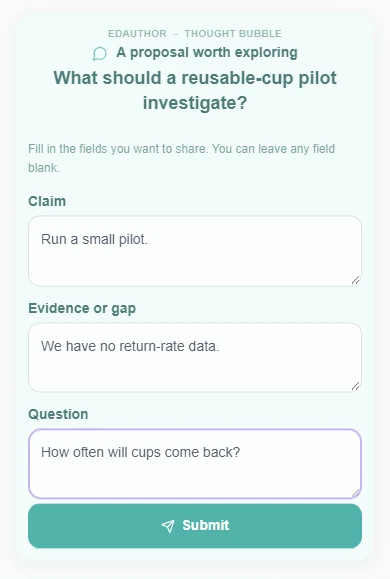
When multiple responses are enabled, a successful submission clears the inputs and invites another thought. Ask for one complete idea per submission so the resulting collection remains easy to discuss.
Choose a style that serves the conversation
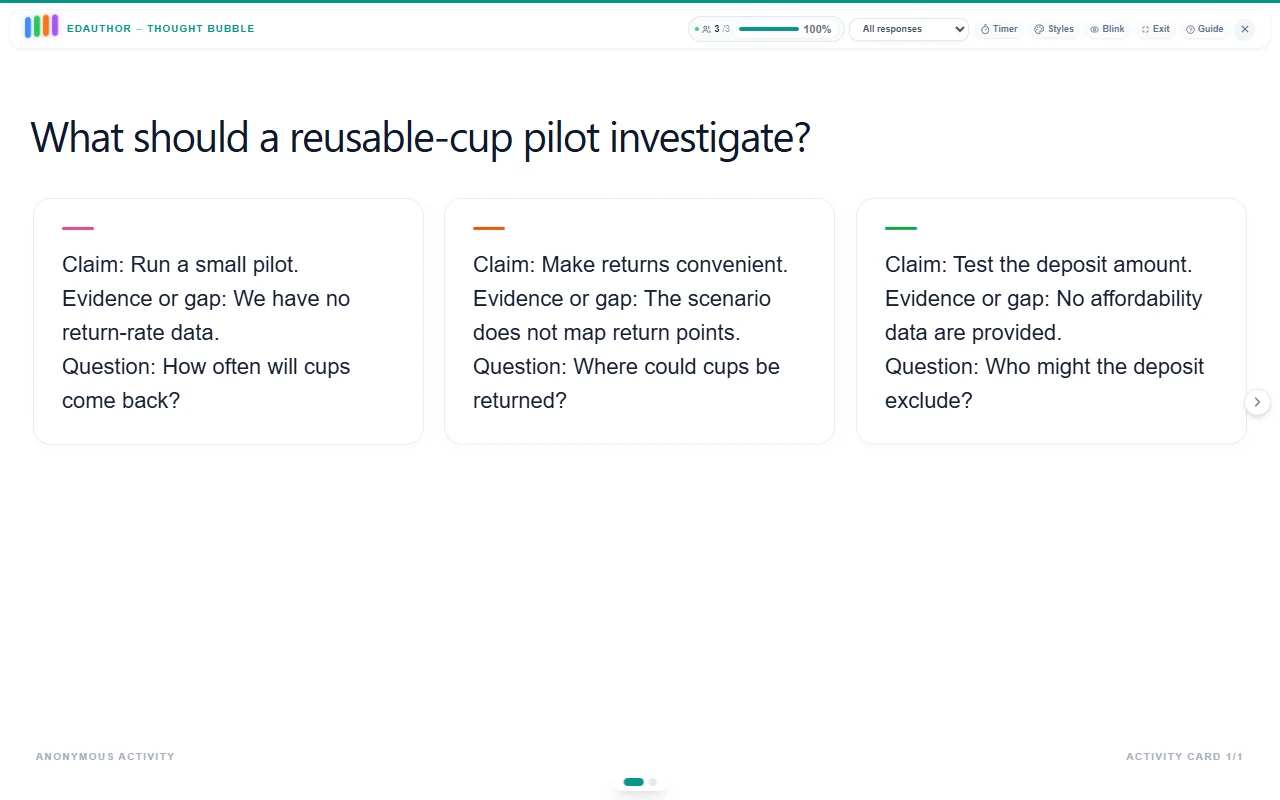
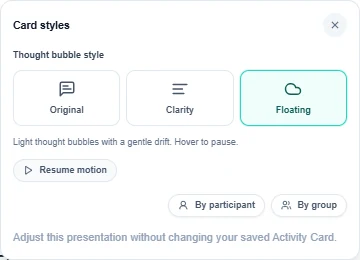
The three styles present the same response text, including its field labels and line breaks. You can choose a starting style in the editor, then open Styles while presenting to change the live view without altering the submitted answers or the saved card settings.
| Style | What it offers | A useful teaching setting |
|---|---|---|
| Original | Colourful response cards | A varied collection of ideas to explore together |
| Clarity | Clear text, quiet colours and space around contributions | Reading and discussing a claim alongside its explanation |
| Floating | Cloud-shaped thought bubbles with optional gentle movement | Opening reflections or an exploratory conversation |
In Floating, use Pause motion or Resume motion to control movement. Hovering over a floating bubble pauses it, and reduced-motion preferences turn motion off. Pausing is useful when the group needs time to read a longer contribution closely.
Explore the responses as a facilitator
Read several contributions before drawing a conclusion. Compare the claim and its supporting explanation together: two people may propose the same action for different reasons, or use similar evidence to suggest different actions.
In the fullscreen Styles panel, By participant collects that participant’s thoughts together. When session groups exist and the session is active, By group provides a group overview. Open a group and then a participant’s entry to explore the contributions within it. Use Free bubbles to return to the shared collection. Grouping the display preserves individual responses; it does not turn them into a group consensus.
You can use Hide this bubble on a response to remove it from your current display. This is a presentation action, not deletion of the stored submission. Keep the discussion focused on the material learners were asked to share, and do not treat the number of bubbles as a participant count when multiple responses are allowed.
For a session that moves from individual thinking to group discussion, see the group-learning guide. Thought Bubble’s fields can keep the observation, reasoning and question connected at each stage.
A 20-minute seminar activity
This suggested activity uses the example shown in the screenshots. It asks learners to separate a proposal from the information needed to assess it.
Scenario: a campus café is considering a reusable takeaway-cup scheme. It has not yet collected evidence about return rates, affordability or convenient return locations. What should a small pilot investigate?
Prepare a Thought Bubble card with Claim, Evidence or gap and Question as its fields. Ask for a brief answer in each, while recognising that participants can leave fields blank. For this activity, leave Allow multiple responses off and choose whether to reveal the collection immediately or after individual thinking.
| Stage | Time | Facilitator action | Card or tool | Discussion purpose |
|---|---|---|---|---|
| Frame the case | 3 minutes | Explain the café scenario and distinguish what is known from what is missing | Shared briefing | Establish the decision and its uncertainties |
| Think and write | 4 minutes | Ask each participant for a claim, evidence or gap, and a question | Thought Bubble with three fields | Connect a proposal with its reasoning |
| Compare in pairs | 4 minutes | Invite learners to explain their responses to a partner | Spoken discussion | Notice different assumptions |
| Explore together | 6 minutes | Read selected bubbles and compare the linked parts | Thought Bubble results | Discuss what would make a proposal more convincing |
| Reflect | 3 minutes | Collect one next step on a separate Thought Bubble card | Thought Bubble with an open text box | Identify what further evidence is needed |
Use this instruction: “Propose one thing the pilot should investigate. State what evidence supports your proposal, or what is missing. Finish with a question that would help us decide.”
During the discussion, ask: “Does the evidence support the claim? Where is someone identifying a gap rather than reporting a finding? Which question would be most useful to investigate first?”
For the closing card, ask: “What is one piece of evidence you would seek before recommending the scheme, and why?” Keep the original card’s answers so you can revisit the reasoning. The comparison is led by you; the activity does not automatically judge the quality of a claim or measure individual learning gains.
Frequently asked questions
Do the fields create separate bubbles?
No. Each submission combines the participant’s completed field labels and answers into one bubble, using the selected style. Multiple submissions from the same participant create separate bubbles when Allow multiple responses is enabled.
How many fields can I add, and are they required?
You can add up to ten fields, with labels up to 100 characters and answers up to 500 characters each. Participants can leave fields blank. At least one non-empty answer is needed to submit; fields with blank labels are not shown.
Can I still ask one open question?
Yes. Leave Organise responses into fields off for the usual text box. Your configured field labels are retained when you turn the option off, and earlier submissions keep their original wording.
Can I change styles during the session?
Yes. Open Styles while presenting and choose Original, Clarity or Floating. Field labels and answers remain together. Set the saved starting style in the card editor.
Can participants add an image?
Yes, when participant images are available on the host’s plan and Allow an optional image is enabled. One JPG, PNG or WebP image of up to 5 MB can accompany the written response. See the current plan details.
Start with a thought, then ask what supports it
Give learners a clear invitation. Use fields when the relationship between the parts matters, choose a style that makes the responses easy to read and make time to explore the reasoning together.
For shorter starting points, try Word Mountain, then follow with Thought Bubble to develop an explanation. Explore the Activity Card manual to build the rest of your session.