Make priorities visible
Rank Items is edauthor’s Activity Card for asking participants to arrange a list in order. Prepare two to ten items, explain what should come first and invite each person to submit a complete ranking. Live results order the items by their average position, and you can compare existing session groups. Use the result to explore priorities, preferences or reasoning, then ask what shaped the choices. The order gives you a starting point for discussion, not a measure of unanimous agreement.
For a lecturer, this might mean asking students to prioritise policy options before a debate. A consumer researcher might explore which product features people put first. A workshop facilitator might use it to decide which questions deserve attention. In each case, the reasoning behind the order is as useful as the order itself.
Choose a question worth discussing
Make the criterion clear. “Rank these improvements” leaves people guessing whether to consider cost, urgency or personal preference. “Put the improvement that would most help your own study routine first” gives them a shared task.
| Setting | Example ranking question | Follow-up |
|---|---|---|
| University seminar | Which proposal should the council investigate first? | Which evidence supports your top choice? |
| Consumer research | Which feature matters most when choosing this service? | In what situation would your order change? |
| Workshop planning | Which topic would be most useful in your work? | What would you need to practise? |
| Team decisions | Which improvement should we address first? | What dependency might change the order? |
| Learning activities | Put these stages in the order you would carry them out | Explain the transition between two stages |
Use options at a similar level of detail. Comparing “Improve the campus” with “Add three charging points” mixes a broad aim with a specific action. Keep descriptions short enough to read together, and explain any unfamiliar term before participants start.
For a sequencing exercise, ask learners to explain their ordering. Rank Items collects and combines rankings; it does not mark a predefined correct sequence or award quiz points.
Ranking or rating?
Choose Rank Items when you need an order. Choose Slider or Scale when you want a separate numeric rating for each item. With ratings, someone can give every option the same value. With Rank Items, each option occupies a different position.
A ranking does not tell you how large the gap is between first and second. It also does not show whether someone likes all the options or dislikes them all. A follow-up question can reveal that context. If you only need one selected option, Multiple Choice may fit the task more directly.
Build your first Rank Items card
- Add the activity. In the Activity Cards editor, choose Add Activity, then Rank Items.
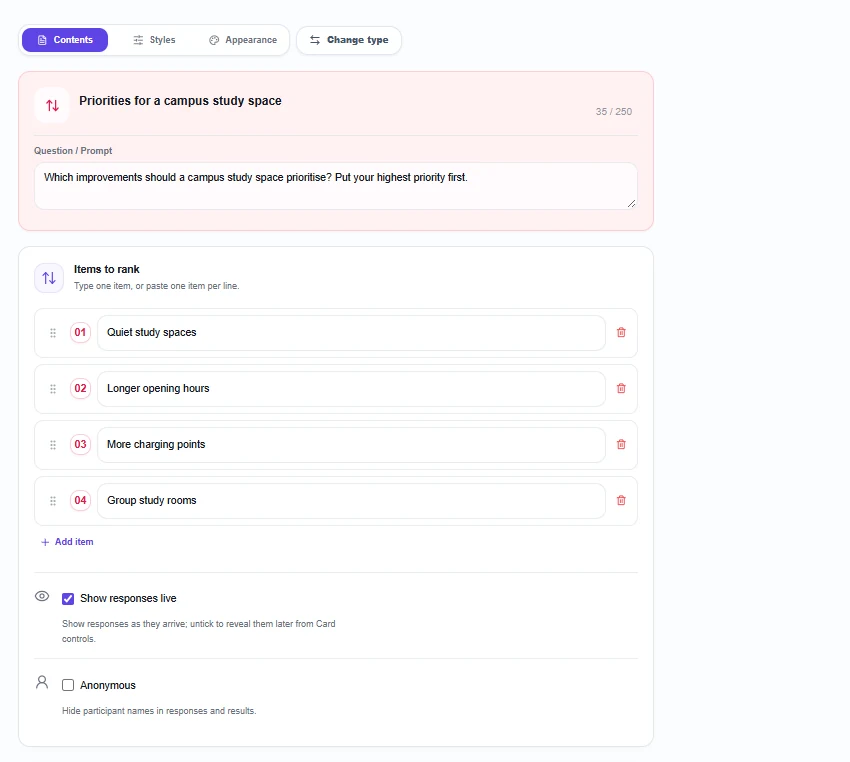
- Write the question. Add a title and a Question / Prompt. For this guide’s example, use “Which improvements should a campus study space prioritise? Put your highest priority first.”
- Prepare Items to rank. Replace the starting items with “Quiet study spaces”, “Longer opening hours” and “More charging points”. Select Add item to add “Group study rooms”. The normal editor supports two to ten items.
- Arrange the starting list. Use the drag handles to reorder items. You can remove items while retaining at least two, or paste one item per line. Participants initially see the order you prepare, so use a clear, deliberate starting list.
- Choose visibility. Keep Show responses live on to see incoming results, or untick it when you want to reveal the combined order after everyone has thought independently.
- Choose attribution. Anonymous hides participant names in responses and results. Consider the discussion context, especially when priorities could feel personal.
- Preview and save. Check that every option is distinct and the direction is explicit, then save the Activity Cards and include the card in your session. Use Additional Instructions (optional) for background or a decision constraint.
Four or five options can be enough for a focused discussion. Ten is the editor’s upper limit, not a recommendation to fill the list. Finalise the wording and order before collecting answers so everyone responds to the same options.
What participants see and submit
Participants join using the session’s QR code, joining link or session code without needing an edauthor account. When the card is active and accepting responses, they see your question and a numbered list. They drag items up or down, review the complete order and select Submit once.
Keyboard users can focus an item, press Space to pick it up, use the arrow keys to move it, then press Space again to place it. The position numbers update with the order.
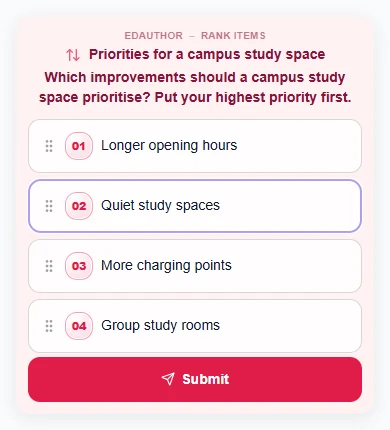
Participants can submit the starting order without moving anything. Ask them to review every position, including the middle of the list. The current control collects a complete ordering: it does not offer tied positions, an item-level Skip button or a top-three-only response.
If someone cannot compare the options meaningfully, invite them to say so rather than treating an unchanged list as an informed preference. Their non-response is different from a low ranking for one option.
Submissions are individual, including within session groups. You can ask people to discuss first and then each submit, but Rank Items does not provide a leader-submitted collective answer mode.
Understand the live results
The results combine the positions assigned to each item. First place counts as position 1, second as 2, and so on. edauthor calculates each item’s average position and lists lower averages first.
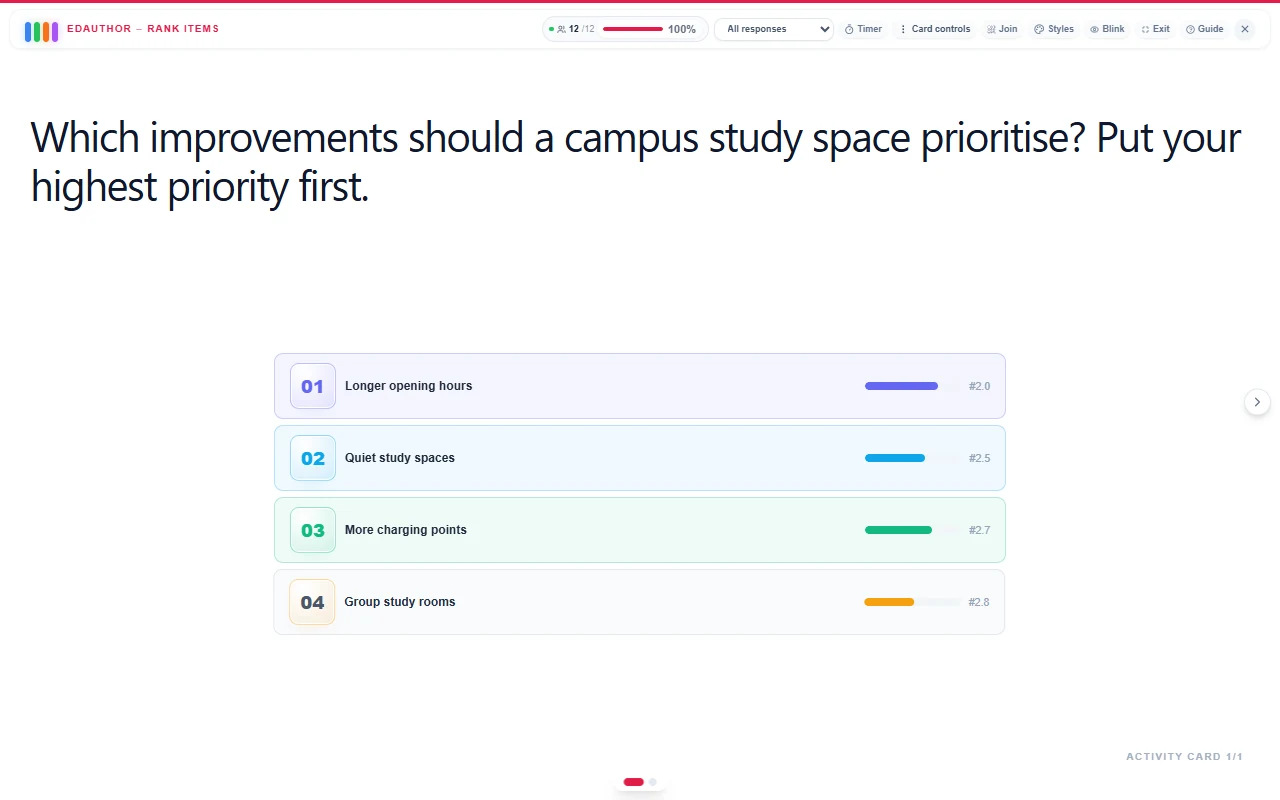
For example, positions 1, 2, 2 and 3 produce an average of 2.0. On the results screen, #2.0 beside an item is that average position. The large 01, 02 and subsequent badges show its place in the combined display. An item can be first overall while having an average position of 2.0.
In the twelve example rankings shown at the top of this guide, Longer opening hours averages 2.0 and appears first. Quiet study spaces averages 2.5, More charging points 2.7, and Group study rooms 2.8, rounded to one decimal place.
Longer opening hours is first in only three of those twelve individual lists. Its leading average comes from positions across the full rankings. This is not a first-choice vote count or evidence of a majority preference.
The coloured bars help distinguish the displayed positions. Their lengths follow the display order, not the size of the difference between averages or a percentage of votes. Read the average-position numbers when comparing results.
Read close results carefully
The list is sorted using the underlying averages, while the displayed numbers are rounded. Two items can therefore show the same rounded value even when their exact averages differ. Exactly equal averages retain the original item order, with separate display positions rather than a shared-rank badge.
Ask about close results instead of interpreting a small difference as decisive. Check the submission count before drawing conclusions. A group’s average order may be different from every individual order, and it cannot show all the disagreement that produced it.
With Show responses live enabled, the combined order updates as submissions arrive. For independent thinking, collect with the results hidden and reveal them through Card controls when you are ready. Hiding the display does not clear recorded responses.
Compare group priorities
If participants belong to session groups, the All responses dropdown lets you select one group or choose Segment by group. The segmented view displays up to four group panels together. Use Next groups and Previous groups for more, or return to All responses for the whole collection.
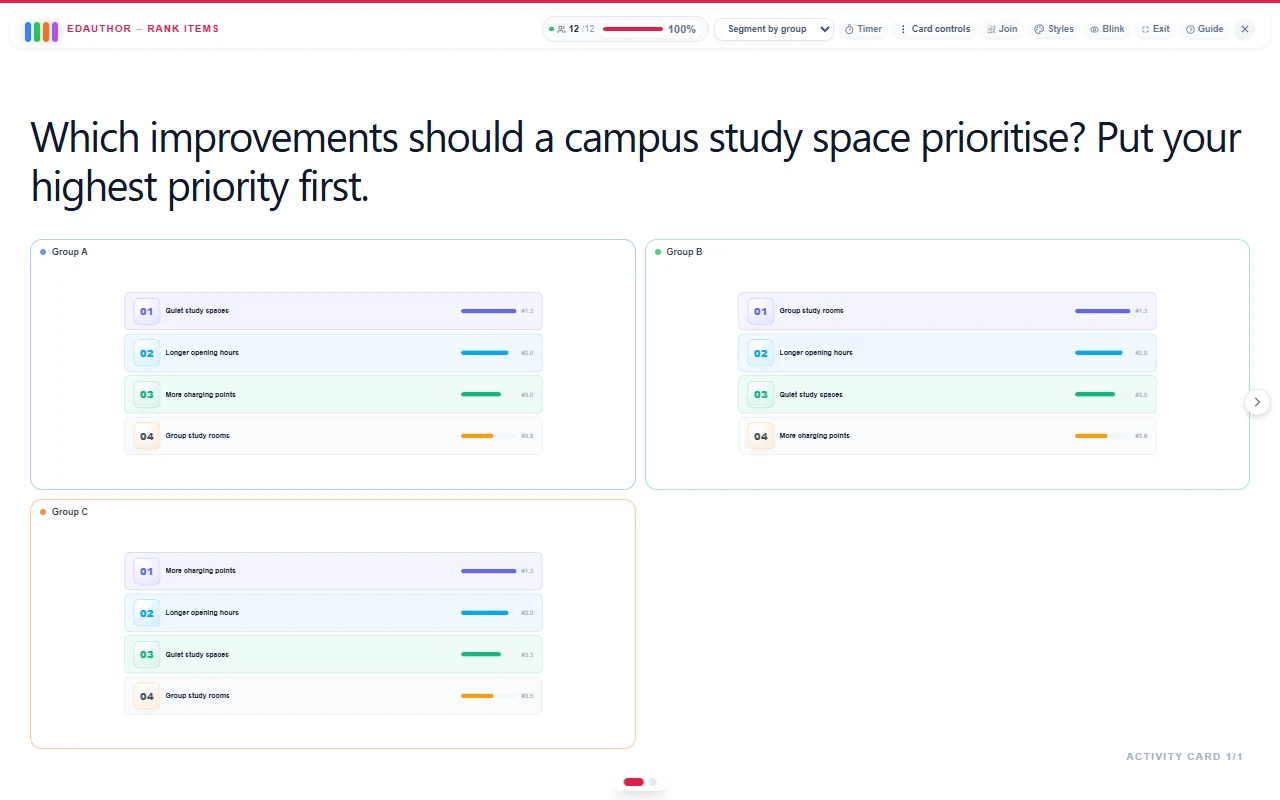
Each panel uses that group’s submitted rankings. In the example, Group A places Quiet study spaces first on average, Group B places Group study rooms first, and Group C places More charging points first. Ask what needs or assumptions might explain those orders. Do not assume every person in a group chose its leading item first.
Establish groups before collecting rankings when comparison is part of your plan. Group membership is recorded with a submission; moving someone later does not rewrite their earlier answer. Anonymous responses can contribute to group summaries while individual attribution remains hidden.
Rank Items displays results for existing groups. To create groups from activity responses, use the supported Multiple Choice or Bipolar workflow, then continue with a Rank Items card. Rank Items itself does not provide Use card results group allocation.
A 20-minute campus priorities workshop
This suggested activity considers a fictional campus study space. It is a teaching exercise, not a report of a consultation already carried out. Explain that the team can investigate one improvement first and wants to understand the reasons behind different priorities.
Prepare two separate Rank Items cards using the same question and four options from this guide. If comparing groups, form them before the first card and keep membership consistent. Ask participants to use their own study needs as the criterion; do not assign demographic categories to the groups.
| Stage | Time | Facilitator action | Card or tool | Discussion purpose |
|---|---|---|---|---|
| Set the context | 3 minutes | Explain the options and what first place means | Media & Text or shared briefing | Establish a common task |
| Rank individually | 3 minutes | Ask everyone to review the full list and submit | First Rank Items card | Capture initial priorities |
| Discuss the trade-offs | 6 minutes | Invite reasons, constraints and alternative perspectives | Small-group discussion | Explore what the order cannot explain |
| Rank again | 2 minutes | Each participant submits on the second card | Second Rank Items card | Preserve a fresh collection after discussion |
| Compare and reflect | 6 minutes | Compare results manually and collect a reason | Rank Items and Thought Bubble | Identify a useful next question |
Give the groups these prompts aloud or on a Presentation Slide: “Why did you put your first option above your second? Whose needs might lead to a different order? What information would you need before committing funds?”
Keep the initial card and its answers. Collect the later ranking on the second card, then compare their displays manually. This preserves both collections; it does not automatically measure individual change or establish that discussion caused a change.
Finish with Thought Bubble: “Which reason from someone else made you reconsider a priority, even if your order stayed the same?” A small workshop can surface questions for further investigation without establishing representative campus preferences.
Frequently asked questions
How many items can I rank?
The normal editor lets you prepare two to ten items. Use distinct options and a clear criterion for what belongs at the top.
Can participants tie items or rank only their favourites?
The current response control submits the complete list, with one item in each position. It has no tied positions, item-level skipping or top-choice-only setting.
What does the number beginning with # mean?
It is the item’s average position, shown to one decimal place. Lower averages come first. The large numbered badge indicates its place in the combined display, not the same thing as its average position.
Can a ranking be submitted without rearranging it?
Yes. Participants can submit the starting order unchanged. Ask them to check the whole list before submitting.
Does Rank Items mark a correct sequence or create groups?
It combines individual rankings and supports comparisons of existing groups. It does not automatically grade a correct sequence, provide a collective group response or allocate participants into new groups from their rankings.
Turn an order into a conversation
Choose a clear question, give people time to compare the options and make the combined priorities visible. Then explore the reasons, disagreements and missing evidence behind the list.
Explore the Activity Card manual to connect ranking with presentations, ratings and reflection.