What the Presentation Slide card does
The Presentation Slide card lets you bring PDF pages into an edauthor session as individual Activity Cards. Import the pages you need, put them in order and add response cards between them. You can introduce an idea, ask everyone for a view, discuss their reasoning and return to the next slide, all within the same card sequence. This guide is for lecturers, seminar leaders and facilitators who want to make more use of the slides they already have.
You do not have to import an entire lecture. Two well-chosen slides, with a question and time to discuss between them, can provide the structure for a useful seminar.
Prepare your slides for import
Start with a PDF of up to 10 MB. Each page should show one complete slide. If you are using PowerPoint, export the slides to PDF first, then open the exported file to check it. Avoid a notes-page or handout layout unless that is the material you actually want to display.
The importer includes Using PowerPoint? Export to PDF, with instructions for Windows, Mac and Web. PowerPoint files are not imported directly. The exported PDF is the source for the card images, so make edits to the original deck and export again when you need to change its text or diagrams.
The importer previews the first 50 pages of a PDF. For a longer presentation, export the relevant section as a smaller PDF so you can choose the pages you need. Check file size and legibility before the session, particularly if you use detailed diagrams or small labels.
Want to try the workflow immediately? Download the two-slide study-space example PDF. It contains the suggested teaching scenario used below, ready to import into your own card sequence.
Import PDF pages as Activity Cards
- Open your Activity Cards in the editor. Select Add Activity, then Presentation Slide. The Import slides window opens for the new card.
- Choose your PDF. Select Choose a file, drop a PDF into the upload area, or use Choose from Media Library to open a saved PDF. Wait for the page thumbnails to appear.
- Select the pages you want. The available pages start selected. Select a thumbnail to remove or restore that page. Clear selection and Select all help when you only need part of the presentation.
- Choose Import selected. Each selected page becomes a Presentation Slide card, in page order. The first fills the card you added; further selected pages are placed immediately after it.
- Give the sequence a purpose. Add an optional card title and a Question / Prompt where they help learners. Select a card, then use Add Activity to put a response activity after it. You can also reorder cards in the list.
- Save and preview. Check the order, the appearance of each imported page and the instructions on your response cards before running the session.
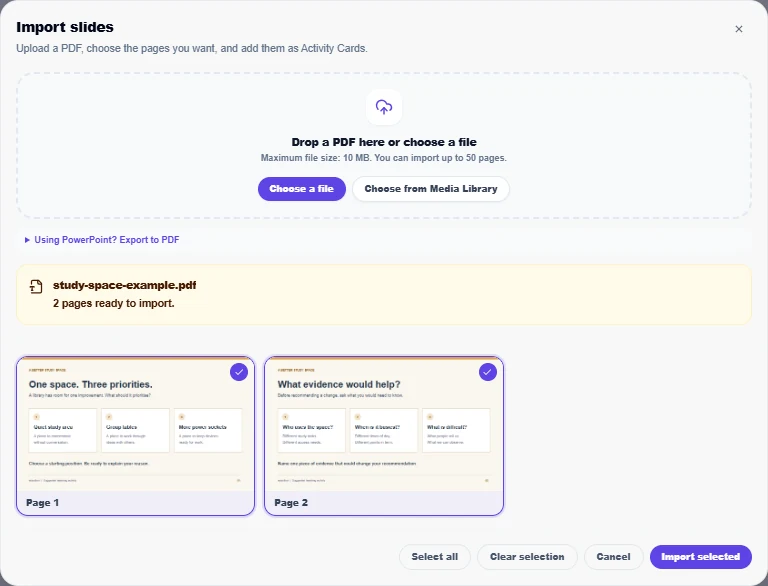
For example, arrange the two-page PDF like this: Presentation Slide → Multiple Choice → Presentation Slide → Thought Bubble. The PDF provides the shared material; the response cards give participants a way to contribute.
Add a prompt, context and display settings
An imported page already contains your slide design. The fields around it help you explain what to do with that material.
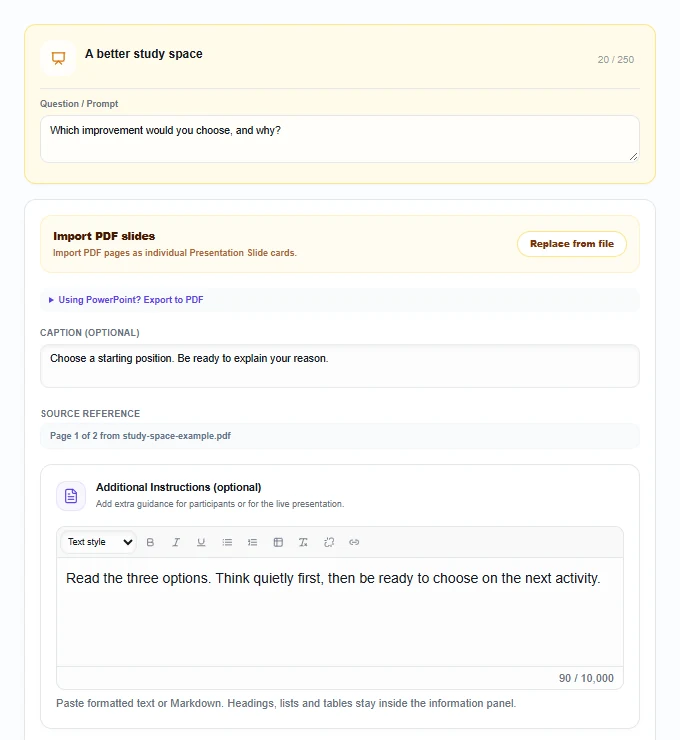
- Question / Prompt gives the activity its immediate task. “Which improvement would you choose, and why?” is more useful than simply repeating the slide title.
- Caption (optional) adds brief context below the slide in its standard layout. Keep it short: the standard slide display limits the caption to three lines.
- Source reference identifies the original file and page, such as “Page 1 of 2 from study-space-example.pdf”. Use it to find the page when revising your source deck.
- Additional Instructions (optional) holds further guidance. Participants can open the Additional instructions control when you have supplied it. Treat these as shared instructions, not private presenter notes.
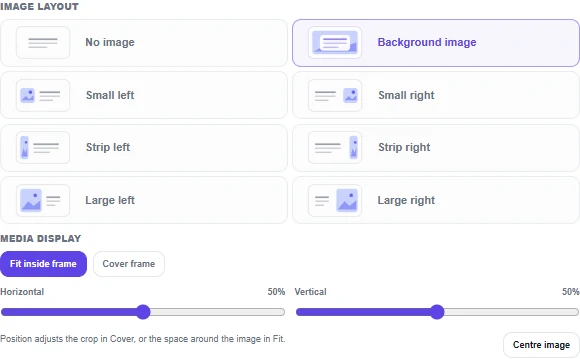
The Optional image/video section contains the imported image and its display controls. Show on participant screens and Show on host screen let you choose where the media appears. Both are on by default. Check the participant setting if learners need to inspect the slide on their own devices.
Imported pages start centred with Fit inside frame, which keeps the whole page in view. Cover frame fills the available frame and can crop its edges. For slides with text near the margins, keep Fit inside frame. Horizontal, Vertical and Centre image control positioning. Other Image layout options change the host arrangement; No image hides the image in the host view. Participant images use a fitted, centred layout rather than mirroring those host crops.
For a revision, use Replace from file and select the replacement page. If you select several pages, the first replaces the current card’s image and the others are inserted after it. This does not automatically update every card previously imported from that file, so check the sequence and save your changes.
What participants see and do
When you make a Presentation Slide card active, participants see its title and prompt, the visible media and its caption in their session view. They do not type an answer on this card. Explain whether you want them to read silently, talk with a neighbour or wait for the following response activity.
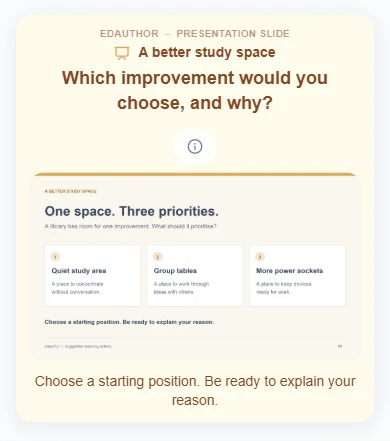
Design for the smallest screen in the room. One idea, a clear diagram and readable labels will usually serve this purpose better than a dense page of notes. Put essential instructions in the card’s readable text fields as well as explaining them aloud. Imported slide text is part of an image, so it is not a substitute for accessible written guidance.
You can also select Video in Optional image/video and enter a supported HTTPS YouTube, Vimeo or direct video-file link. That chooses video as the card’s active media; it does not make a video embedded in the original PDF playable. Playback is controlled by each viewer. For a focused image or video prompt, see the Picture / Video guide.
Try an 18-minute study-space discussion
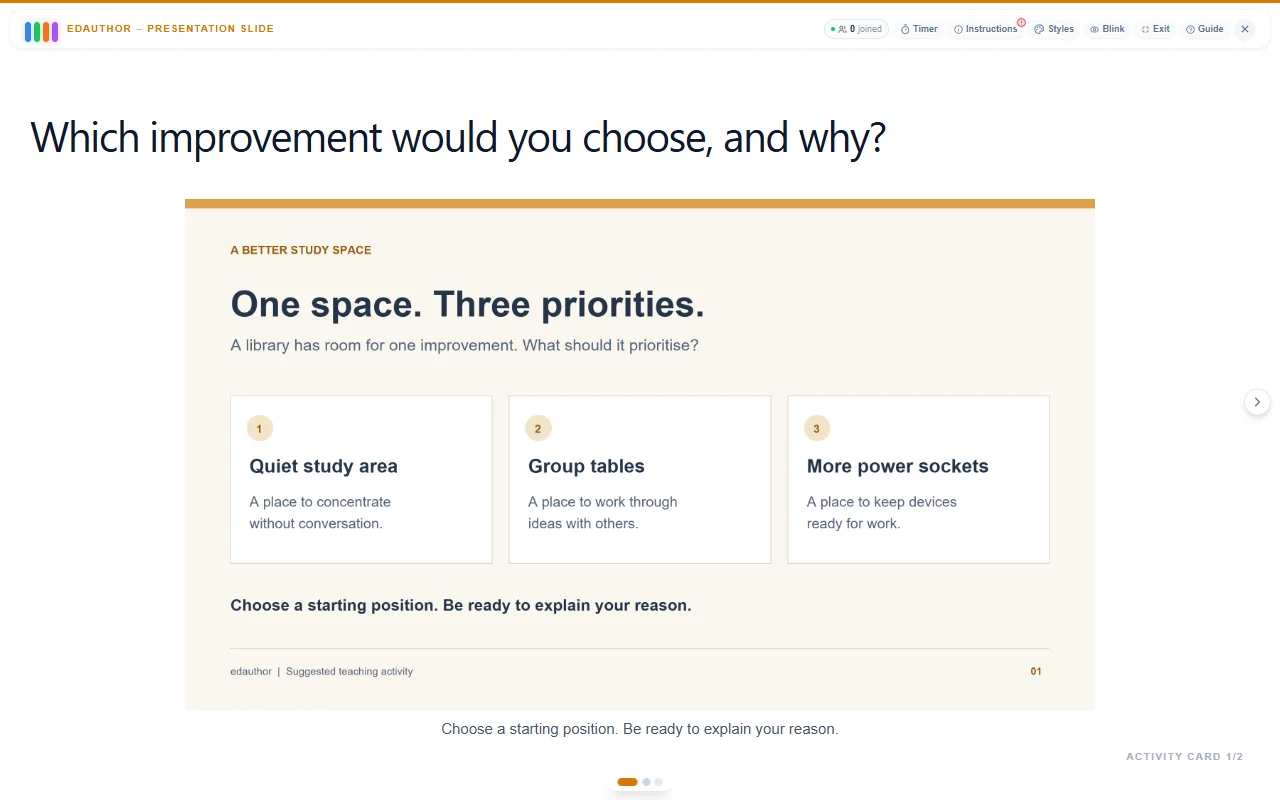
This is a suggested teaching activity. A campus library has room for one improvement: a quiet study area, group tables or more power sockets. Which should it prioritise, and what evidence would support that decision?
Import both pages of the example PDF, then add a Multiple Choice card after page 1 and a Thought Bubble card after page 2. Use individual submissions on the response cards. The pair discussion is a spoken activity; you do not need to create groups in edauthor for this version.
| Stage | Time | Facilitator action | Card or tool |
|---|---|---|---|
| Introduce the decision | 2 minutes | Show the three possible changes. Give everyone time to read and choose a starting position. | Presentation Slide: page 1 |
| Make a first choice | 3 minutes | Ask each participant to submit one option, then look at the spread of responses. | Multiple Choice |
| Explain a reason | 4 minutes | Ask pairs to discuss who their preferred change would help and what it might leave unresolved. Revisit the slide if needed. | Conversation and page 1 |
| Look for evidence | 2 minutes | Present the second slide, which asks about users, demand and difficulties. | Presentation Slide: page 2 |
| Reconsider the decision | 4 minutes | Collect one piece of evidence each participant would want before making a recommendation. | Thought Bubble |
| Draw the discussion together | 3 minutes | Read contrasting contributions and ask how the proposed evidence could affect the decision. | Thought Bubble results |
For Multiple Choice, ask:
Which improvement should the library prioritise: a quiet study area, group tables or more power sockets?
For the pair discussion, use:
Who would your choice help? What problem might it leave unresolved?
For Thought Bubble, ask:
What is one piece of evidence you would want before recommending a change, and how could it affect your choice?
Keep the initial Multiple Choice answers available. They provide a starting point for conversation, not a finding about all library users. Check response counts before interpreting the distribution, and invite participants to explain a minority view. You are comparing contributions as a facilitator; this sequence does not automatically measure each person’s change in thinking.
Adapt the sequence to your subject
Pause a worked example. Import the problem and the explanation as separate pages. Put a Multiple Choice card between them so learners commit to a possible next step before seeing your reasoning.
Read a source together. Display a short passage, diagram or document extract. Follow with Thought Bubble: “Which detail matters most to your interpretation, and why?” Return to the slide when someone wants to point to their evidence.
Move from a briefing to a decision. Import a short scenario, collect an initial choice, then present a second page with new context. Allow discussion before asking for a reasoned response. Keep the earlier activity rather than clearing its results.
Prepare a workshop. Use slides to introduce a task and response cards to collect questions or priorities. If you need organised groups, the group learning guide explains how to form them and use group-specific results.
Questions lecturers often ask
Can I import a PowerPoint file directly?
Export it to PDF first. Open Using PowerPoint? Export to PDF in the importer for the instructions for your version. Check that the PDF shows one complete slide per page before importing it.
Can I choose only some pages?
Yes. Use the page thumbnails, Clear selection and Select all, then choose Import selected. The importer accepts PDFs up to 10 MB and previews their first 50 pages. Export a smaller section if you need pages beyond that range.
Will animations, transitions and embedded videos work?
Imported pages are static images. For playable video, add a supported link through the card’s media settings or use a separate Picture / Video card. Check provider access and playback before teaching.
Can students answer on the slide?
Presentation Slide displays content. Add a response card to collect answers in edauthor, or ask for spoken discussion while the slide is visible. Which response modes are available depends on the response card you choose.
Can I edit the text inside an imported slide?
Edit the original presentation, export a revised PDF and use Replace from file for the relevant card. The imported page is an image, so its text boxes are not editable in edauthor. The card’s title, prompt, caption and additional instructions remain separate editable fields.
Give each slide a role
Choose what to explain, where to pause and what to ask. Import the pages that support those moments, then connect them with activities that let learners contribute.
Explore the Activity Card manual for the cards you can place between your slides.