An edauthor original, built from your participants’ words
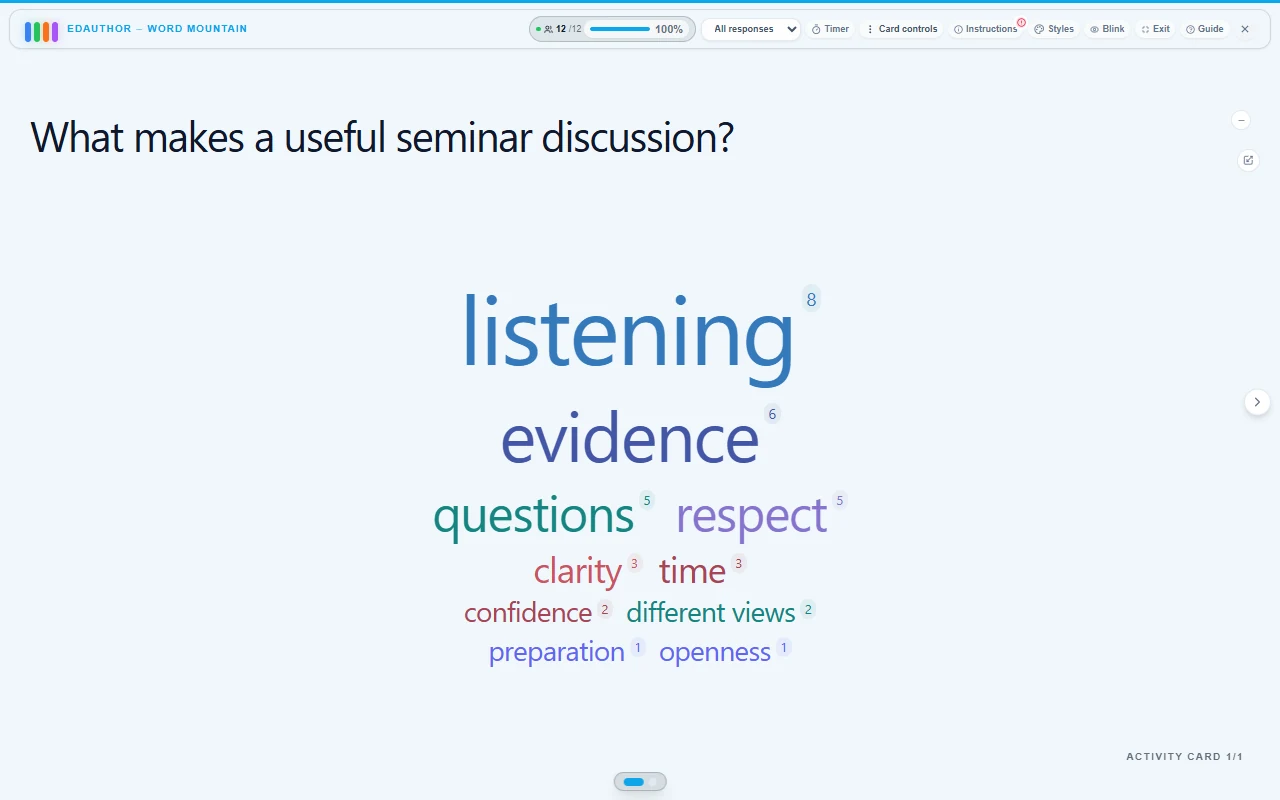
Word Mountain is edauthor’s original take on the classic word cloud. In this interactive learning and audience engagement platform, participants submit words or short phrases and you explore the shared result. Choose Word Mountain or Word Cloud in Styles, and switch between them live as responses arrive. Both views display a numerical counter beside every term, so you can read its frequency directly. The counters measure mentions in the displayed responses, rather than automatically identifying unique people.
This guide is for lecturers and seminar leaders who want a quick way to collect ideas and a useful starting point for discussion. It also works for teachers, trainers and workshop facilitators gathering expectations, associations or reflections.
Why the mountain and the counters matter
A word cloud offers an immediate visual impression. Word Mountain adds another way to explore that impression: a structured arrangement that brings recurring terms towards the summit. You can begin with the most common idea, then look down through the less frequent contributions and ask what they add.
The numerical counters give you something precise to discuss. If “listening” has a counter of 8 and “evidence” has 6, you can read those frequencies without estimating them from font size. A term mentioned once also keeps its counter. Less frequent ideas remain part of the conversation.
The useful combination is the original mountain view, the option to use the classic cloud and visible counts in both. Choose the view that helps you explain the result, and change it as the discussion develops. Neither visual style tells you why people chose a term. That is where your follow-up questions matter.
Create your first Word Mountain card
- Add the activity. Open your Activity Cards in the editor, select Add Activity, then Word Mountain. The same card provides both mountain and cloud styles.
- Write the question. Give the card a title and enter your Question / Prompt. For a seminar opener, try: “What makes a useful seminar discussion?” Ask one clear question rather than combining several tasks.
- Set the contribution size. Choose Max words per participant, from 1 to 20. The default is 3. Each entry can be a word or short phrase of up to 24 characters. For a focused opening activity, three entries are usually enough material to discuss.
- Explain the task. In Additional Instructions (optional), say whether you want concepts, feelings, questions or priorities. For this example, use: “Think quietly first. Enter up to three different words or short phrases. Use each only once.”
- Decide when to reveal answers. Keep Show responses live selected to display responses as they arrive. Untick it if you want to collect answers first and reveal them later from Card controls while presenting. Anonymous hides participant names in responses and results.
- Choose the starting view. Open the editor’s Styles panel. Under Result style, select Word Mountain or Word Cloud. Word Mountain is the default. Save your Activity Cards and include the card in your session.
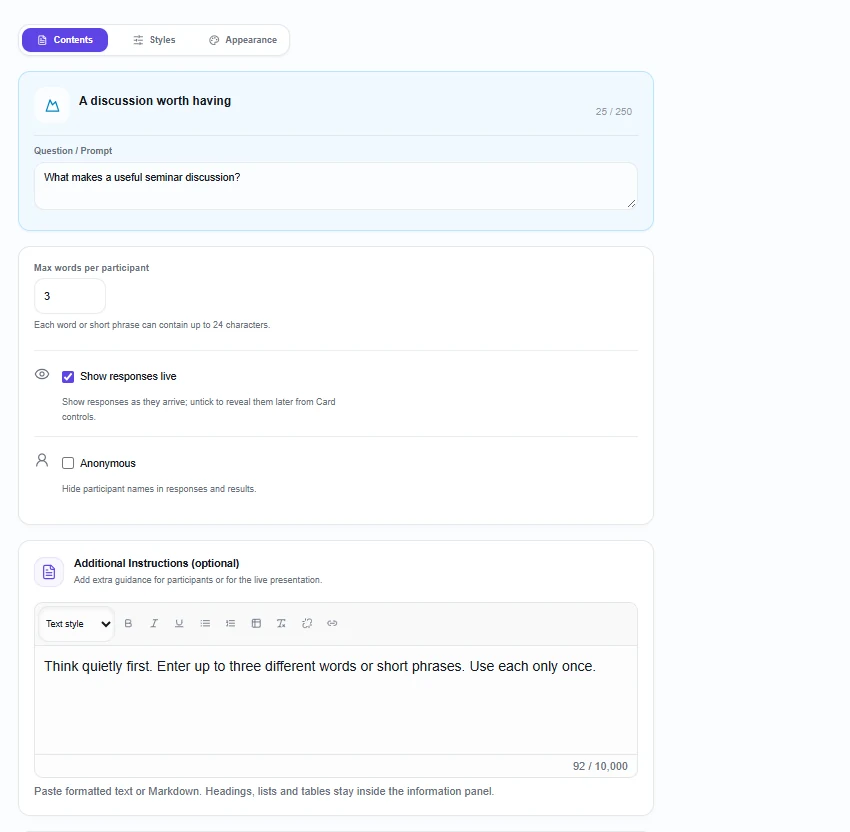
Before teaching, preview the question on a phone-sized screen. Check that a participant can understand the task without needing a long spoken explanation. For a more substantial visual introduction, place a Media & Text card before this activity.
What participants see and submit
Participants join your session through its QR code, joining link or session code. They do not need an edauthor account. When you present Word Mountain, they see the prompt and the number of entry fields you have configured.
Each participant types their own words or short phrases and selects Submit. They can leave some fields empty; at least one non-empty entry is needed. With three fields, someone might enter “listening”, “evidence” and “questions”. These are individual contributions, even if you invite a pair discussion before submission.
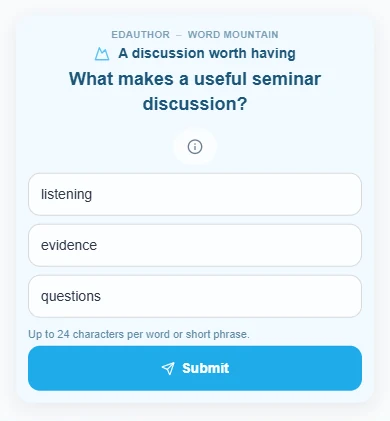
Explain whether learners should respond before or after talking to someone else. Collecting an initial individual answer gives quieter participants time to formulate their contribution. Discussing first produces a different kind of response, informed by that conversation. Either can be useful if the instruction is clear.
Switch between mountain and cloud live
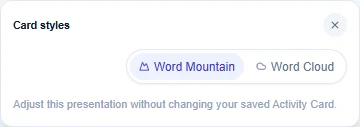
You do not need a second card to show the same answers differently. While presenting the card, open Styles. In Card styles, select Word Cloud or Word Mountain, then close the panel to return attention to the display.
You can make this switch while responses are still arriving. New submissions update the current view, and both styles use the same word counts. Switching does not clear the results or change participants’ answers.
| View | What you see | A useful teaching move |
|---|---|---|
| Word Mountain | A structured arrangement with the most frequent terms towards the top and a counter beside each term | Start with a recurring idea, then invite attention to a less frequent contribution |
| Word Cloud | A cloud layout with frequency reflected in word size and a counter beside each term | Invite learners to scan the collection and identify connections between ideas |
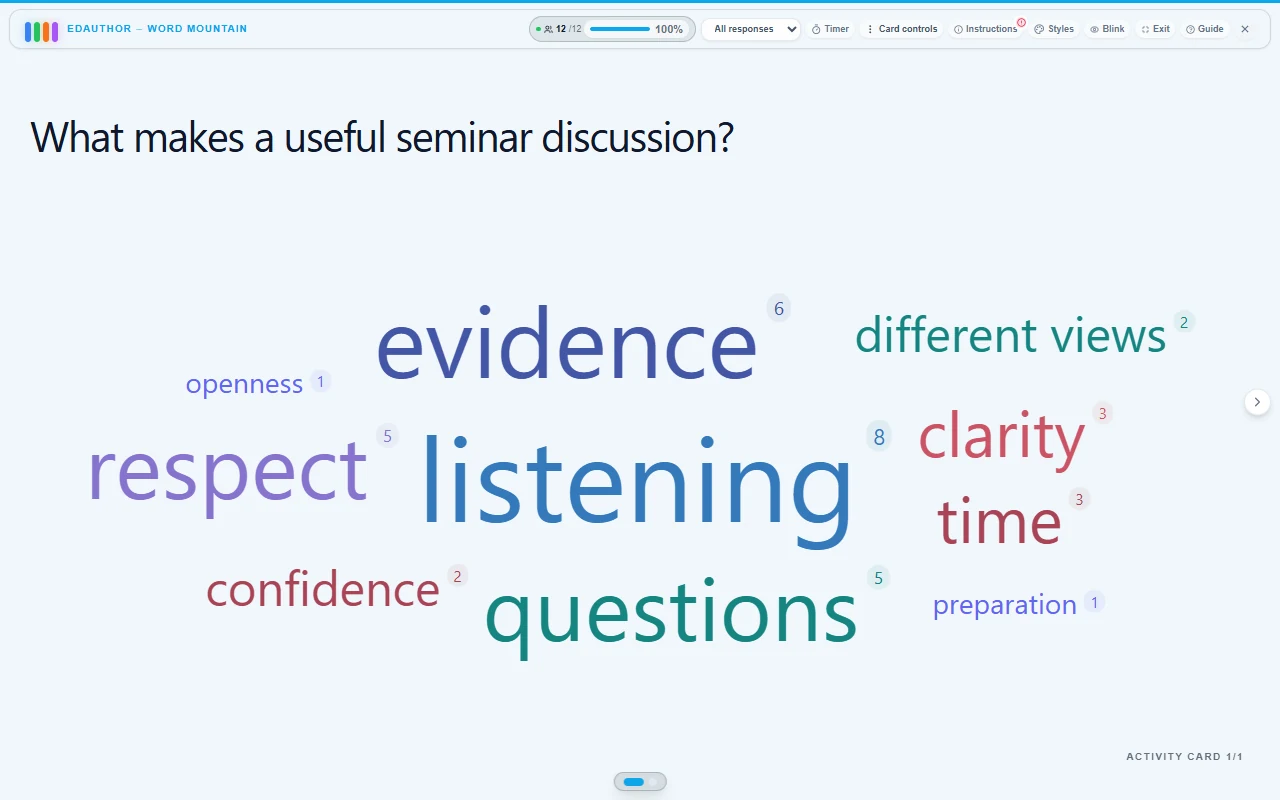
Live style changes apply to the current presentation view. They do not overwrite the saved Activity Card. If you want a particular starting style next time, set it in the editor’s Styles panel and save the card.
Read the counters with confidence
Every displayed word or phrase has a count, including terms mentioned only once. Matching is case-insensitive, and leading, trailing and repeated spaces are normalised. “Listening” and “listening” therefore contribute to the same total. Different wording, such as “listen” and “listening”, remains separate; the card does not automatically merge synonyms or interpret meaning.
A counter is a count of mentions. If a participant enters “listening” twice in their response, both entries count. Ask learners to use each term only once when you want its frequency to reflect how widely it was mentioned across contributions. Do not describe the total of all counters as the number of participants: one person can submit several terms.
Check how many participants have responded before interpreting the display. A frequent word is a useful discussion cue, not proof of unanimous agreement. Equal counters indicate equal frequency even if the words occupy different positions. Ask what an apparently shared word means to different people, and give attention to the terms that appear only once.
A 15-minute seminar opener
This suggested activity uses the seminar prompt shown in the screenshots. Adapt it to your subject and group.
Purpose: use participants’ expectations to discuss what a useful seminar involves. Prepare one Word Mountain card with three entries per participant, followed by a Thought Bubble card for a longer individual explanation.
Opening prompt: “What makes a useful seminar discussion?”
Instructions: “Think quietly first. Enter up to three different words or short phrases. Use each only once.”
| Stage | Time | Facilitator action | Card or tool | Discussion purpose |
|---|---|---|---|---|
| Introduce | 2 minutes | Help participants join and read the prompt aloud | Session joining and Word Mountain | Establish a shared question |
| Think and contribute | 3 minutes | Allow quiet thinking, then ask everyone to submit their own entries | Word Mountain | Collect individual starting points |
| Explore the result | 3 minutes | Read the leading counts, notice a less frequent term and switch styles | Word Mountain and Word Cloud views | Make the collection visible in two ways |
| Discuss meanings | 4 minutes | Invite pairs to explain a chosen term, then hear a few contributions | Spoken discussion | Explore reasoning behind short answers |
| Commit to an action | 3 minutes | Ask each participant for one practical next step | Thought Bubble | Turn an expectation into an individual intention |
For the discussion, ask: “What would ‘listening’ look like in practice? Could two people mean different things by ‘respect’? Which less frequent contribution deserves more attention?”
For the closing Thought Bubble, use: “Choose one idea from the display. What is one action you can take to put it into practice in our next seminar?” Each participant submits their own explanation on that separate card. The word display opens the conversation; the follow-up gives learners room to explain.
Other ways to use the card well
Before a topic: ask “Which words do you associate with research evidence?” Use the collection to surface starting vocabulary, then invite explanations. An unfamiliar term can be as useful as a frequent one.
At the end of a session: ask “Which idea will you carry into your next task?” Keep the prompt specific enough to produce discussable responses. If you repeat a question later, use a separate card to preserve the original answers and compare the displays manually.
In a workshop: ask “What should we pay attention to today?” Give people thinking time, then use the counts to open a conversation about priorities. Frequency can guide where you begin, but it is not a vote unless you have explicitly designed the activity that way.
Frequently asked questions
Is Word Mountain different from Word Cloud?
Yes. Word Mountain is edauthor’s original structured take on the classic word cloud. Both styles are available on the same Activity Card, and both show a counter beside every term.
Can I change the style while answers are arriving?
Yes. Open Styles while presenting and choose Word Mountain or Word Cloud. The current answers and counts are retained, and incoming responses update the selected view. Set your saved starting style separately in the editor.
Does a counter always mean that many people used the word?
It counts mentions in the displayed responses. Repeating a term within one response increases its count, so give a “use each term once” instruction if that distinction matters. A participant can also contribute several different terms.
Can participants submit short phrases?
Yes. Each entry accepts up to 24 characters. Configure between 1 and 20 entries per participant; the default is 3. Participants need at least one non-empty entry to submit.
Can I collect answers before showing them?
Yes. Untick Show responses live when preparing the card, then reveal the responses from Card controls while presenting. This lets you give learners time to think before showing the collection.
Put the words to work
Begin with a question worth discussing. Let people contribute. Show the mountain, try the cloud and use the visible counts to make a precise observation. Then ask the question the visual cannot answer for you: “What do you mean by that?”
Browse the Activity Card manual for other ways to develop the sequence, or explore the group-learning guide when you want to build a fuller seminar around shared thinking.