Two sides to a more thoughtful activity
Flip Card brings a front, a reverse and optional supporting information together in one Activity Card. In edauthor, an interactive learning and audience engagement platform, you can use it for independent exploration or a live question with one correct answer. Prepare up to six cards, let participants examine the fronts, then explore or reveal what is behind them. A correct-answer activity collects one choice per participant and shows response counts or percentages. Free exploration does not collect submissions.
The teaching opportunity sits between the two sides. A front can invite a prediction, interpretation or question. The reverse can introduce an explanation, another perspective or a next step. Give people time to articulate their thinking before revealing the material that might change it.
This guide uses a suggested consumer behaviour teaching example. The interface images show example content and responses, rather than findings from a delivered class.
Choose between exploration and a correct-answer question
The same editor supports two different experiences. Make the choice explicit when you introduce the activity.
| Your purpose | How to configure it | What participants do | What you can review |
|---|---|---|---|
| Explore ideas, cases or prompts | Leave all Correct boxes unticked | Navigate between cards and flip them freely | The card content; this mode records no answer submissions |
| Check a concept before explaining it | Mark one card Correct | Browse the fronts and submit one choice, then wait for your reveal | Counts or percentages for the submitted choices |
In exploration mode, each participant controls which card they turn over. You can ask them to pause before flipping, but that is a facilitation instruction, not a software lock. This is useful for self-checking, a set of discussion prompts or alternative explanations people can examine at their own pace.
In a correct-answer activity, the reverse of each card starts locked for participants. You reveal a card from the host display; leaving its reverse visible briefly unlocks that card for participants to flip on their own devices. Revealing one does not automatically unlock every card. Returning a revealed card to its front does not lock it again.
Use the correct-answer mode only where one option has a defensible answer. For preferences with no correct choice, use Multiple Choice. Free exploration is not a preference poll with voting enabled.
Build your first Flip Card activity
- Add the activity. In the Activity Cards editor, select Add Activity, then Flip Card. Enter a title and a Question / Prompt that tells participants what to consider.
- Plan the small set. Use Add flip card to create your options or prompts. An activity contains one to six flip cards. Select an item in the list to edit it; the numbered list also lets you reorder cards.
- Write the Front. Choose the Front tab. Add Upper text (optional) for a short heading. Under Optional middle content, choose None, Text, Image or Video. Text opens Centred text. Keep the visible face focused on one idea.
- Write the Back. Select Back and add the explanation, reveal or next prompt. Each face needs some content. The two faces can use different middle-content types, such as a front image and a text explanation on the reverse.
- Add depth without crowding the face. Use Card information (optional) for supporting notes on either side. Participants open that information with the information button. It can contain formatted text, headings, lists, links and tables.
- Choose the response mode. Leave Correct (optional) unticked on every item for exploration, or tick it on the one correct item. Selecting a different correct item replaces the previous correct choice.
- Set the presentation and save. Adjust Card colour where useful. Under Response settings, choose whether to Show responses live and whether responses should be Anonymous. Add Additional Instructions (optional), inspect the preview and save your Activity Cards.
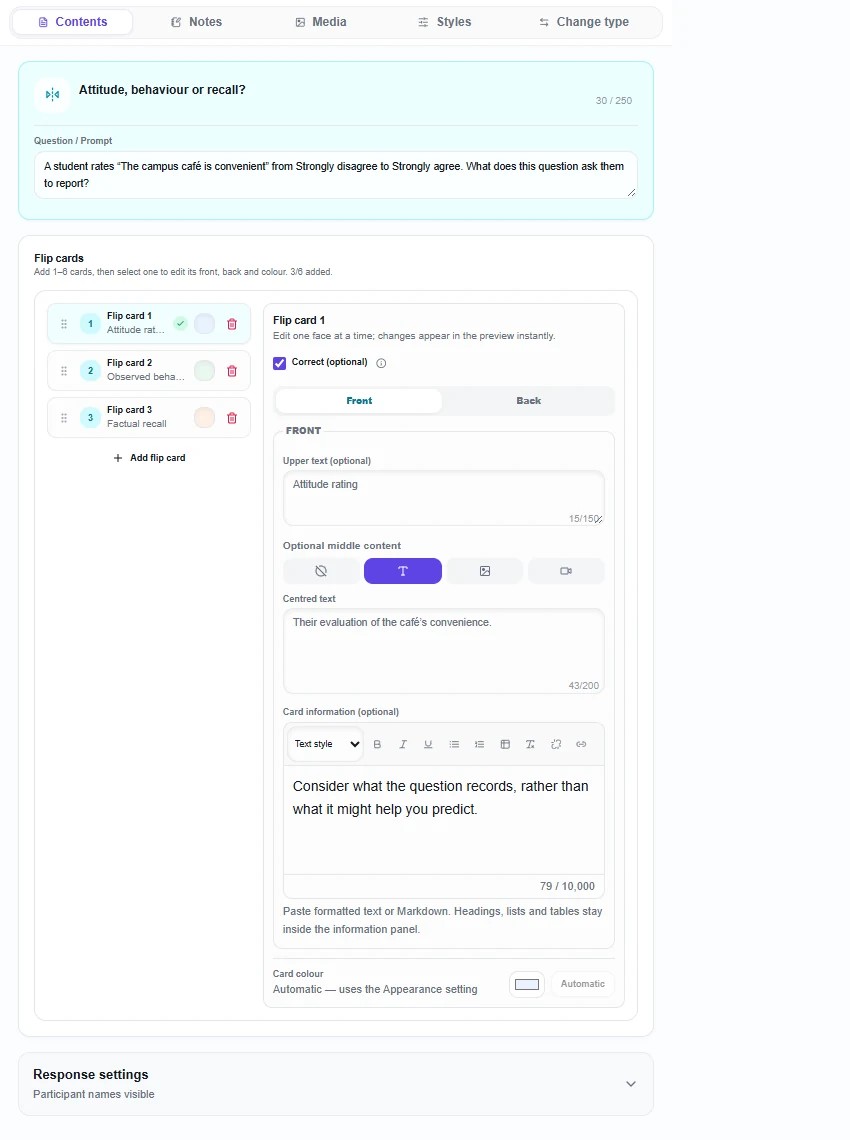
Upper text allows 150 characters and centred text allows 200. Use the information panel for a fuller explanation, rather than squeezing a paragraph onto the face. Remember that front-side information is available before an answer is submitted; place answer-revealing notes on the back if they should form part of the reveal.
Each face has one middle-content type at a time. Changing that type can replace existing middle content, so read the confirmation before continuing. Images on individual faces do not reduce the six-card limit. Adding an overall image or video to the activity reduces the limit to four; if you already have more, the editor asks before removing the extra cards and their content.
What participants see and how they respond
Participants join your session using its QR code, joining link or session code without needing an edauthor account. When you open the activity, they see one flip card at a time, with numbered navigation for moving through the set. They can also swipe horizontally. Browsing to a card does not submit an answer.
For a correct-answer question, ask everyone to inspect the alternatives first. They then display their chosen card and use the arrow-shaped Submit selection button. Each person submits one choice, and the submission button becomes Selection submitted. Moving through the numbered cards afterwards does not change the recorded answer.
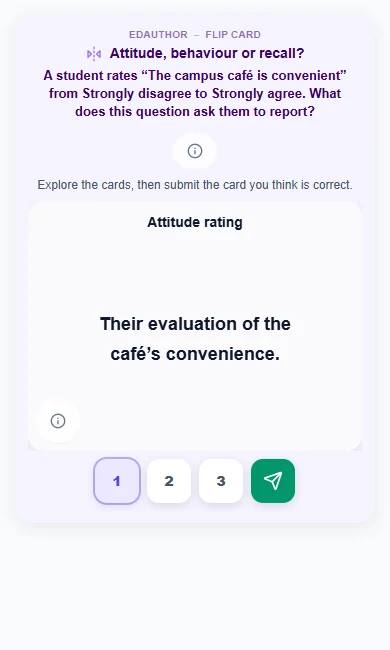
In exploration mode there is no submit button. Participants turn a card over using its flip button, open any available information and move on when ready. Images can be enlarged without flipping the card. Keyboard users can reach the numbered navigation and face controls with Tab; the card region also supports Left and Right arrow navigation.
An exploration activity therefore needs a separate way to capture thinking if you want a record. Follow it with Thought Bubble, asking “Which explanation helped you, and what remains unclear?” That produces an explicit response rather than treating card browsing as evidence of understanding.
Reveal the reasoning and read the responses
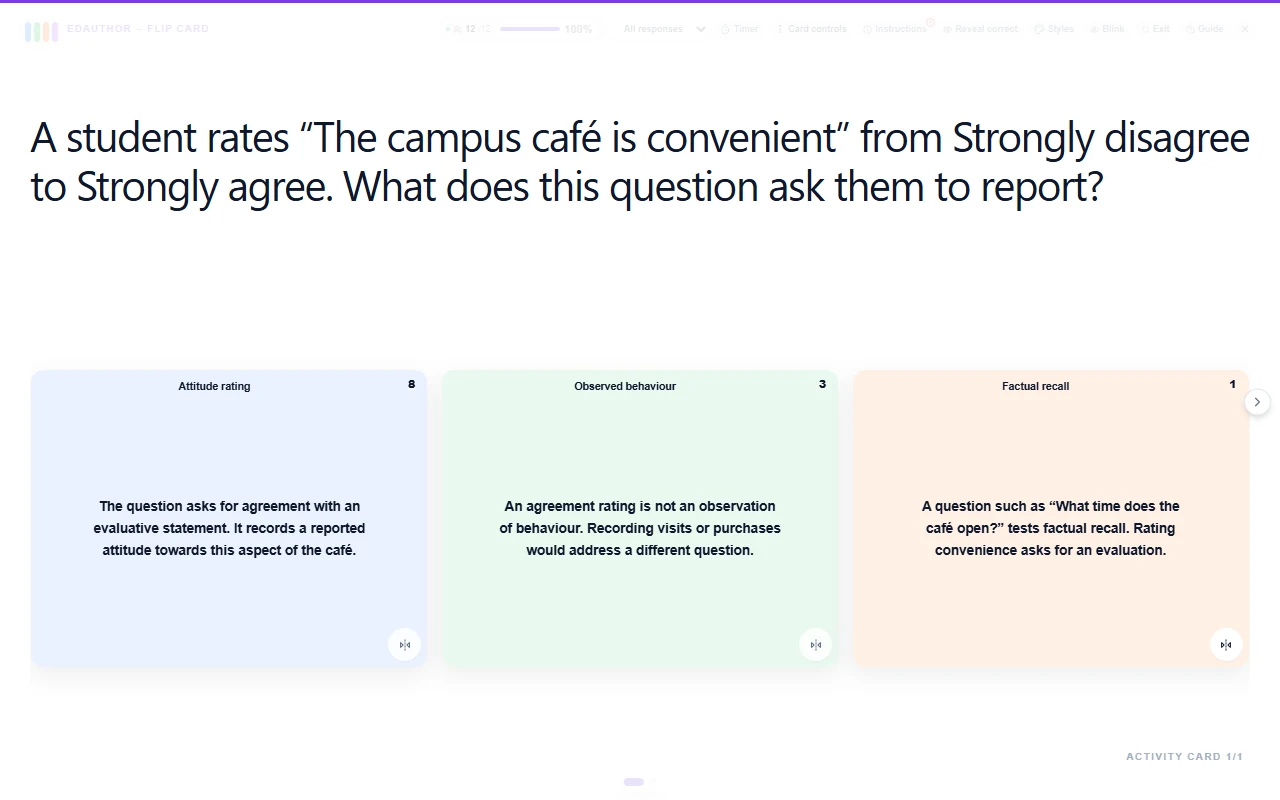
In the host display, flip cards appear together. For a correct-answer activity, response badges show how many submitted choices each card received. Select a badge to switch between counts and percentages. Percentages use the valid submitted responses as their denominator, not everyone invited to the session.
For example, eight selections out of twelve submitted answers gives a rounded 67%. It does not establish that 67% of the whole class understood the concept if other people have not responded. Check the response total and allow enough time before discussing the distribution.
Use Card controls to stop accepting responses before revealing the answer if you want the collected choices to represent thinking before the explanation. Flip each card you want to discuss, keeping its reverse visible long enough to unlock it on participant devices. Participants can then flip that card locally and read the explanation. Their chosen option can show correct or incorrect feedback once that option is unlocked.
A response distribution gives you a starting point for questions: “What made that option plausible?” or “Which word in the question helped you decide?” A correct click does not explain the learner’s reasoning, and an incorrect choice can uncover a useful distinction to discuss.
Participants can discuss the question in existing groups, but each person still submits their own answer. The current Flip Card display uses whole-session selection totals, rather than separate group results. If comparing group-specific answers is central to your activity, use Multiple Choice for that response step.
A 15-minute consumer behaviour teaching example
This is a suggested activity you can recreate. It introduces the distinction between an attitude rating, observed behaviour and factual recall, then uses the reverse of each card to explain the alternatives.
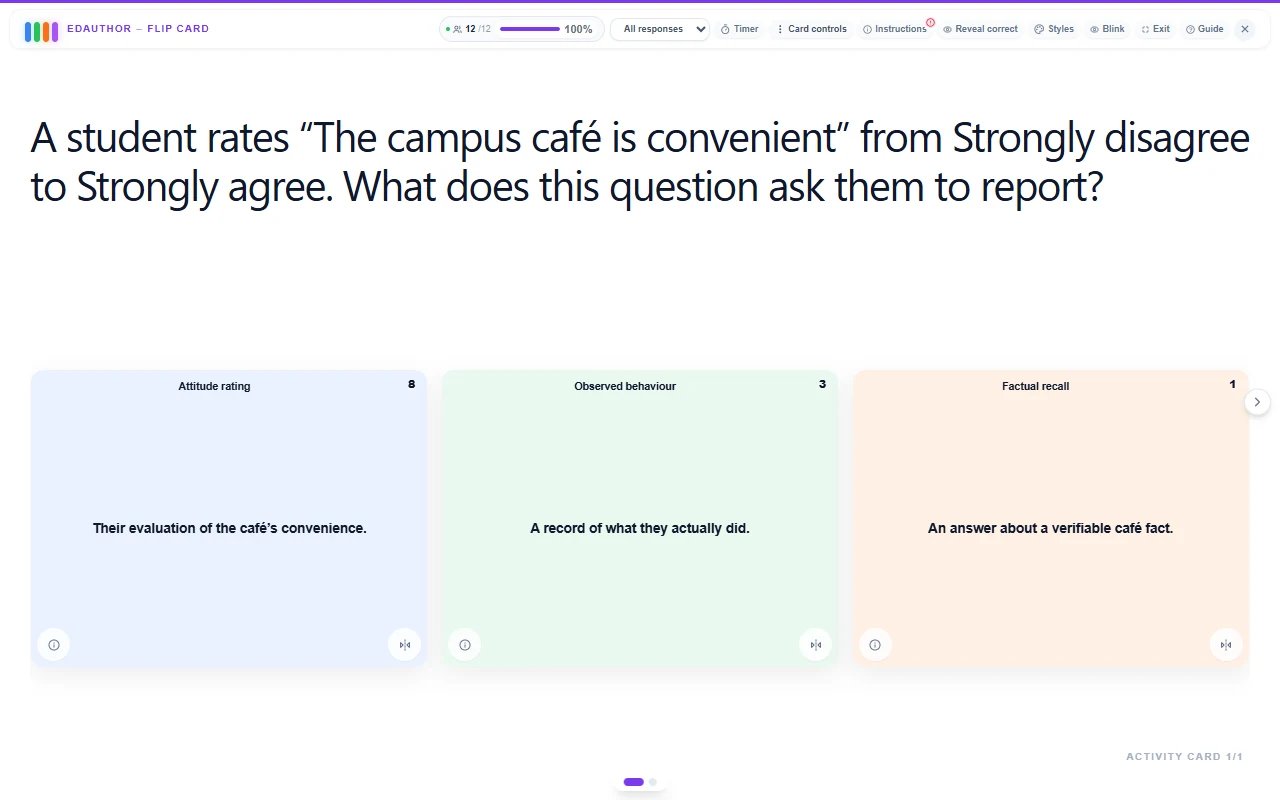
Question / Prompt: “A student rates ‘The campus café is convenient’ from Strongly disagree to Strongly agree. What does this question ask them to report?”
Create three flip cards. Mark Attitude rating as correct:
- Attitude rating. Front middle text: “Their evaluation of the café’s convenience.” Back: “The question asks for agreement with an evaluative statement. It records a reported attitude towards this aspect of the café.”
- Observed behaviour. Front middle text: “A record of what they actually did.” Back: “An agreement rating is not an observation of behaviour. Recording visits or purchases would address a different question.”
- Factual recall. Front middle text: “An answer about a verifiable café fact.” Back: “A question such as ‘What time does the café open?’ tests factual recall. Rating convenience asks for an evaluation.”
| Stage | Time | Facilitator action | Card or tool | Purpose |
|---|---|---|---|---|
| Set the question | 2 minutes | Read the statement and clarify the response scale | Flip Card fronts | Establish exactly what the question asks |
| Think individually | 2 minutes | Ask people to examine all three options without submitting yet | Numbered navigation | Give everyone time to form a reason |
| Discuss | 3 minutes | In pairs, ask “What distinguishes evaluation from behaviour?” | Spoken discussion | Compare reasoning before choosing |
| Submit | 2 minutes | Ask each person to display their choice and Submit selection | Individual Flip Card response | Collect one answer from each participant |
| Reveal and explain | 4 minutes | Close intake, inspect counts and flip all three explanations | Host results and reverse faces | Discuss why each alternative does or does not fit |
| Reflect | 2 minutes | Ask “What would you measure differently if you wanted to study actual café use?” | Thought Bubble | Make the next research question explicit |
For a follow-up, use the Scale guide to explore agreement ratings, or Bipolar to explore opposite-endpoint questions. Keep the distinctions visible: one classroom rating is not automatically a validated measure, and a stated attitude is not the same as observed behaviour.
More ways to use the two sides
Concept revision: put a term or short problem on the front and an explanation on the reverse. Leave Correct unticked and ask learners to say their answer before flipping. Add a later question if you need to collect evidence of their understanding.
Visual interpretation: show an image on the front, invite participants to notice a detail, then reveal explanatory text or another image. Put source notes in Card information and use material you have permission to share.
Workshop perspectives: create exploration cards for different stakeholder viewpoints. Put the role on the front and its discussion prompt on the reverse. Assign the roles verbally or in shared instructions; opening a card does not allocate people to groups or send private role instructions.
Staff training: present three possible responses to a clearly defined situation. Where there is one defensible correct response, collect individual choices and reveal the reasoning. Where several approaches could be appropriate, use free exploration and discussion instead of marking an arbitrary winner.
Across these uses, keep the front readable, make the reverse worth revealing and explain who should submit. For a second attempt after discussion, use a separate activity so the initial responses remain available. Compare the two manually; do not assume automatic before-and-after analysis.
Frequently asked questions
How many flip cards can one activity contain?
One to six, or one to four when the activity includes an overall image or video. Media placed on individual faces does not reduce that limit.
Can participants flip cards without submitting?
Yes. Leave every Correct (optional) box unticked. Participants can then flip freely, and the activity collects no answer submissions. Use a separate response card if you want to record a reflection.
Can more than one answer be correct?
No. Flip Card supports one marked correct item and one submitted choice per participant. Selecting a new correct item replaces the previous one. Use another Activity Card where your question needs a different response format.
Does the host reveal every card at once?
No. The host flips cards individually. In a correct-answer activity, a card becomes available for participant flipping after its reverse has remained visible briefly. Reveal each explanation you want people to examine.
Do participants need an account, and who submits after group discussion?
Participants can join without an account. Each person submits their own choice, even if you ask them to discuss in groups first. Flip Card does not automatically collect a single group answer; free exploration collects no submissions.
Give the reveal a purpose
Start with something worth considering. Give people time to think. Then use the other side to explain, challenge or extend the idea.