Turn a choice into a conversation
Multiple Choice (MCQ) in edauthor lets you collect individual answers to a question, display the distribution and decide what to explore next. Use it for a poll without a correct answer, or mark one or more correct choices for a knowledge check. Present responses as Bars or Vote circles, switch between counts and percentages, and explore results by group. In a live main room, Use card results can also create groups from non-anonymous answers for the next activity.
This guide is for lecturers and seminar leaders, with examples that also suit teachers, trainers and workshop facilitators. A choice gives you a starting point. Asking why someone selected it gives you something to discuss.
Choose a poll or a knowledge check
The same card supports three useful approaches:
| Approach | How to configure it | A teaching use |
|---|---|---|
| Single-choice poll | Leave correct answers unmarked and Multiple (correct) choices unticked | Choose a topic, priority or starting position |
| Multiple-selection poll | Leave correct answers unmarked and tick Multiple (correct) choices | Identify several relevant factors or interests |
| Knowledge check | Mark the correct option, or enable multiple choices and mark several | Discuss understanding before revealing the answer key |
The Multiple (correct) choices setting controls both how many options participants can select and how many you can mark as correct. It can be used without an answer key. For a multiple-selection poll, make your instructions explicit, such as “Select every topic you would like to investigate.”
Use plausible, distinct options. “Which explanation best fits this observation?” gives a seminar something to work with; a confusing distinction between nearly identical answers can instead test how people interpret the wording. Leave options unmarked when there is no defensible correct answer.
Build your first Multiple Choice card
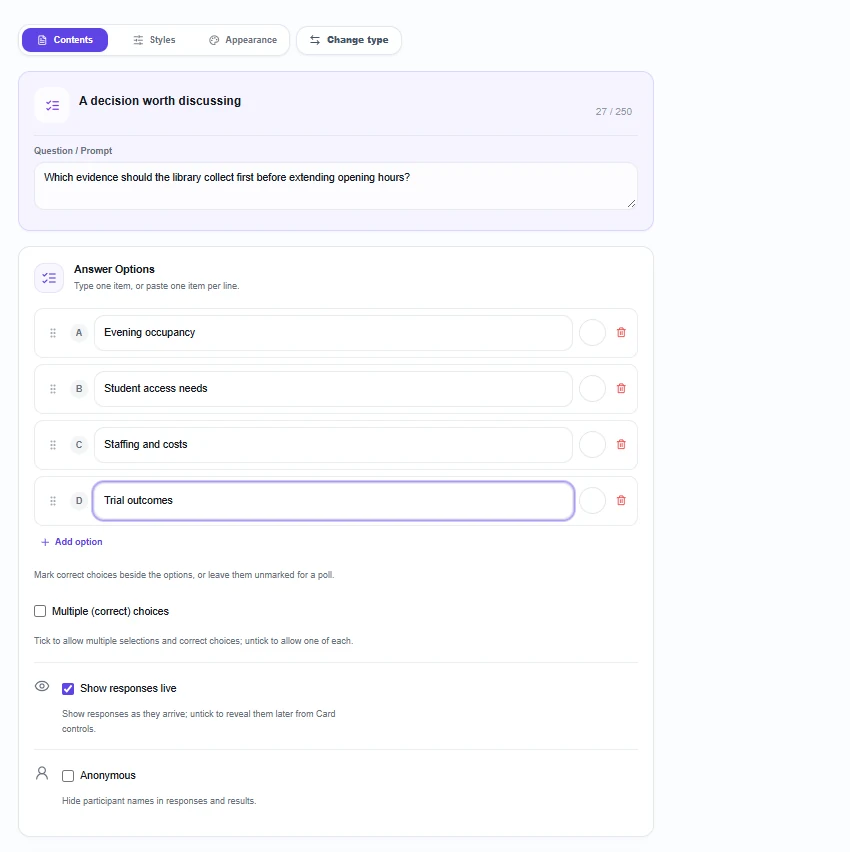
- Add the card. Open your Activity Cards in the editor, select Add Activity, then Multiple Choice.
- Write the question. Add a title and enter your Question / Prompt. Include enough context for participants to understand what they are choosing.
- Prepare the answers. Enter your Answer Options. The editor supports two to eight options. Use Add option, reorder them with the drag handles, or delete an option when more than two remain. You can also paste a list with one option per line, up to the eight-option limit.
- Decide how people should answer. Leave Multiple (correct) choices off for one selection, or turn it on for several. Use Mark as correct answer beside the relevant option only when the question has an answer key.
- Set visibility and attribution. Keep Show responses live ticked to display responses as they arrive, or untick it to reveal them later from Card controls. Anonymous hides participant names in responses and results. Keep anonymity off if you intend to form groups from the answers.
- Choose the presentation. Open Styles, then Results styles, and choose Bars or Vote circles. Preview the card, save your Activity Cards and include it in your session.
Prepare any follow-up question as a separate card. Reusing the wording on another card lets you retain the initial responses instead of clearing the first activity.
What participants do
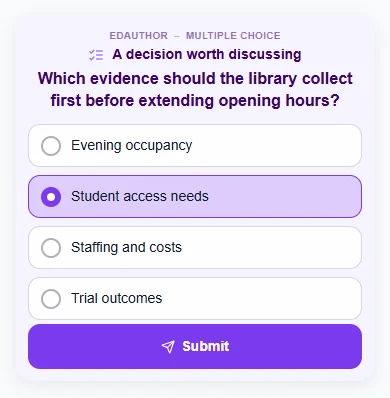
Participants join through the session’s QR code, joining link or session code without needing an edauthor account. When the card is active and accepting answers, they select an option and press Submit. In multiple-selection mode, they can select several options before submitting; at least one selection is needed.
These are individual submissions, including when participants belong to session groups. Ask them to think independently first, or discuss together and then each submit their own judgement. MCQ does not provide the leader-submitted collective-answer mode used by the Quiz and Scratch Card activities.
Allow time for reading. Before interpreting the distribution, check how many people have responded. A small number of early answers may look different from the completed collection.
Make the responses easy to read
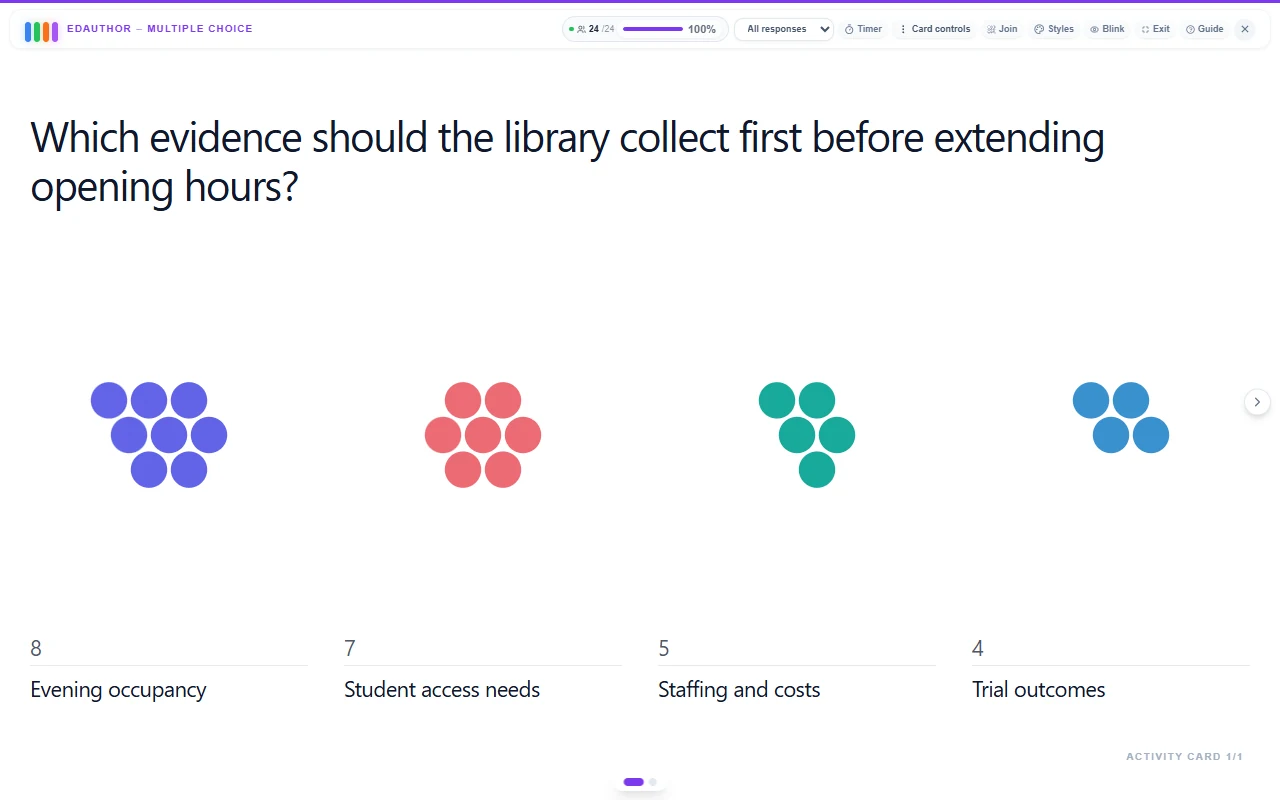
Bars make relative totals easy to compare. Vote circles display a separate circle for each selection under its option, with a numerical total. With multiple selections, one participant can contribute a circle to more than one option.
Open Styles during the presentation to change the view while responses arrive. The live choice changes the presentation without rewriting answers or saving a new default to the card. Set your preferred starting style in the editor.
Use Show % to display percentages and Show count to return to totals. Percentages use the number of responses in the current view as their denominator. If ten respondents submit answers and six choose an option, that option shows 60%. With multiple selections, percentages across options can add up to more than 100%.
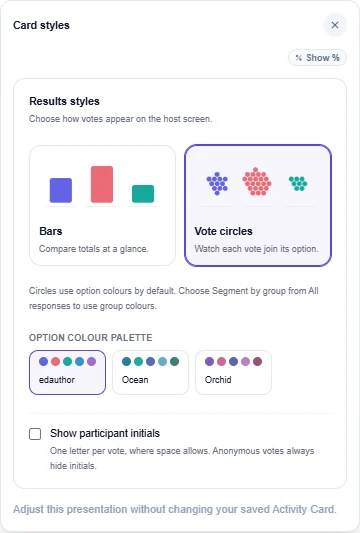
Vote circles offer edauthor, Ocean and Orchid colour palettes. Show participant initials can display one letter per vote where there is room; anonymous votes hide initials. Turn initials off when the discussion should focus on the pattern of choices.
Response visibility and the answer key are separate controls. You can collect answers privately, reveal the distribution from Card controls, discuss the reasoning and then select Reveal correct if you marked correct choices. Revealing an answer key is useful when followed by an explanation of why it fits.
Create groups from MCQ answers
Use card results connects the question with group organisation. For example, ask which aspect of a problem each participant wants to investigate, then let those choices form the working groups.
- Present the MCQ in the live main room and collect non-anonymous individual responses. Session-wide anonymity must also be off. If participants are already split into groups, use Un-split groups before creating a new split from answers.
- Open Card controls, then Use card results. The Create groups from answers preview shows the options and proposed group sizes.
- Choose letters or numbers under Group names. Remove a proposed group if that option should not become a working group; Restore all options brings removed options back into the preview.
- Check sizes and unassigned participants, then select Create groups. The current activity stays open and its answers are preserved. Continue with your next Activity Card using the new groups.
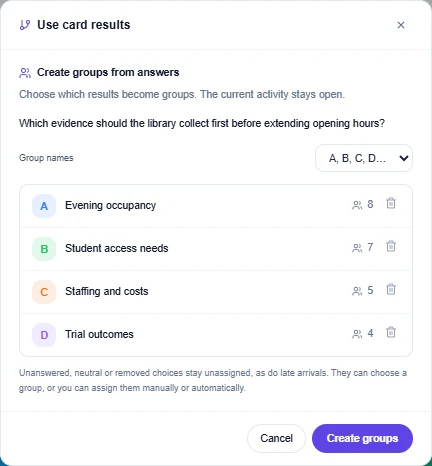
A participant who selected one retained option joins that option’s group. Someone who selected several retained options joins one of those groups, with allocation favouring the smaller eligible group. This does not guarantee equal sizes and does not place them in every group they selected.
Non-respondents, late arrivals and people whose choices were all removed stay unassigned. They can choose a group, or you can use the host’s assignment controls. Anonymous responses cannot be used for this allocation. See the group-learning guide for the wider workflow.
Compare responses from existing groups
On a subsequent MCQ, participants still answer individually. Use the All responses dropdown to select a particular group, return to the whole collection, or choose Segment by group.
Segmentation shows the groups together: bars contain coloured group segments and vote circles use group colours, with a legend. Selecting one group instead filters the chart to that group. Its percentages then describe that group’s submitted responses. Segmented percentages use all responses in the displayed collection, so a large segment is not automatically a larger proportion within its group.
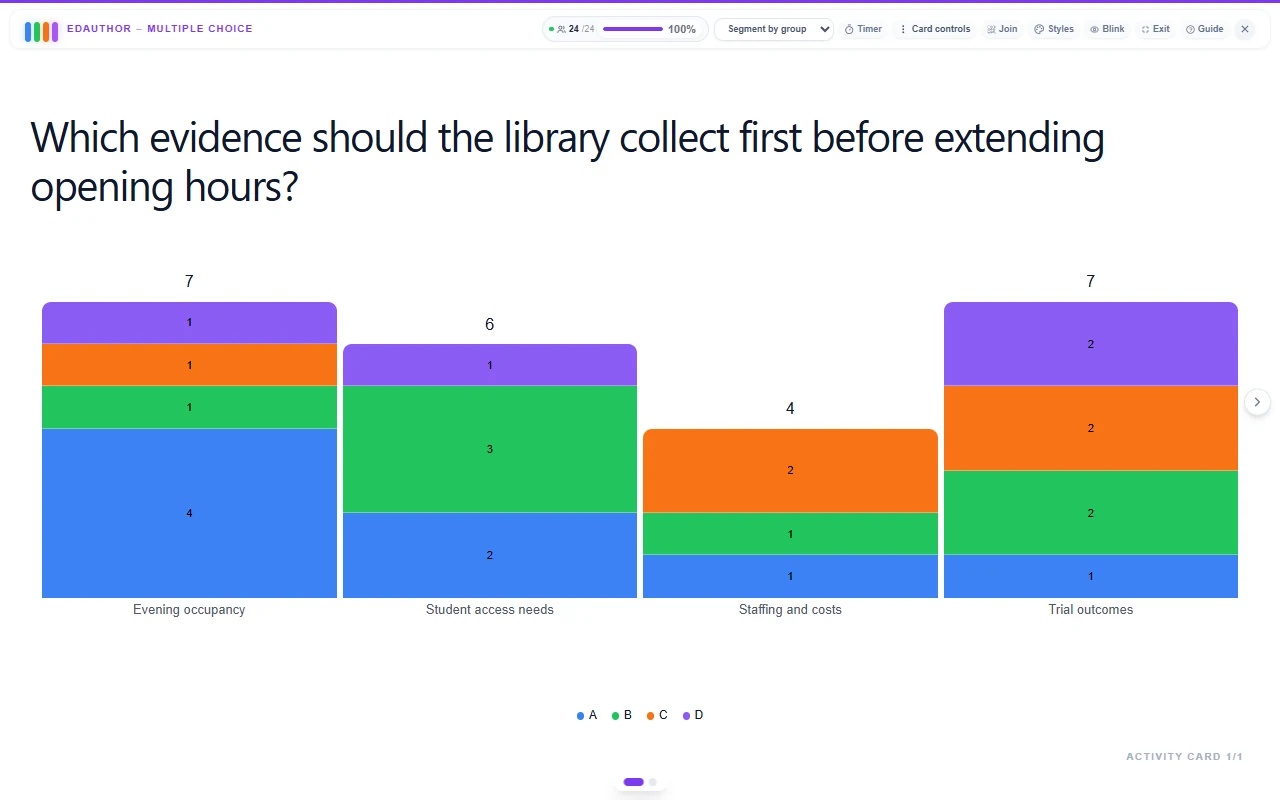
Responses retain the group membership recorded when they were submitted. Creating groups afterwards does not retrospectively assign the initial poll’s answers to those groups. Collect a new response on a separate card after the split to compare the new groups meaningfully.
Read group sizes and response counts before drawing conclusions. A shared selection need not mean shared reasoning, and a group’s most popular answer need not be unanimous.
A 25-minute library decision workshop
This suggested teaching activity uses the example in the screenshots. A university library is considering extending its opening hours. Learners must decide what evidence would help it make that decision. The screenshots illustrate its initial poll and follow-up responses.
Prepare two distinct MCQ cards with this question and the same four options:
Which evidence should the library collect first before extending opening hours?
- Evening occupancy
- Student access needs
- Staffing and costs
- Trial outcomes
Use single-choice responses with no marked correct answer. Keep anonymity off for the first poll so its responses can form groups. Participants choose an investigation priority, not a category describing themselves.
| Stage | Time | Facilitator action | Card or tool | Discussion purpose |
|---|---|---|---|---|
| Frame the decision | 3 minutes | Introduce the library scenario and four evidence options | Shared briefing | Establish what needs deciding |
| Choose independently | 3 minutes | Ask each participant to select one priority and submit | First MCQ | Surface starting judgements |
| Form working groups | 2 minutes | Review the proposed split and create groups from answers | Use card results | Connect choices to a task |
| Investigate together | 6 minutes | Ask groups to propose evidence and identify its limits | Spoken group discussion | Develop and challenge the reasoning |
| Vote again | 3 minutes | Ask everyone to answer the same question individually | Second MCQ | Collect fresh responses within the groups |
| Compare and explain | 5 minutes | Explore the second poll by group and revisit the first | MCQ results | Discuss agreement and differences |
| Reflect | 3 minutes | Ask what evidence would change a recommendation | Thought Bubble | Identify an unresolved question |
Give every group this task: “How would you collect your chosen evidence? What could it tell us, and what would it leave unanswered?” Explain the instructions aloud or on a shared Presentation Slide; the poll does not automatically distribute different private task cards.
For comparison, ask: “Do people who initially chose the same investigation still agree? Which other group’s reasoning challenged your priority?” Keep both polls and compare them manually. The second card’s group view does not automatically track individual change between the two.
Close with Thought Bubble: “What is one piece of evidence that could change your recommendation, and why?” Treat classroom differences as material for discussion, not findings about the wider student population.
Frequently asked questions
How many answer options can I use?
The editor supports two to eight options. Participants choose one unless Multiple (correct) choices is enabled.
Do I have to set a correct answer?
No. Leave all correct-answer markers unselected for a poll. Mark one or several for a knowledge check, then reveal the key when you are ready to discuss it.
Can participants choose more than one answer?
Yes. Enable Multiple (correct) choices. Each selected option receives a vote, so total selections can exceed respondent numbers and option percentages can add up to more than 100%.
Can an anonymous poll create groups?
No. Use card results requires non-anonymous answers in a live main room. You can still use an anonymous poll for discussion without allocating participants from its responses.
Does MCQ include a scored competition?
The MCQ workflow described here collects choices and can reveal an answer key. For scored quiz sequences and leaderboards, explore edauthor’s Quiz features.
Ask a question that leads somewhere
Choose clear options, make the distribution visible and give learners time to explain their choices. When those choices suggest a useful shared task, create groups from the answers and continue the conversation with the next card.
Explore the Activity Card manual for ways to connect MCQ with reflections, media and other participation activities.