A quiz can do more than name a winner
Quiz is the scored question card in edauthor, an interactive learning and audience engagement platform. Lecturers, teachers and trainers can create questions with one or several correct answers, choose timed or untimed responding, and reveal answers alongside cumulative scores. Participants answer individually, or an assigned group leader submits a shared answer after receiving suggestions. Each Quiz Card contains one question. Multiple Quiz Cards in an Activity Bundle contribute to the same quiz, even when other activities sit between them.
A score tells you whether a submitted answer matched the answer key. The discussion afterwards can tell you why someone chose it. Build both into your session: a clear decision first, followed by an explanation, a counterexample or a question that tests the distinction again.
The examples below use consumer behaviour concepts, but the workflow also suits concept revision, professional training and workshop knowledge checks. The images show example questions and responses.
Build your first Quiz Card
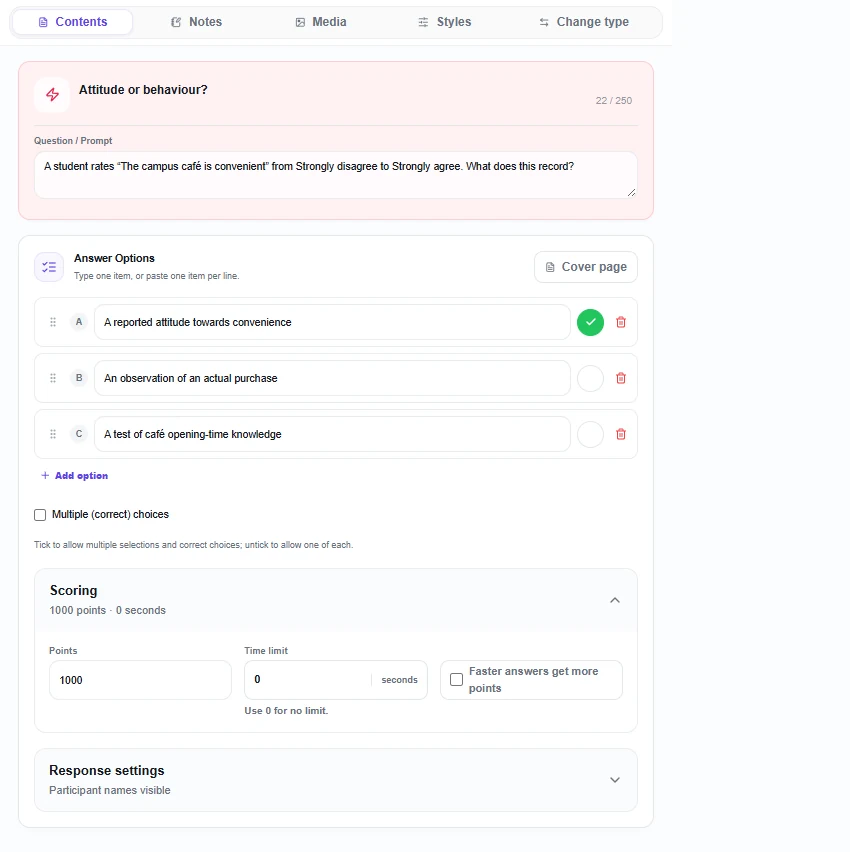
- Add the question. In the Activity Cards editor, select Add Activity, then Quiz. Enter a card title and the Question / Prompt. Ask something with a defensible correct answer.
- Write the alternatives. Under Answer Options, enter two to twelve options. Use Add option for another answer, the drag handles to reorder them and Delete option to remove one. Keep alternatives concise enough to read on a phone.
- Mark the answer key. Use Mark as correct answer beside the correct option. Enable Multiple (correct) choices if participants should select several options, then mark every correct option. The participant view will say Select all correct answers.
- Set Scoring. Choose Points and a Time limit in seconds. Decide whether to enable Faster answers get more points. The default is 1,000 points, 30 seconds and speed scoring enabled, so review these settings before presenting.
- Choose Response settings. Decide whether to Show leaderboard after this question and Show responses live. Leave live responses hidden if you want people to choose before seeing the distribution. Anonymous activity replaces participant nicknames with stable temporary identities across the quiz and its leaderboard.
- Prepare the opening. Select Cover page to edit the Card title, Cover title, Cover description and optional additional cover instructions. The cover introduces the activity before the question begins. Use it to explain the scoring and who should submit.
- Add context and save. Include additional instructions or optional media where useful, inspect the preview and save your Activity Cards. Add another Quiz Card for each further question. You can place explanatory slides or discussion activities between questions without starting a separate score total.
For multiple-correct questions, a response must include all the correct options and no incorrect ones to earn points. There is no partial credit. Say this before people answer, especially when they are used to tests that award marks for each correct selection.
With speed scoring off, every correct submission earns the configured points. With it on, correct answers earn fewer points as time passes, with a minimum of 25% of the question's points within the allowed response window. Incorrect answers earn zero. Speed scoring requires a positive time limit; turn it off before setting an untimed question.
Run the question and make the reveal useful
Participants join through the session QR code, joining link or session code without needing an edauthor account. Introduce the instructions on the quiz cover and select Start quiz. A three-second countdown precedes answering. Later quiz covers use Continue quiz.
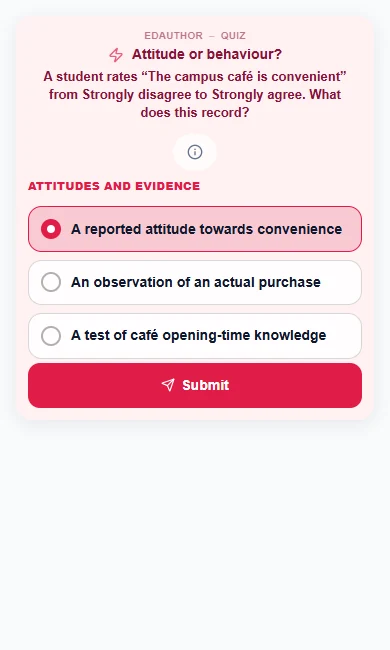
Participants read the question, select their answer or answers, and press Submit. Selecting an option alone does not submit it. For timed questions, they see the remaining time; answers cannot be submitted after the response window closes. Give longer reading time for complex wording and use an untimed question when discussion should set the pace.
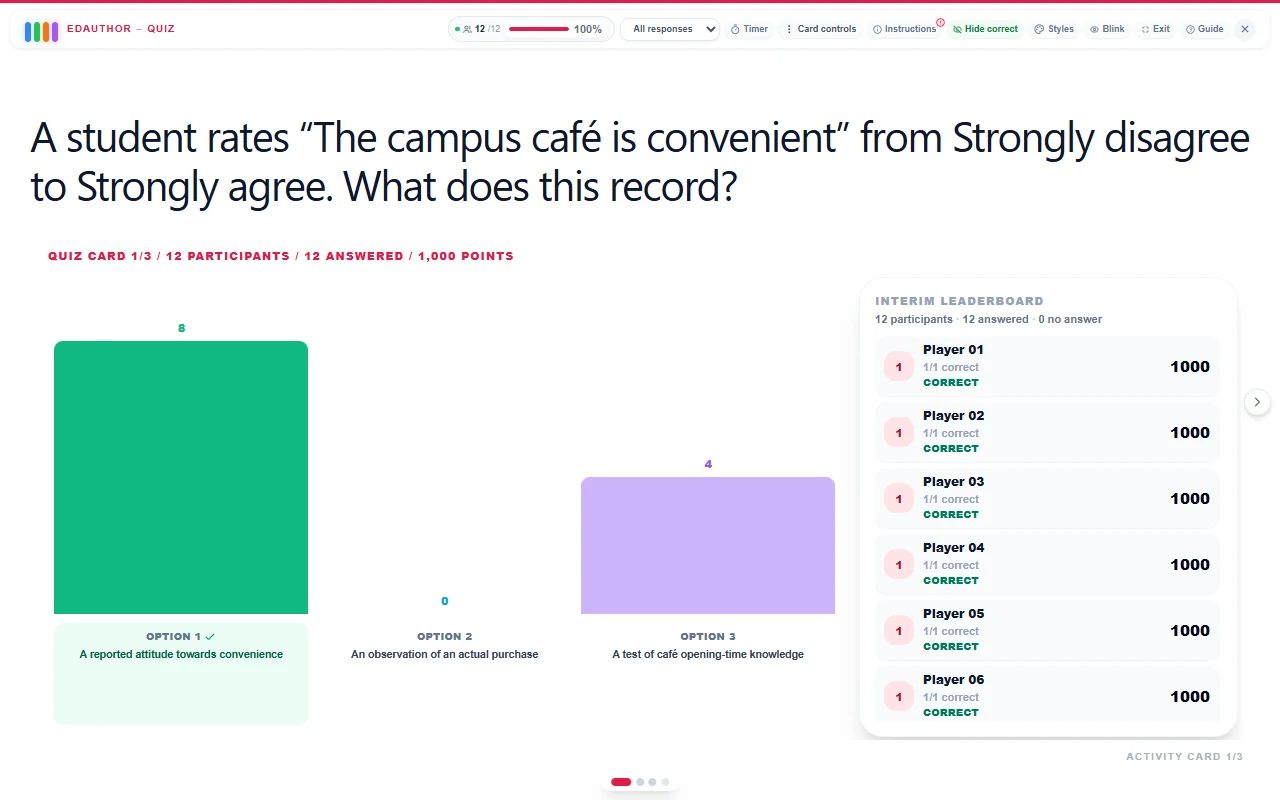
When everyone has answered or a timed question ends, the Quiz summary lets you review participation before the answer reveal. It distinguishes correct, incorrect and missing answers. Use Reveal correct answer & leaderboard to move from that summary to the results. You can also finish a question from the host controls using Reveal answer & results.
The results chart shows how often each option was selected and identifies the correct answer. If you enabled Show leaderboard after this question, cumulative standings appear alongside it. For multiple-correct questions, one person can contribute to several option counts, so those counts are not mutually exclusive shares of the room.
Pause before moving on. Ask, “What made the most popular incorrect answer plausible?” Invite an explanation of the correct choice, then address the distinction in your own words. Check missing responses before interpreting the chart: no answer is not automatically evidence that someone did not understand.
Three ways to involve groups
Quiz connects to the session's existing groups. Decide the response arrangement before starting and keep it consistent through the quiz. Use the group-learning guide to organise membership, then choose how that membership should shape the activity.
| Arrangement | Who submits? | What the scores mean |
|---|---|---|
| Whole room, individual quiz | Each participant | Individual cumulative points |
| Split room, groups without assigned leaders | Each group member | Group standings combine the average eligible-member score for each question |
| Split room, groups with assigned leaders | Each leader submits one group answer; other members can send suggestions | The group's score comes from its leader-submitted answers |
Individual answers within groups preserve each person's choice while letting the class play in teams. Split the room before starting, with no leaders assigned for this arrangement. Group scoring is based on per-question member averages rather than simply adding every member's points, so a larger group does not receive extra points merely for having more members. An unanswered eligible member contributes no points. The group result does not imply unanimous agreement.
Leader-submitted answers support a different kind of collaboration. While the group structure is unlocked, open a participant's menu in their group and choose Set as Group Leader. Do this for every group that should submit collectively. In the Quiz activity, members use Send suggestion; the leader sees suggestion counts beside the alternatives, chooses the final answer and presses Submit group answer. Suggestions inform the decision but are not automatically submitted as a majority vote.
Ask leaders to hear a reason as well as count preferences. A useful instruction is: “Before submitting, explain why your choice is stronger than the closest alternative.” Allow enough time for that conversation. Turning off speed scoring can make this easier to manage.
A leader's final answer represents the group's submitted decision, not proof that every member agrees or understands. Ask someone else to explain the reasoning after the reveal. Set up the same mode across groups for a clear comparison rather than mixing collective and individual submission arrangements unintentionally.
Keep competition and feedback in balance
Quiz Cards in the same bundle share cumulative standings. This lets you alternate a question, an explanation and another question while keeping a coherent quiz. Use the optional per-question leaderboard when a running competition helps your session, or leave it off while concentrating on the answer distribution.
At the end, the final leaderboard brings the scores together. Control top 3 places lets you reveal the leading places when you are ready. This setting is enabled by default. Build suspense if it suits the group, but leave enough time to revisit the ideas behind the scores.
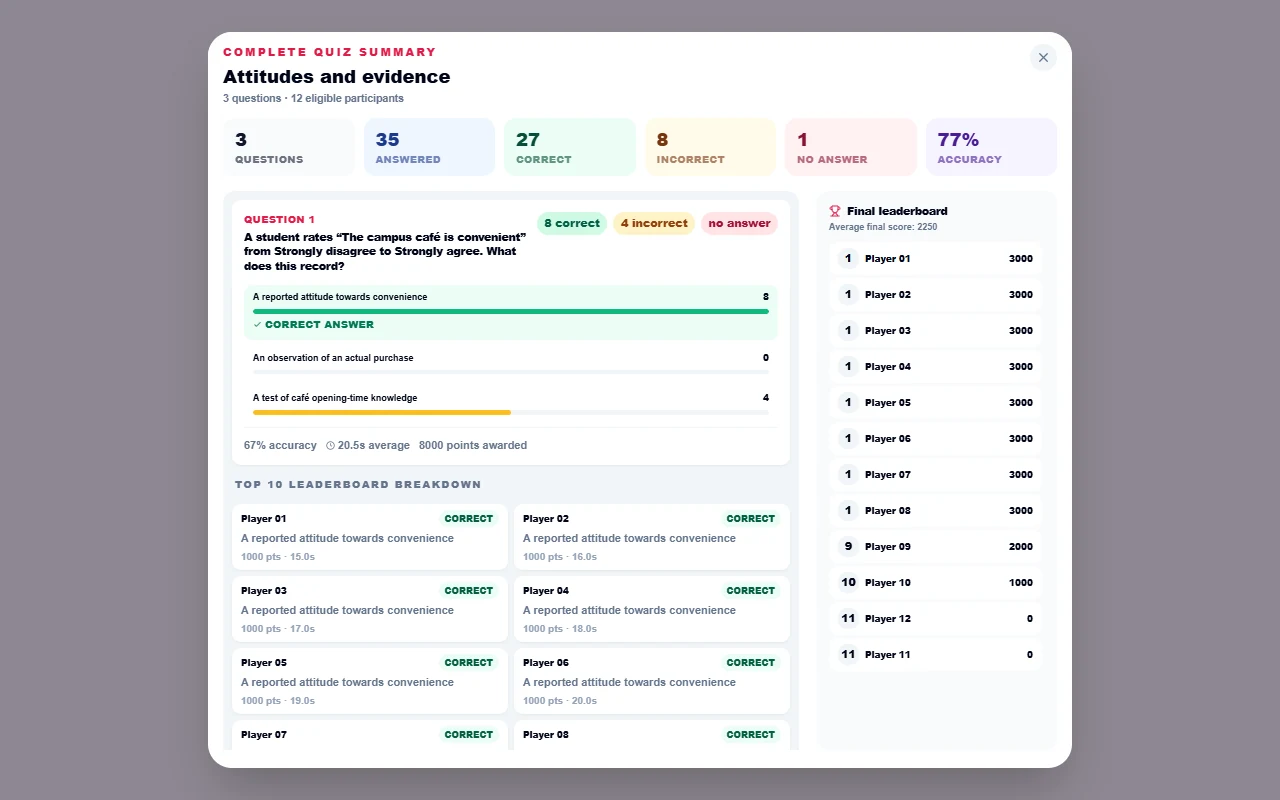
The complete Quiz summary provides a further review of the questions, answer counts, correctness, non-responses and points, with individual or group breakdowns appropriate to the quiz. Use it to identify an explanation worth revisiting. A classroom quiz score is not a validated measure of wider ability, and speed-weighted scores should not be read as pure measures of understanding.
A 15-minute consumer behaviour quiz you can recreate
This is a suggested teaching activity. Create three Quiz Cards, each worth 1,000 points, with speed scoring off and a time limit of 0. Let people discuss in pairs but submit individually. Keep the room in individual mode for this first version.
Question 1: “A student rates ‘The campus café is convenient’ from Strongly disagree to Strongly agree. What does this record?”
- A reported attitude towards convenience. Correct.
- An observation of an actual purchase.
- A test of café opening-time knowledge.
Explain that an evaluation differs from observed behaviour and factual recall. A favourable rating does not establish that the student visited the café.
Question 2: “Which statements describe the data collected by that agreement question? Select all correct answers.” Enable Multiple (correct) choices.
- It records a self-reported evaluation. Correct.
- It can be considered alongside other relevant attitude items. Correct.
- It directly counts actual purchases.
Explain why both marked options are needed and why the purchase claim does not follow. A collection of items needs careful design and evaluation before being treated as a reliable multi-item measure. The Scale guide develops that distinction.
Question 3: “Which additional evidence most directly records actual café use?”
- Recorded visits or transactions. Correct.
- Agreement that the café is convenient.
- A rating from unappealing to appealing.
Discuss how each alternative answers a different research question. The Bipolar guide explains opposite-endpoint ratings; they remain evaluations rather than records of a purchase.
| Stage | Time | Facilitator action | Card or tool | Purpose |
|---|---|---|---|---|
| Introduce | 2 minutes | Explain individual submissions and accuracy-only scoring | Quiz cover | Make the task and rules clear |
| Distinguish concepts | 3 minutes | Run Question 1, reveal and discuss the alternatives | Quiz | Separate attitude, behaviour and recall |
| Examine the claim | 4 minutes | Allow pair discussion, then run Question 2 | Multiple-correct Quiz | Identify what the measurement can and cannot establish |
| Choose evidence | 3 minutes | Run Question 3 and explain each option | Quiz and cumulative results | Connect a research question to relevant evidence |
| Reflect | 3 minutes | Ask “Which distinction is clearer now, and what still needs explaining?” | Thought Bubble | Capture an explanation beyond the score |
For a team variation, form groups and assign a leader before the quiz. Replace individual submissions with suggestions and leader-submitted answers, explaining the change explicitly. Keep the questions untimed so that considering another person's reasoning is part of the activity.
Frequently asked questions
How is Quiz different from Multiple Choice?
Quiz combines correct-answer questions with points, optional time limits, optional speed scoring and cumulative leaderboards across Quiz Cards. Use Multiple Choice when your main purpose is polling or exploring choices without this quiz sequence. Preferences with no correct answer should not be forced into a scored answer key.
Can I have several correct answers?
Yes. Enable Multiple (correct) choices and mark each correct option. Participants must select the complete correct set, with no incorrect options, to score. A Quiz Card supports two to twelve answer options.
Can I run a quiz without a timer or speed rewards?
Yes. Disable Faster answers get more points. Keep a positive Time limit for timed, accuracy-only scoring, or set it to 0 for an untimed question. Correct submissions then earn the configured points regardless of response speed.
Does every participant need an account or submit a separate answer?
Participants do not need accounts to join. Normally each person submits their own answer. In a split room, assigning a group leader enables that group's collective submission workflow: other members send suggestions and the leader submits the final answer.
Can I hide names and control when scores appear?
Anonymous activity replaces individual participant nicknames with stable temporary identities throughout the quiz and leaderboard. Group names and assigned leader identities can remain visible in group workflows. This is display anonymity, not a promise that no session records exist. Separately, Show responses live, Show leaderboard after this question and Control top 3 places govern different parts of the reveal. Review your settings before presenting.
Make the answer the start of an explanation
A useful quiz has a clear question, an intentional scoring rule and time to learn from the result. Collect the choice. Reveal the answer. Then ask for the reasoning that makes it meaningful.