Give every reaction a place in the conversation
React Card is an original Activity Card in edauthor, an interactive learning and audience engagement platform. It lets you present up to eight topics, ideas or pieces of media and collect reactions to each. Participants drag a reaction onto an area; you flip the areas on the host screen to see their counters. Choose the available reactions, create your own and set a per-person allowance. Use the patterns to decide what to discuss next, with an optional room applause meter for in-person activities.
A seminar discussion rarely follows a straight line. One proposal draws enthusiasm, another raises a concern, and a third needs evidence before anyone can judge it. React Card gives those responses a visible place. A reaction belongs to a particular topic, so you can return to the idea that prompted it.
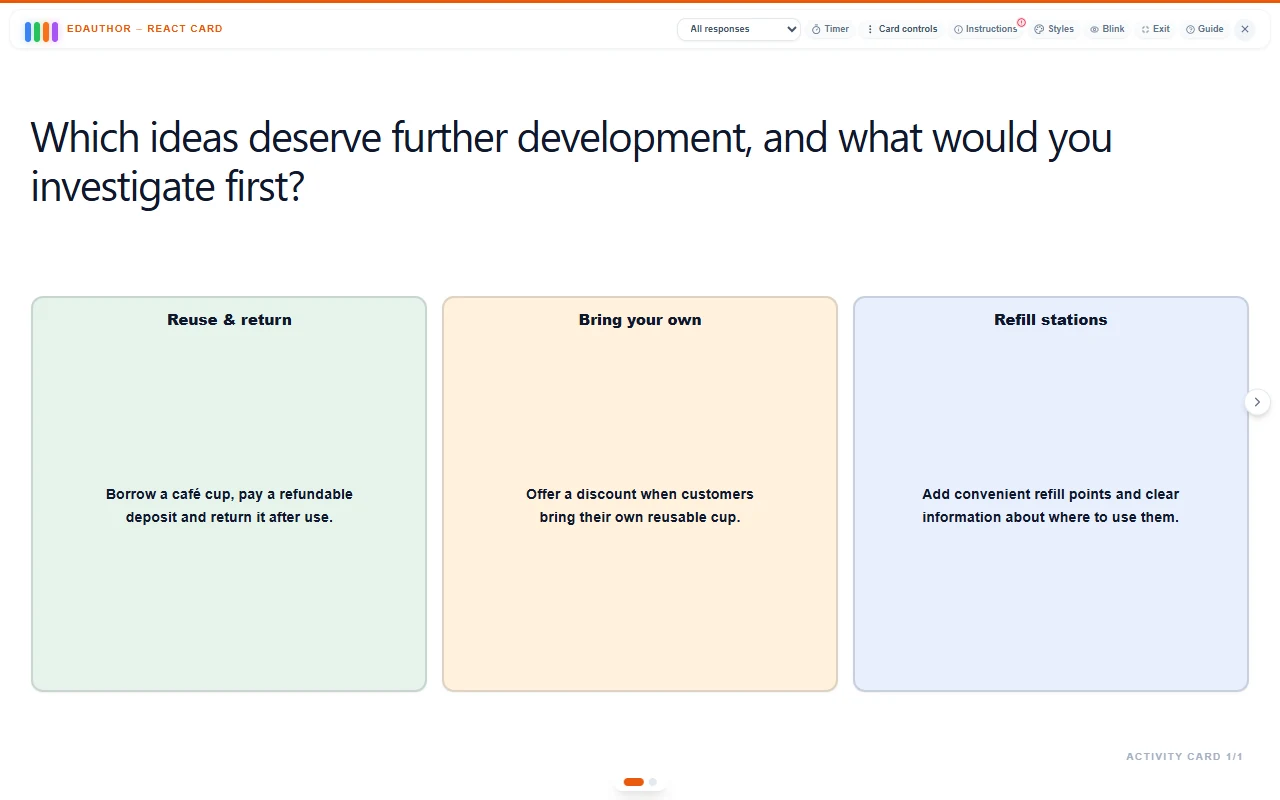
For lecturers, this can support a debate, feedback on student proposals or a discussion of contrasting interpretations. Trainers and workshop facilitators can use the same approach to explore options or identify questions. The images below show example content and responses; the workshop is a suggested activity you can recreate.
Build your first React Card
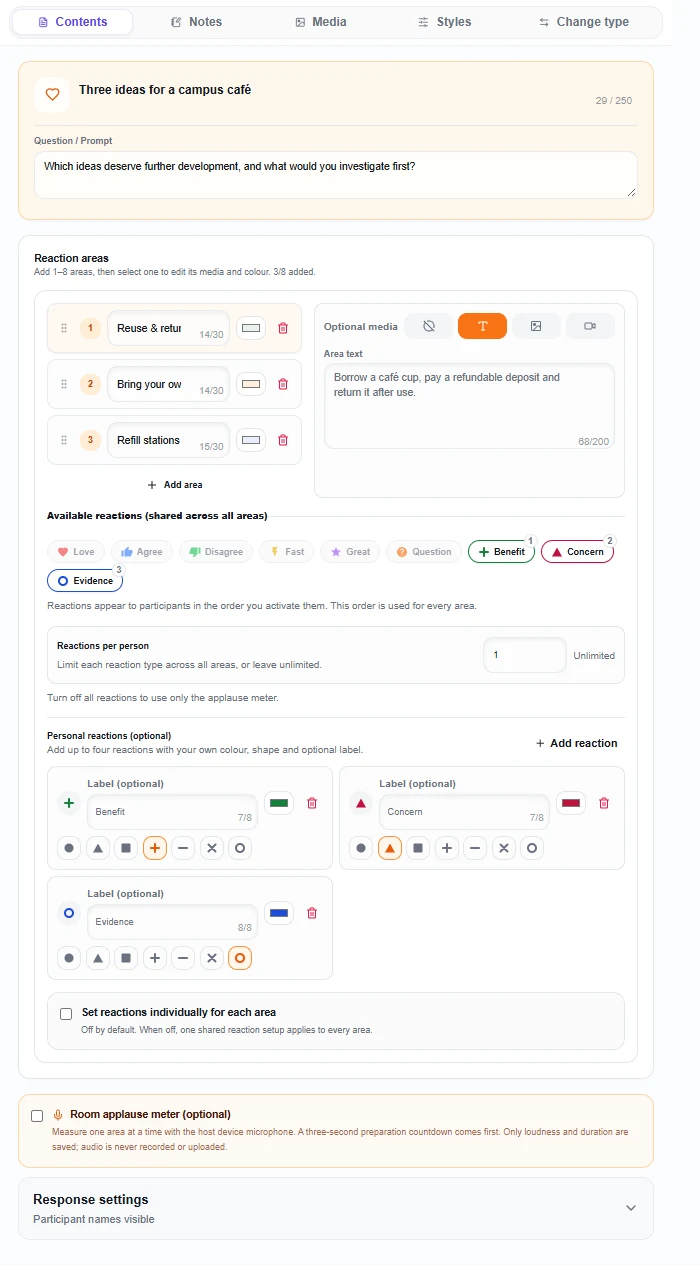
- Add the card. In the Activity Cards editor, choose Add Activity, then React Card. Give it a title and use Question / Prompt to explain the task. For example: “Which ideas deserve further development, and what would you investigate first?”
- Create the reaction areas. Under Reaction areas, use Add area to create between one and eight areas. Give each a clear topic title, choose its colour and use the reorder handles to arrange the display. Titles can contain up to 30 characters.
- Give each area context. Select an area to edit its Optional media. Choose None, Text, Image or Video. Text allows up to 200 characters, enough for a short proposal or claim. Image and video areas have Fit inside frame and Cover frame controls; images in Cover mode also offer crop adjustments. Use media you have permission to share.
- Choose the available reactions. The built-in choices are Love, Agree, Disagree, Fast, Great and Question. Enable only the reactions that make sense for your task. By default, the same selection applies to every area.
- Make the reactions your own. Under Personal reactions (optional), choose Add reaction. You can add up to four, each with its own colour, shape and optional label of up to eight characters. “Benefit”, “Concern” and “Evidence” work well for evaluating proposals. Explain what each means before participants begin.
- Set the allowance. Use Reactions per person to limit each reaction type across all areas, or leave it Unlimited. A value of 1 gives each participant one use of each enabled type on this card. It does not give them one use per area. With Benefit, Concern and Evidence enabled, that means up to three reactions altogether.
- Review the remaining settings. Enable Set reactions individually for each area if different topics need different reaction choices. This changes which reactions are available for each area; it does not create a separate allowance for each. Review Show responses live, Anonymous responses and your additional instructions, then preview and save the Activity Cards.
Start with two or three areas and two or three reactions. Eight areas may suit a broad workshop, but a smaller board leaves more space for reading and discussion. Use both shapes and labels for custom reactions so colour is not the only distinction.
What participants do
Participants join the session through its link, QR code or session code without needing an edauthor account. When you present React Card, they see the areas and a reaction tray on their device.
The instruction is “Drag a reaction onto a card.” They drag an icon from the tray onto the relevant area using a mouse or touch. Dropping it onto an eligible area sends that reaction. There is no separate Submit step, and simply tapping the icon does not send it.
Keyboard users can focus a reaction, press Space to pick it up, use the arrow keys to choose an area and press Space again to drop it. Enter also works for pickup and drop; Escape cancels. Images can be opened for a closer look without submitting a reaction.
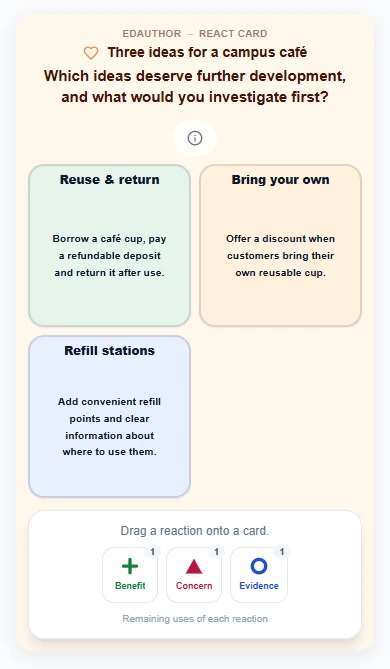
Each accepted drop is a new reaction. With an allowance, the tray counts down the remaining uses of that type across the card; an exhausted type becomes unavailable. With Unlimited, the same person can react repeatedly, including to the same area. Ask people to read and think before dropping, because this is an accumulating response rather than a single answer they select and replace.
Flip the topics to explore the counters
On the host screen, new reactions animate over the relevant area when responses are visible. Click an area's title or non-media surface to flip it and reveal the counters for its enabled reactions. Click again to return to its content. Each area flips independently, so you can keep a proposal visible while opening another area's counters, or show the counters for several areas together.
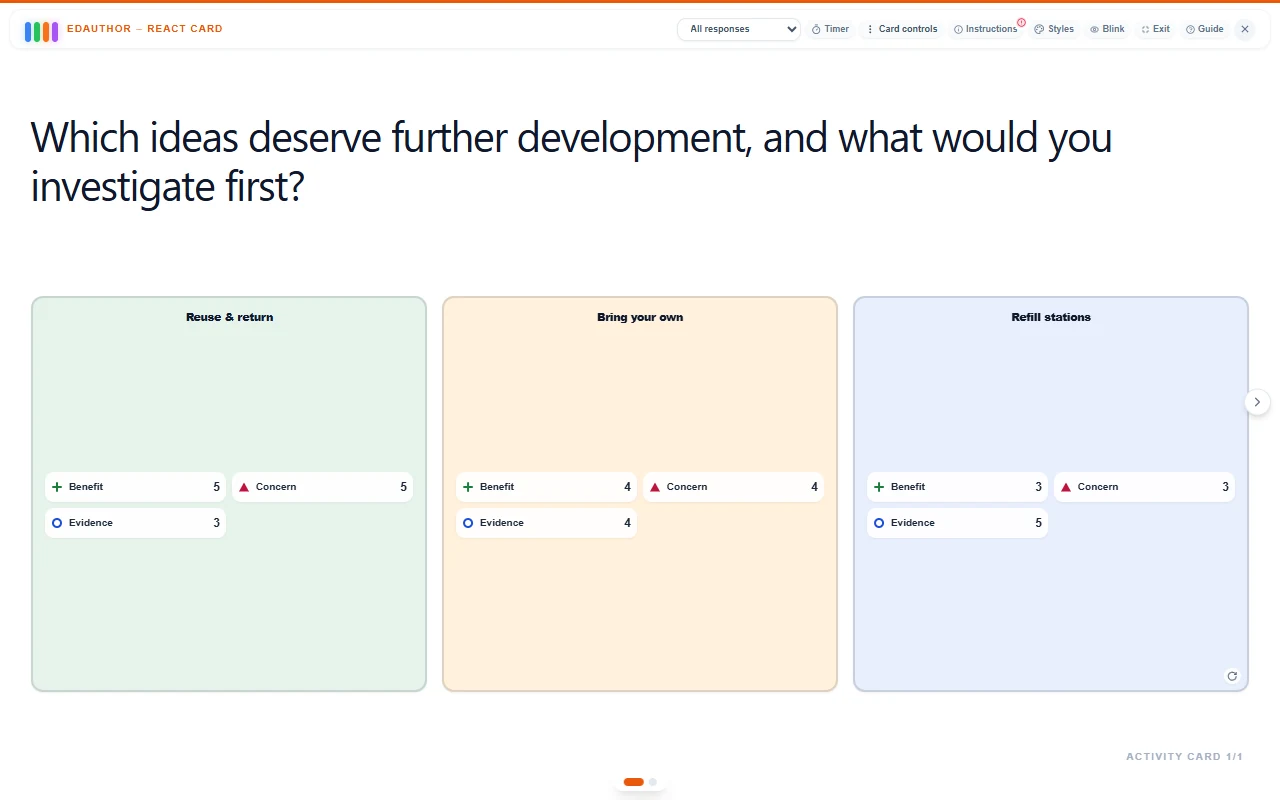
The counters show reactions, not necessarily unique people. If repeated reactions are allowed, a count of 12 might include several contributions from the same person. Even with one use per type, the total across different types is not a headcount: one participant might use Benefit, Concern and Evidence. A missing reaction can mean uncertainty, an unused allowance or a practical difficulty.
Ask what lies behind the pattern. “What would make this concern easier to resolve?” invites more useful reasoning than treating the largest count as the winner. React Card does not mark reactions correct or award quiz points.
If participants already belong to session groups, Response view lets you select a group and inspect its reactions, then return to All responses. Compare groups by switching the filter. Several topic areas can appear together, but React Card does not provide the Segment by group panel layout used by some other cards. Participants still react individually; assigning a group leader does not turn React Card into one collective submission.
With Anonymous responses enabled, participant nicknames are replaced with anonymous identities in React Card results and exports. Explain the setting and avoid asking participants to identify themselves when discussing a sensitive response. A reaction can flag something to explore, but it cannot tell you the contributor's reasoning by itself.
Choose a reaction pattern that fits the task
| Teaching purpose | Suggested setup | Useful follow-up |
|---|---|---|
| Notice questions during a discussion | Enable Question and allow repeated reactions across two or three topics | “Which point needs an example or a clearer explanation?” |
| Give feedback on proposals | Use Benefit, Concern and Evidence, with one use of each per person | “Which benefit matters, and what evidence would address the concern?” |
| Explore contrasting claims | Enable Agree, Disagree and Question; define the claims precisely | “Can someone explain a different interpretation?” |
| Prioritise a next step | Enable one custom reaction such as Priority, with an allowance of 1 | “What made this the most useful next step?” |
An allowance changes the task. A single Priority reaction asks someone to choose where to place it. Repeated Question reactions allow signals to accumulate while the conversation develops. State that difference in your instructions, and keep the same settings across areas if you intend a like-for-like comparison.
A 15-minute proposal-feedback workshop
This suggested activity suits a university seminar on consumer behaviour, design or evaluating evidence. The scenario is a campus café deciding how to reduce disposable-cup use. The activity explores proposals and information needs; it is not a report of a delivered workshop or a study of actual consumer preferences.
Create three Text areas with these titles and descriptions:
- Reuse & return: “Borrow a café cup, pay a refundable deposit and return it after use.”
- Bring your own: “Offer a discount when customers bring their own reusable cup.”
- Refill stations: “Add convenient refill points and clear information about where to use them.”
Disable the built-in reactions and add Benefit, Concern and Evidence as personal reactions, using distinct labels, shapes and colours. Set Reactions per person to 1 and leave the same reactions available across all areas.
Use this prompt: “Which ideas deserve further development, and what would you investigate first?” Give these instructions aloud and in the card's additional instructions: “Use Benefit where you see the strongest opportunity, Concern where you see an important obstacle, and Evidence where you most need information. You have one of each across the whole board. You may put different reactions on the same proposal.”
| Stage | Time | Facilitator action | Card or tool | Purpose |
|---|---|---|---|---|
| Frame | 2 minutes | Introduce the café decision and explain the three reaction meanings | React Card topic fronts | Establish the shared question |
| Think | 2 minutes | Allow quiet reading before anyone reacts | React Card participant view | Give everyone time to consider the proposals |
| React | 2 minutes | Ask each participant to place their available reactions | Three personal reactions, allowance 1 | Identify benefits, concerns and information needs |
| Discuss | 6 minutes | Flip the areas, read the counters and invite explanations | React Card host counters | Explore the reasons behind the pattern |
| Reflect | 3 minutes | Ask for one useful next step and its justification | Thought Bubble | Turn a quick signal into a reasoned response |
Discussion prompts can include: “Which proposal attracted both a benefit and a concern?” “What information would change your judgement?” “Could the same feature help one customer and inconvenience another?” Invite a view that the counters do not capture, including from people who did not use all their reactions.
Finish with a Thought Bubble: “Which proposal would you investigate first, and what evidence would you collect?” React Card shows where attention gathers; the written explanation gives you material for a deeper discussion. For a second round after discussion, use a separate React Card with the same settings to preserve the first round. Any comparison between rounds is facilitator-led, not automatic tracking of individual change.
Add a room applause moment
React Card also includes a Room applause meter (optional). Enable it in the editor and set Applause time for each area using Hours, Minutes and Seconds. The default is 10 seconds. Setting all three to 0 lets you stop the measurement manually.
In the host's full-screen view, select an area's microphone control, Measure applause for [area title], and allow microphone access in the browser. A three-second preparation countdown comes before measurement. Measure one area at a time. A timed round ends automatically; the stop control ends it earlier.
The host device analyses microphone input locally. Audio is not recorded or uploaded; the saved results are numerical intensity and duration measurements. Flipping the area shows the Room applause figures. These are relative microphone measurements, not calibrated decibels, a count of people or a reliable measure of learning. Room acoustics, device position and other sounds can affect them.
Use this as an optional celebratory moment after project pitches or a light-hearted workshop choice. Offer device-based reactions as an alternative for anyone who prefers not to clap. The meter measures sound near the host device, so it should not be presented as a comparable measure of distributed online applause. You can disable all on-device reactions when deliberately running an applause-only activity.
Frequently asked questions
What makes React Card an edauthor original?
Its original Activity Card design combines several topic or media areas with direct reaction placement, live animation, flip-to-view counters, custom reactions and an optional applause meter. You can shape both the material and the response vocabulary around the discussion.
How many topics and custom reactions can I use?
Use one to eight reaction areas and up to four personal reactions, alongside the six built-in types. Areas support a title with optional text, image or video. You choose which reactions are available across the board or for each area.
Does a limit of 1 mean one reaction on every topic?
No. It means one use of each enabled reaction type per participant across the whole card. With three types enabled, a participant has up to three drops in total. Unlimited allows repeated reactions; counters then count those events, not distinct people.
Can I compare groups or collect one answer per group?
You can view existing groups' reactions by switching Response view and return to All responses. Reactions remain individual. For a supported leader-submitted group answer with member suggestions, see Scratch Card or Quiz.
Do participants need an account or a microphone?
Participants do not need an account to join and react. Their microphones are not used by the applause meter. That optional feature requires microphone permission on the host device only.
Turn a quick reaction into a useful question
Choose the ideas. Define the reactions. Give people thinking time. Then flip the areas and use the counters to open a conversation.
For a single choice or marked answer, explore Multiple Choice. For an ordered set of priorities, use Rank Items. Choose React Card when several ideas need their own visible stream of audience feedback.
Give every reaction somewhere to lead.
Create a React Card and connect the room's signals to the next question worth discussing.
Start creating with edauthor